
Yuno is a payment orchestration platform that lets you connect multiple payment providers and payment methods through a single integration to expand global coverage.
Supported payment methods: Cards, Apple Pay, Google Pay, Alipay, DANA, and GCash.
Add Airwallex as the payment gateway
Follow these steps to connect your Airwallex account to Yuno.
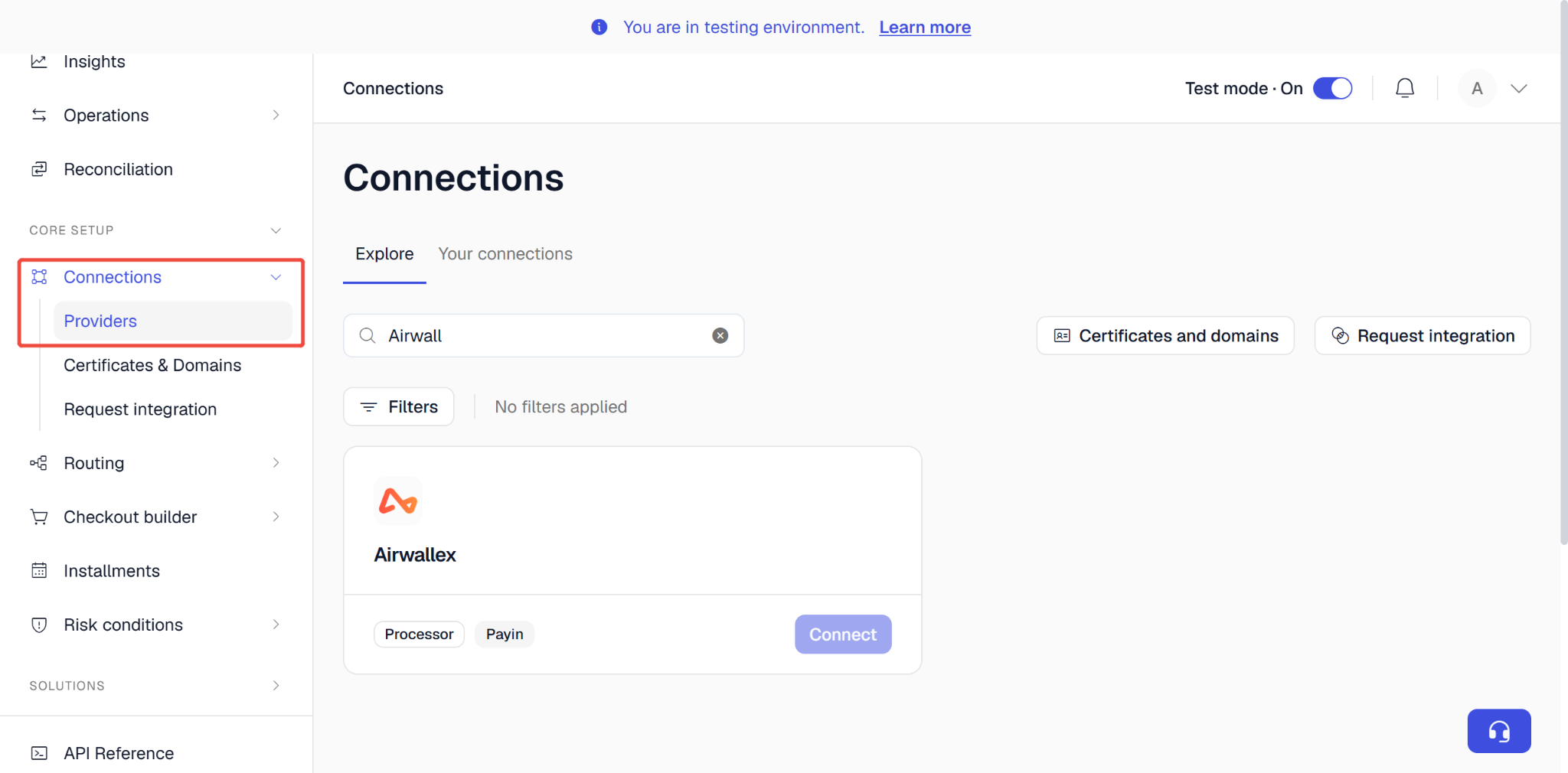
Step 1. In your Yuno dashboard, go to Connections, find Airwallex, and select Connect.
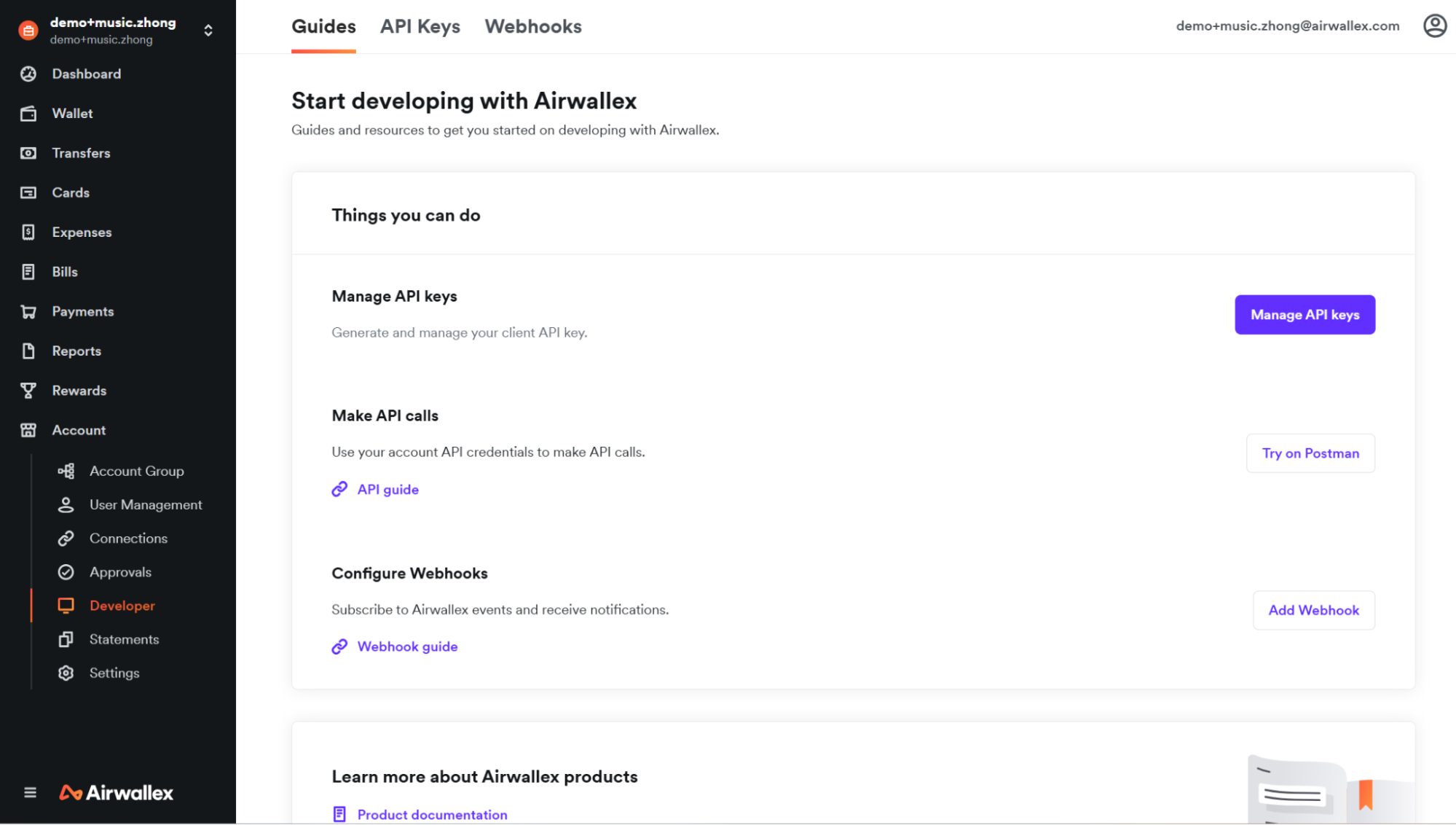
Step 2. In a separate tab, log in to the Airwallex web app. In the sidebar, go to Account and select Developer.
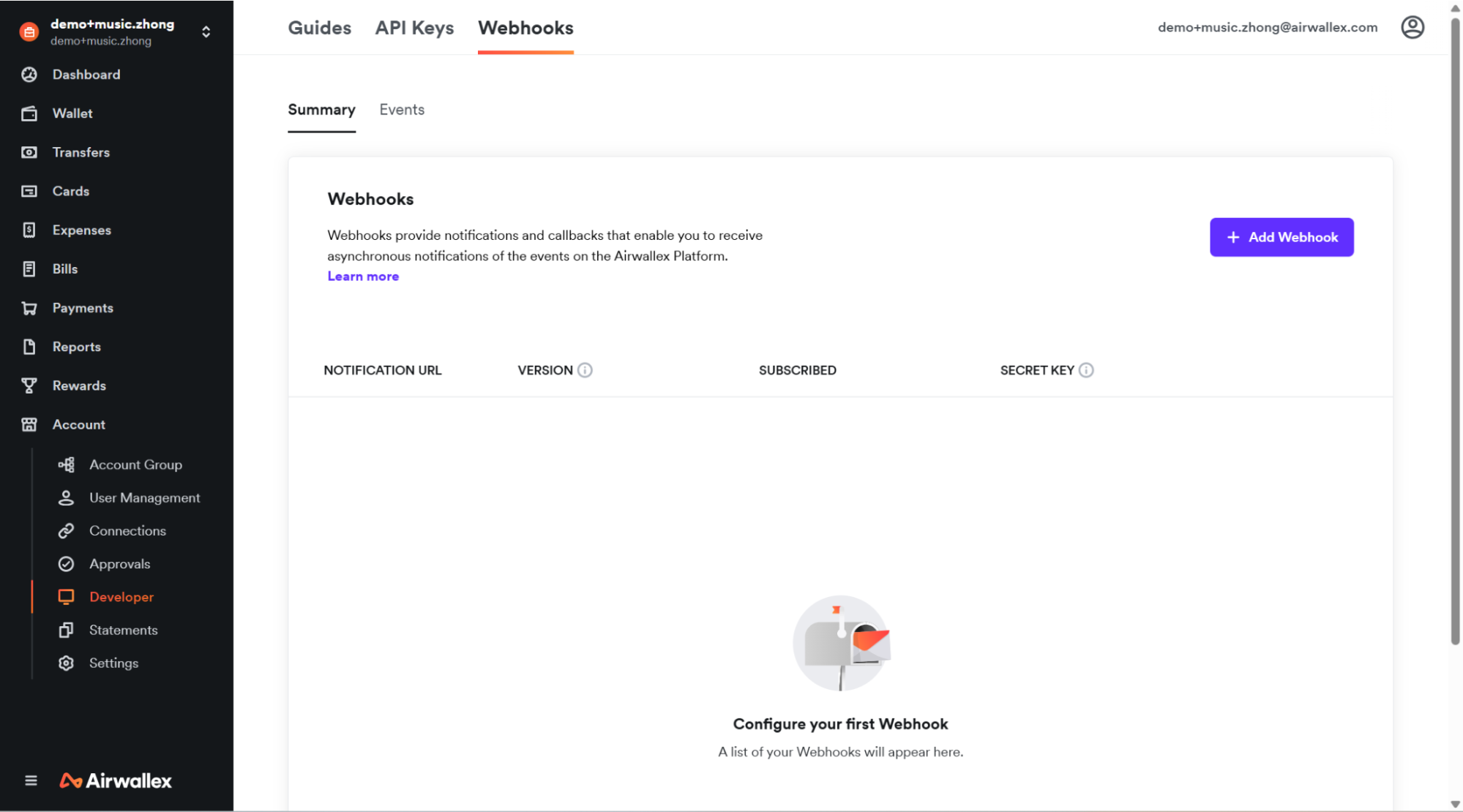
Step 3. At the top of the page, select Webhooks > Add webhook.
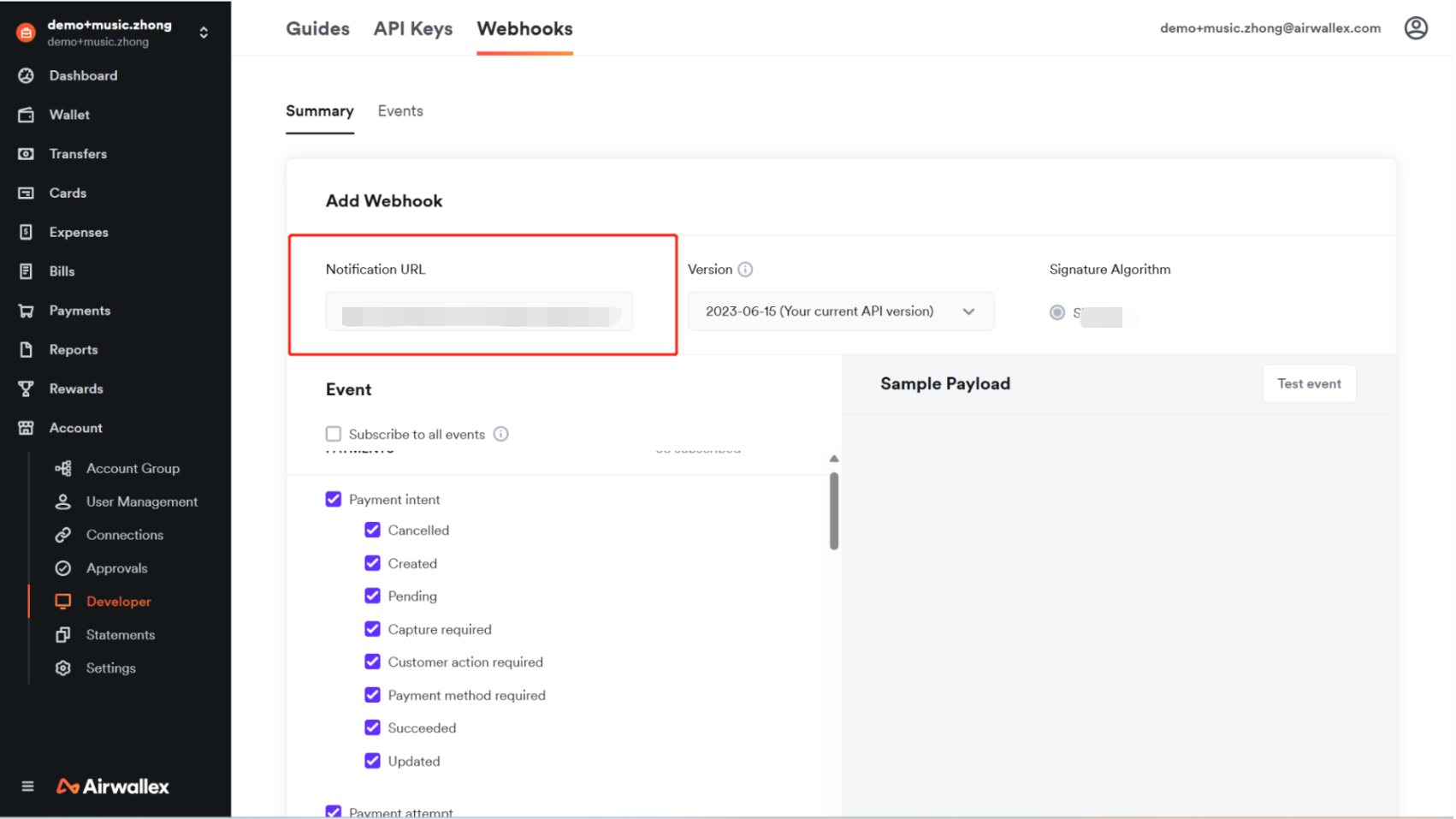
Step 4. In the Notification URL field, enter the Yuno webhook URL for your environment. Use https://sandbox.y.uno/airwallex-webhook/v1/confirmations for sandbox mode and https://prod.y.uno/airwallex-webhook/v1/confirmations for production mode.
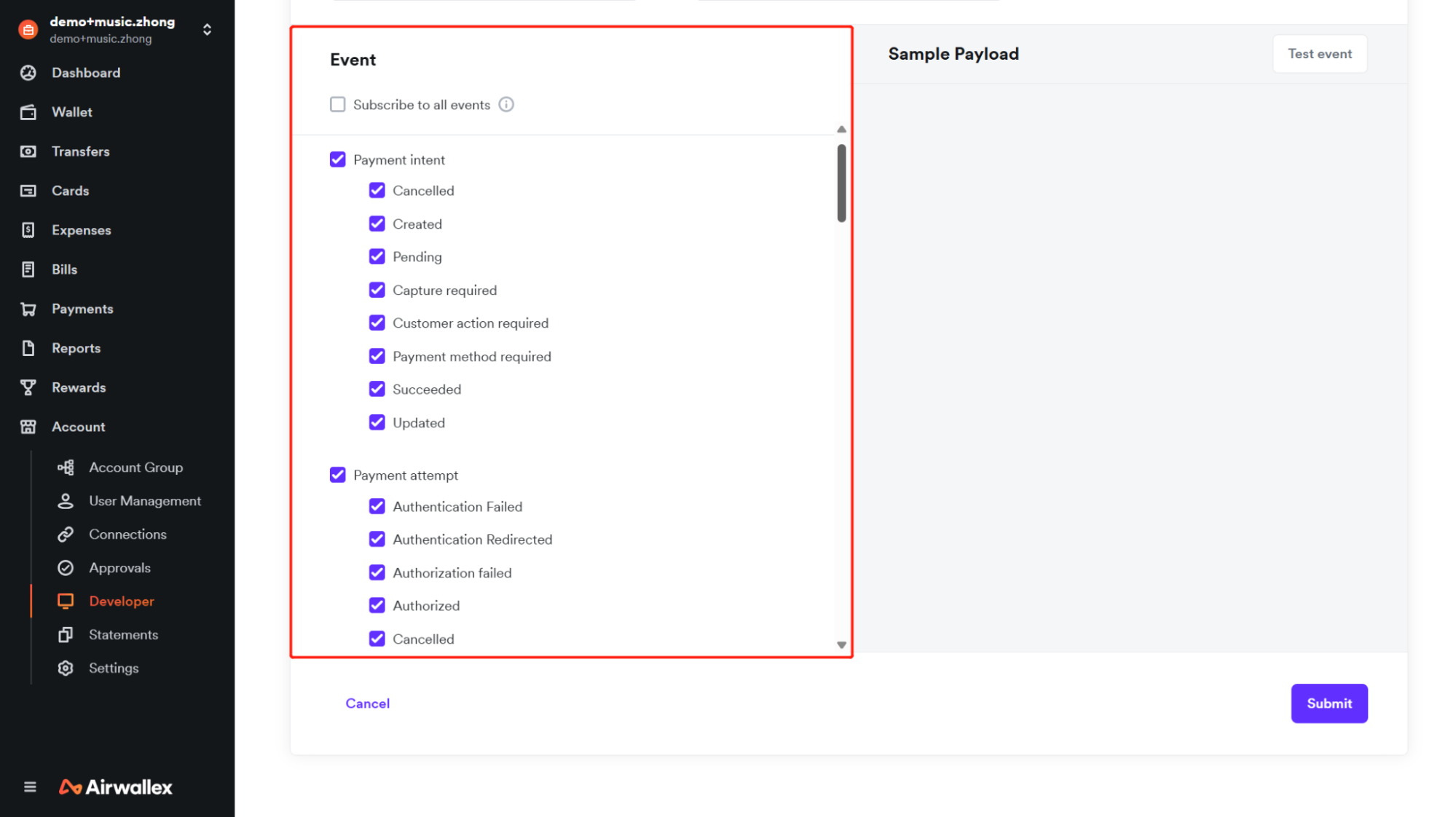
Step 5. In the Events section, select all items for Payment Intent, Payment Attempt, Refund, and Payment Dispute, then select Submit.
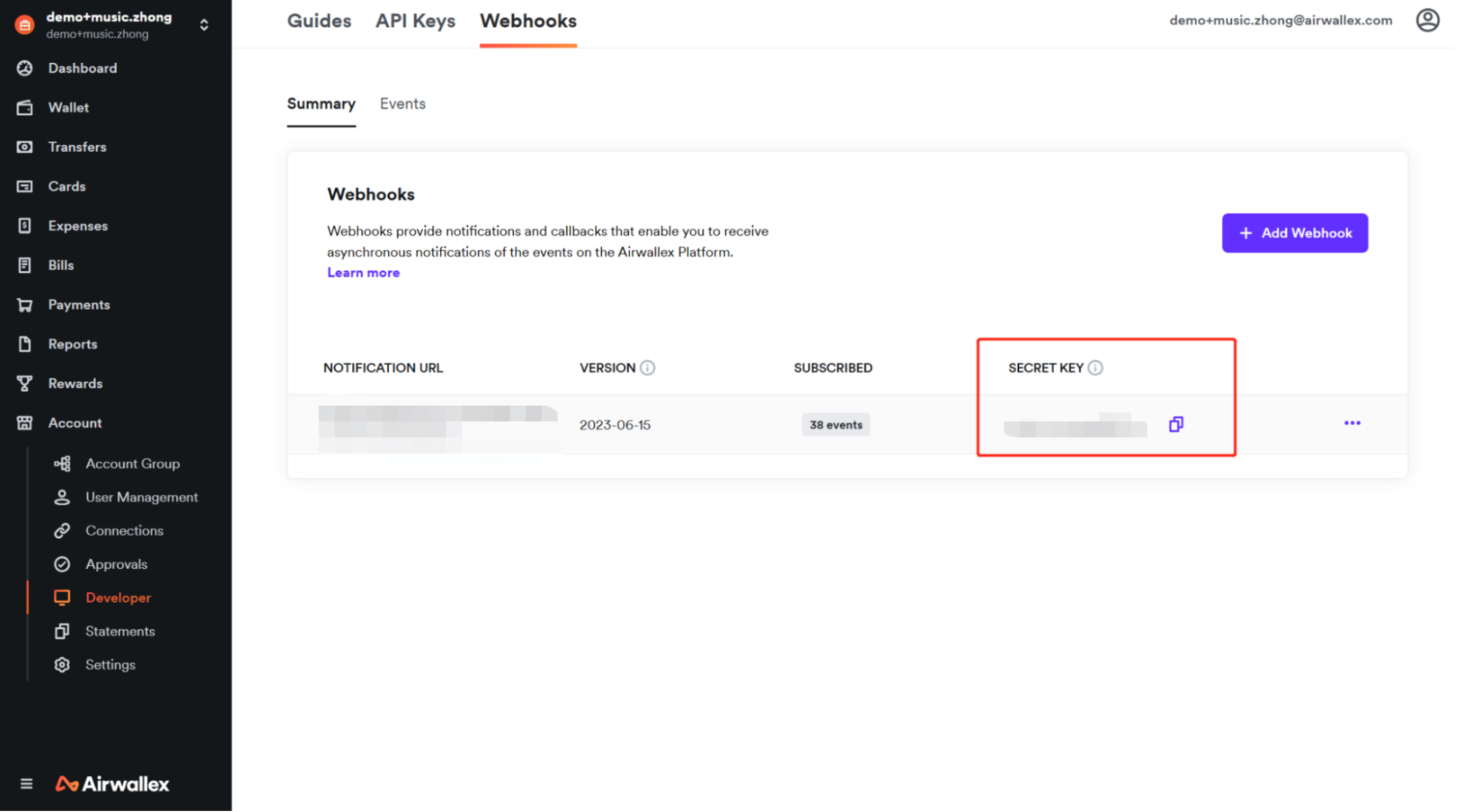
Step 6. Copy the Secret key of the webhook you just created.
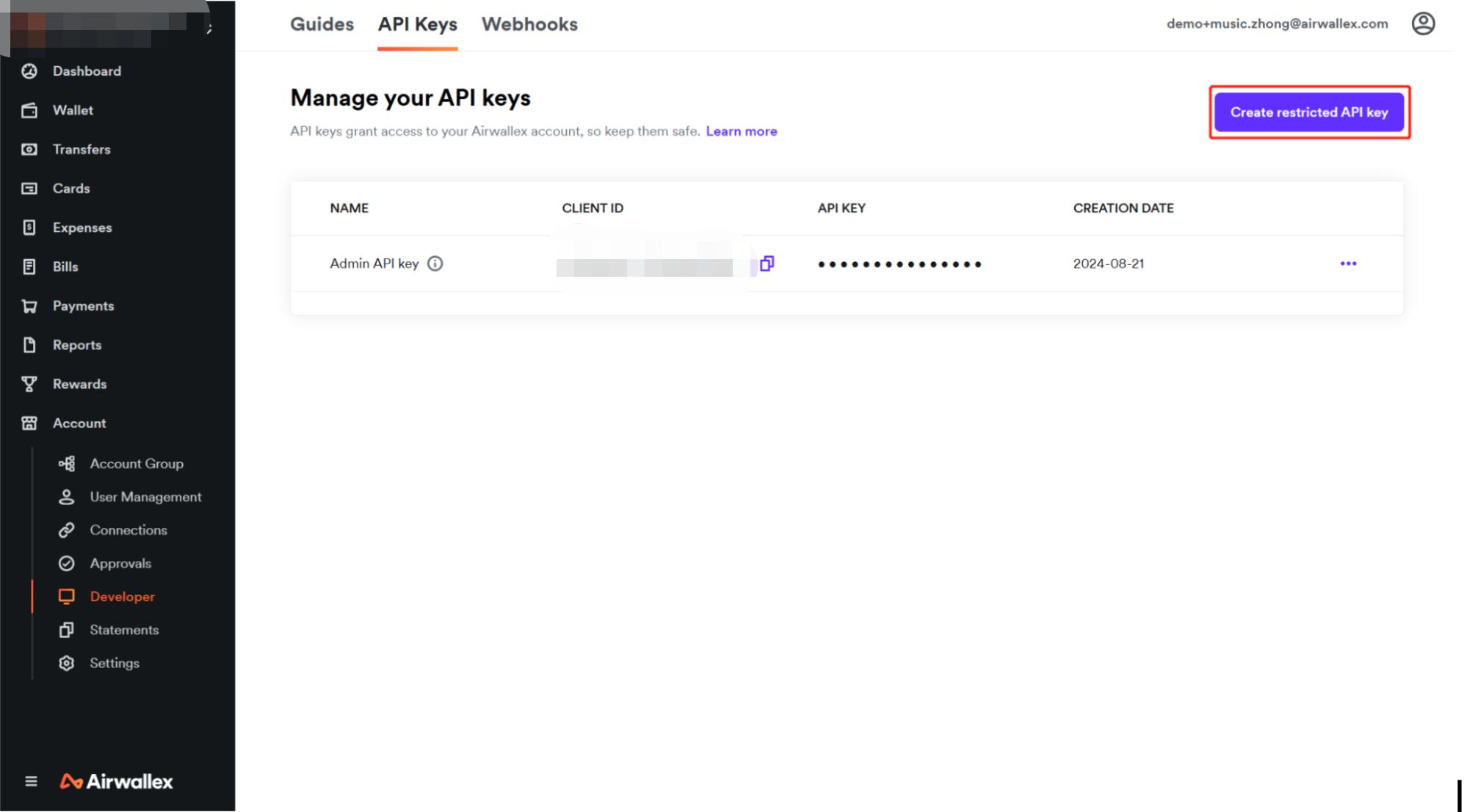
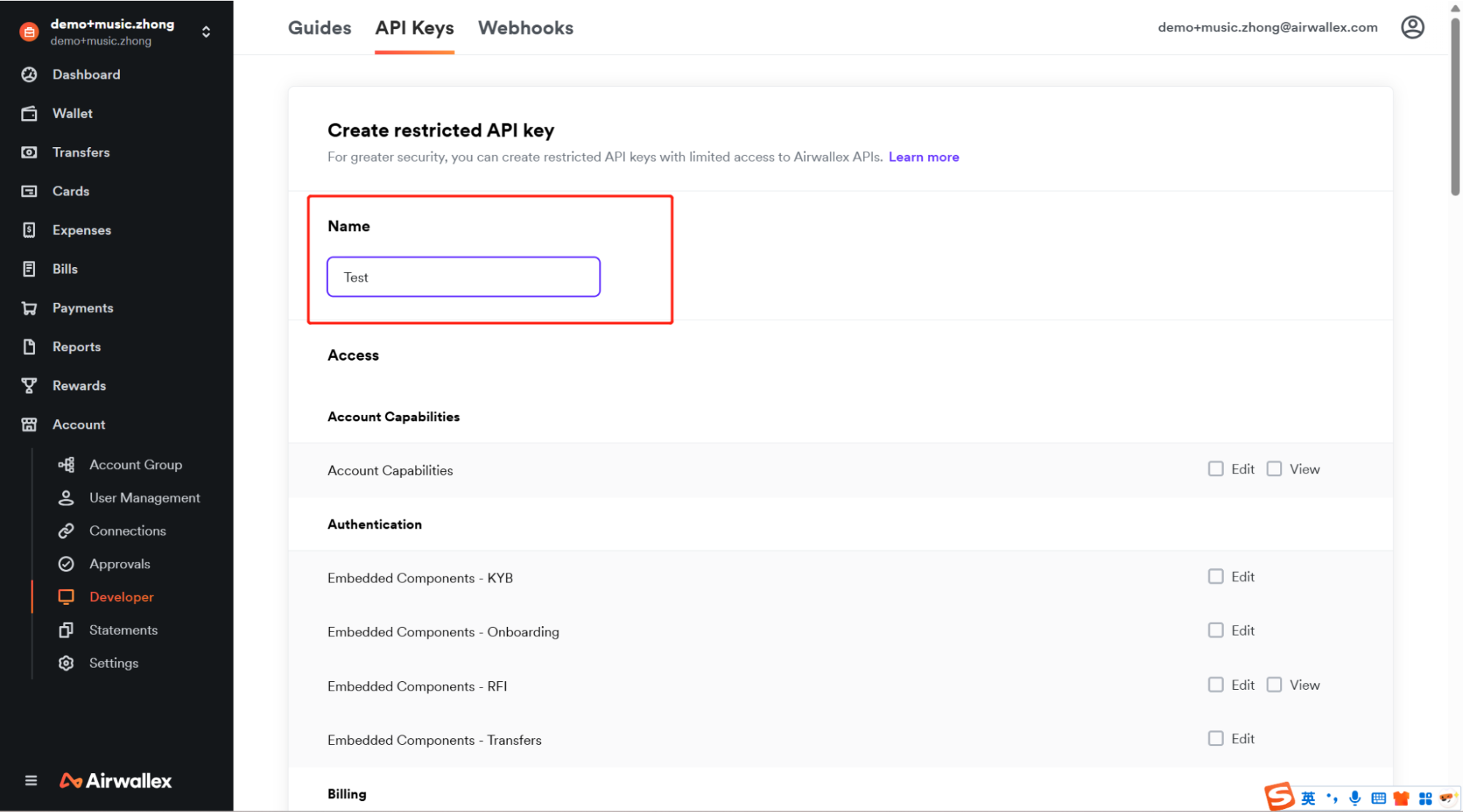
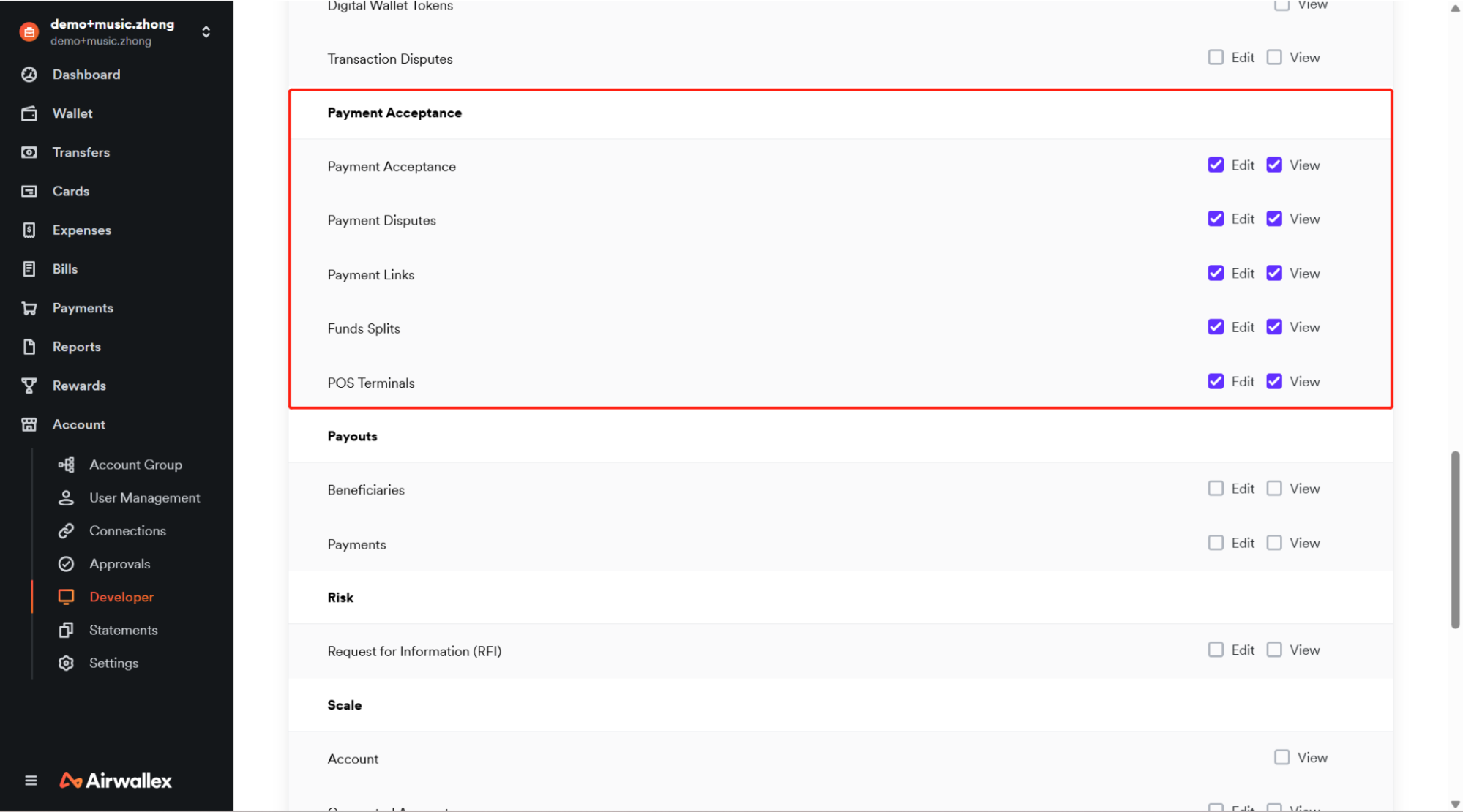
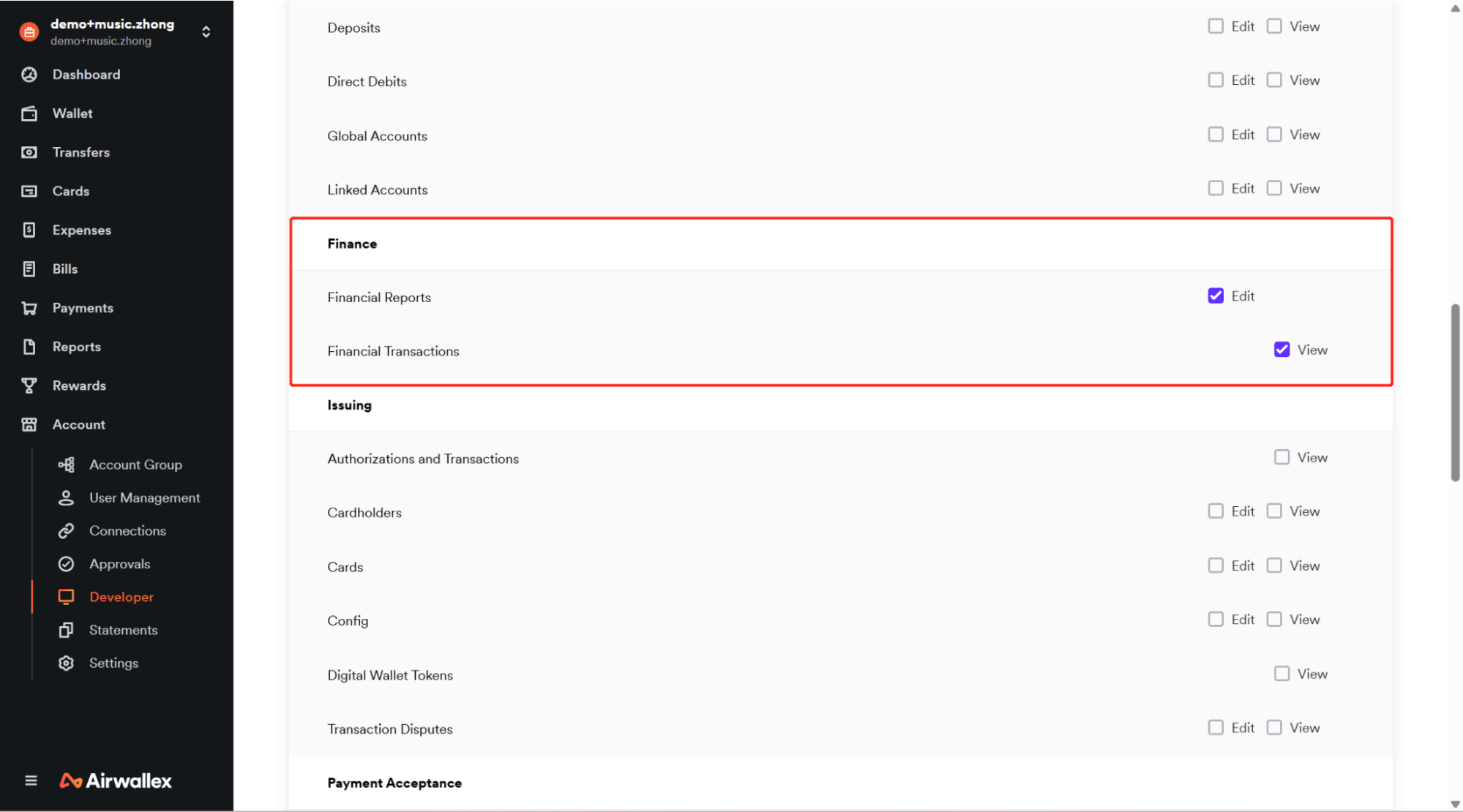
Step 7. Copy your Client ID, then select Create restricted API key. Enter a name, select the Payment Acceptance and Finance access scopes, then select Create API Key and copy the scoped API key. For more information, see Scoped API keys.
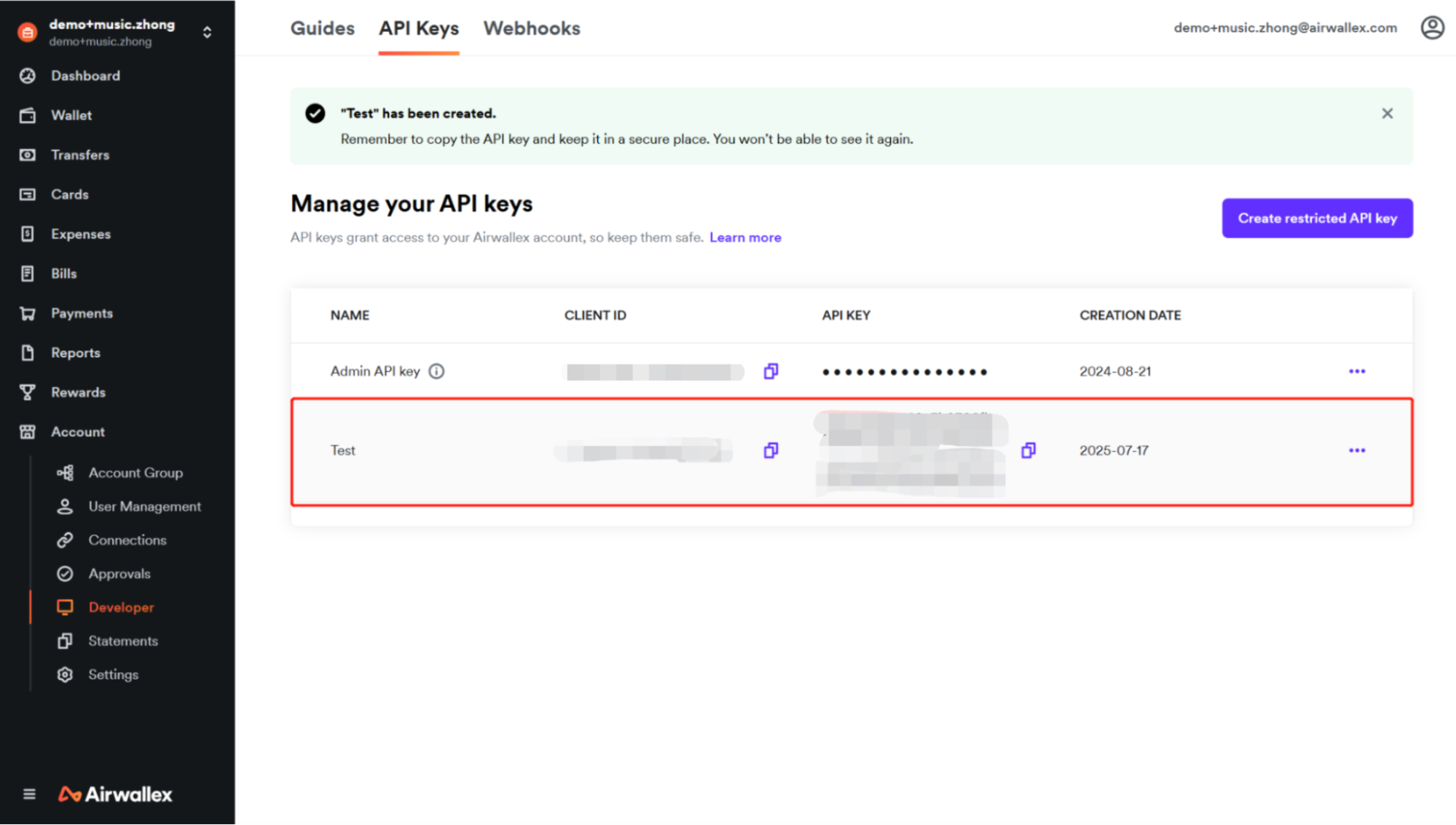
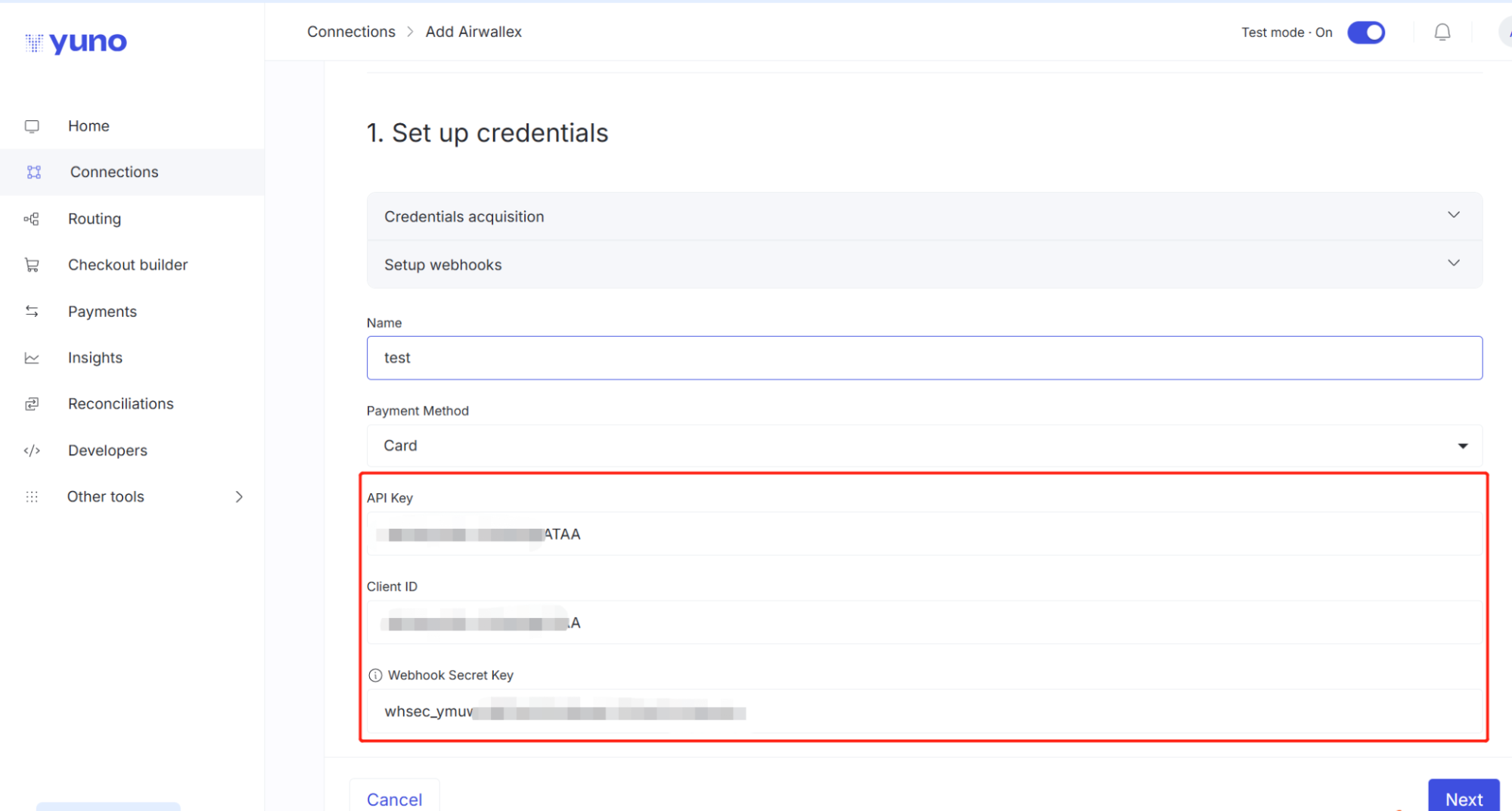
Step 8. Return to your Yuno dashboard and paste the API key, Client ID, and webhook secret key. Select Next.
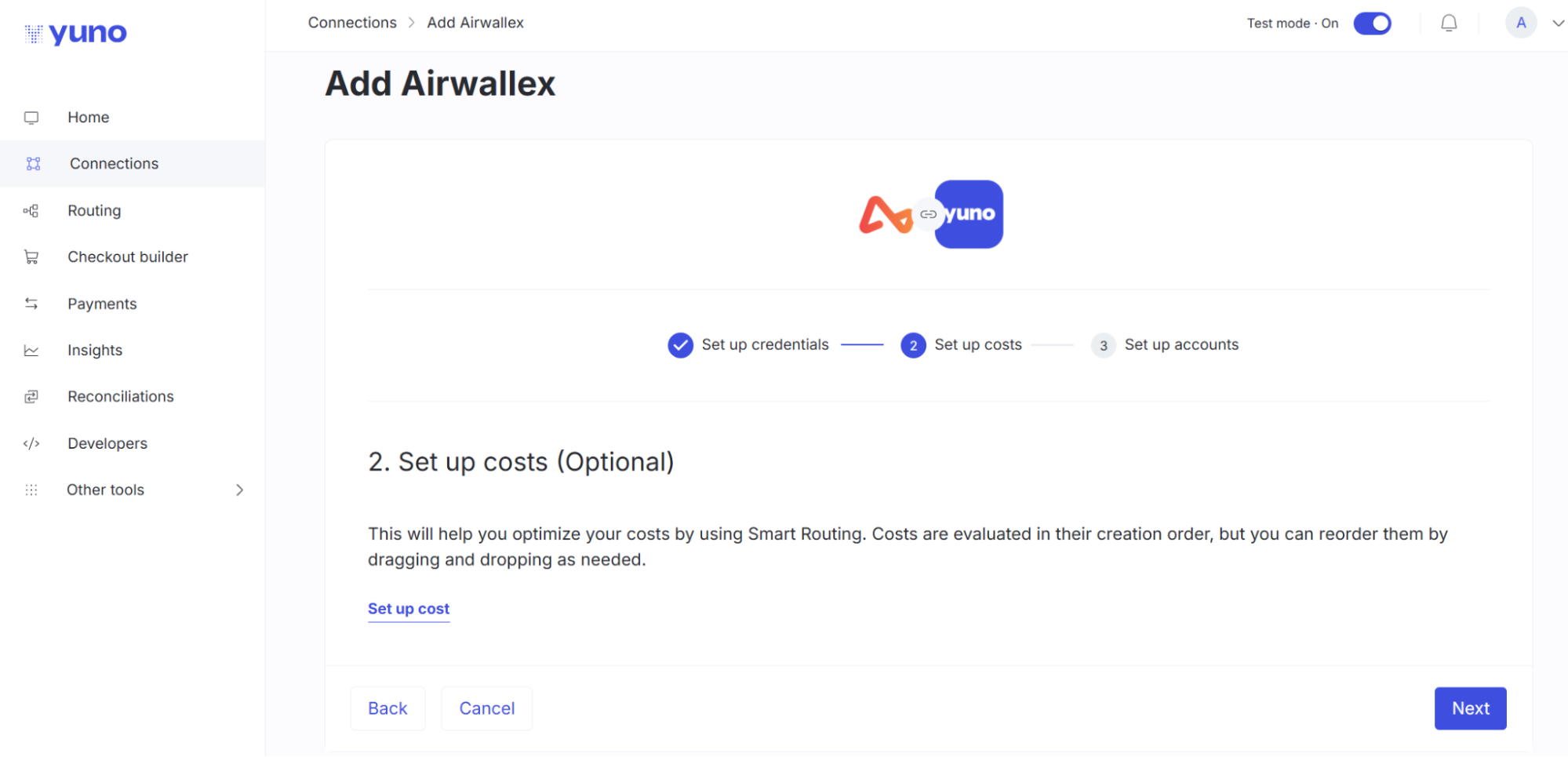
Step 9. Optionally set up costs, or skip this step. Select Next.
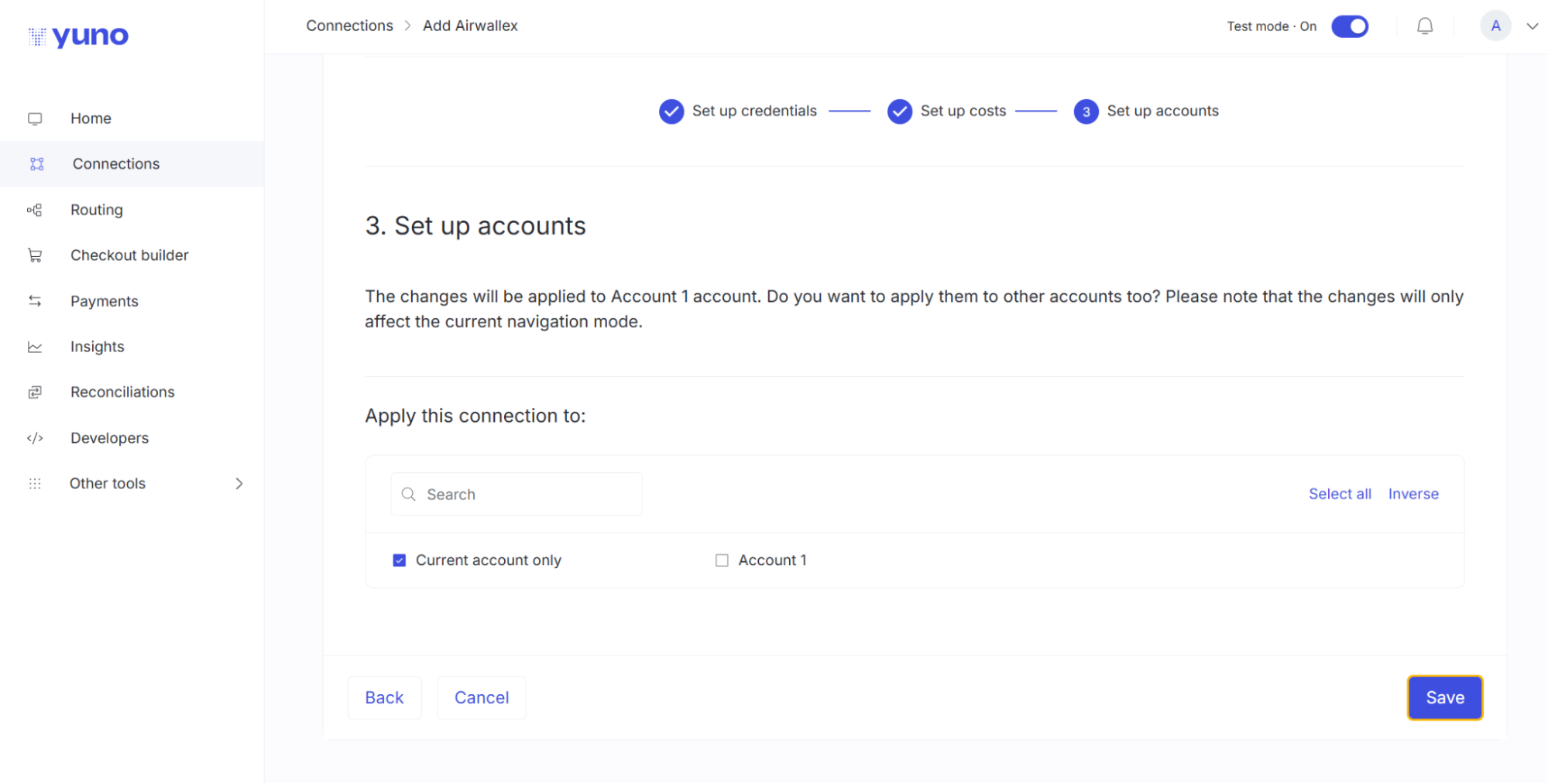
Step 10. Choose the Yuno account you want to connect to Airwallex, then select Save.
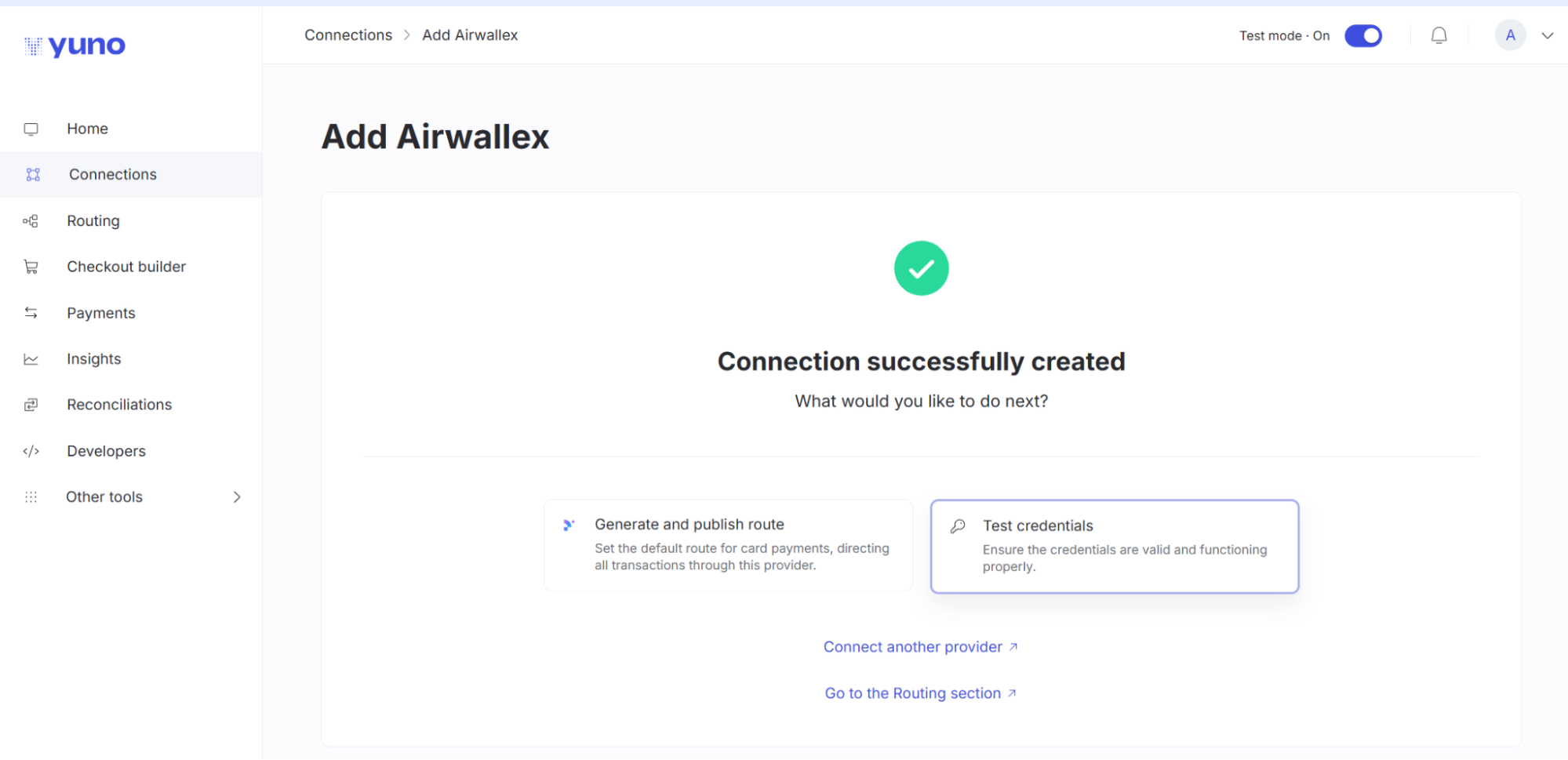
Your Yuno account is now connected to your Airwallex account.
3DS and risk engine
If you plan to use a third-party 3-D Secure provider or risk engine, including services provided by Yuno, coordinate with your Airwallex account manager or customer support for implementation support.
Settlement report and reconciliation
You can download the settlement reports for reconciliation from the web app > Reports page. See Settlement reports for more details.