

Manage API keys
Airwallex uses your API keys to authenticate API requests. Your API key and Client ID are used to obtain an access token, which authorizes access to Airwallex APIs.
The Airwallex API suite includes both organization-level and account-level API resources. You can generate API keys for accessing API resources at the organization-level, account-level, or both. For information on organization and accounts, see Global Entity Management.
There are two main types of API keys: admin API keys and scoped API keys (previously called restricted API keys).
Learn how to create and manage your admin and scoped API keys using the Developer app in the Airwallex web app. Developer app access requires the Owner, Admin, or Developer user role.
Before you create or use API keys in production, read API key best practices for guidance on least privilege, network restrictions, secure storage, and rotation.
Admin API keys
Admin API keys grant unrestricted access to all Airwallex APIs for the organization or account they are issued to. An admin key issued to an organization cannot access resources at the account level, and an account admin key cannot be used across multiple accounts.
Because you can't limit their permissions, we don't recommend using admin keys for new integrations. If you still use an admin API key, migrate that usage to scoped API keys. For broader guidance, see API key best practices.
The procedures below are for customers who still need to create or regenerate an admin key.
Generate admin API key for the first time
Follow these steps to create an admin API key for your Airwallex organization or account.
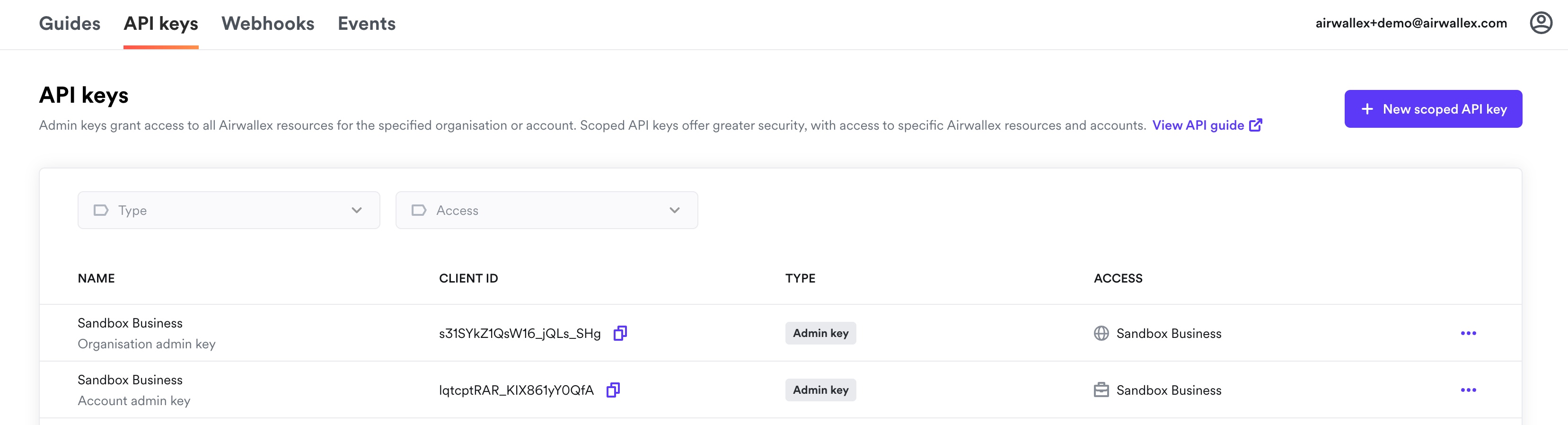
- Log in to the Airwallex web app and select Developer > API keys.
- Click Generate next to the organization or account to create an admin key for that organization or account.
- Enter your login password when prompted.
- Copy the generated API key and store it securely in a password manager or secret store. You will not be able to view this key again in the web app.
Regenerate admin API key
If you lose your API key or suspect it has been compromised, you must regenerate your API key as you cannot recover it from the Airwallex web app. Regenerating your API key will overwrite your old key, and you will no longer be able to use the old key to connect to Airwallex APIs. Your Client ID will remain unchanged.
Follow these steps to regenerate your admin API key:
- Log in to the Airwallex web app and select Settings > Developer > API keys.
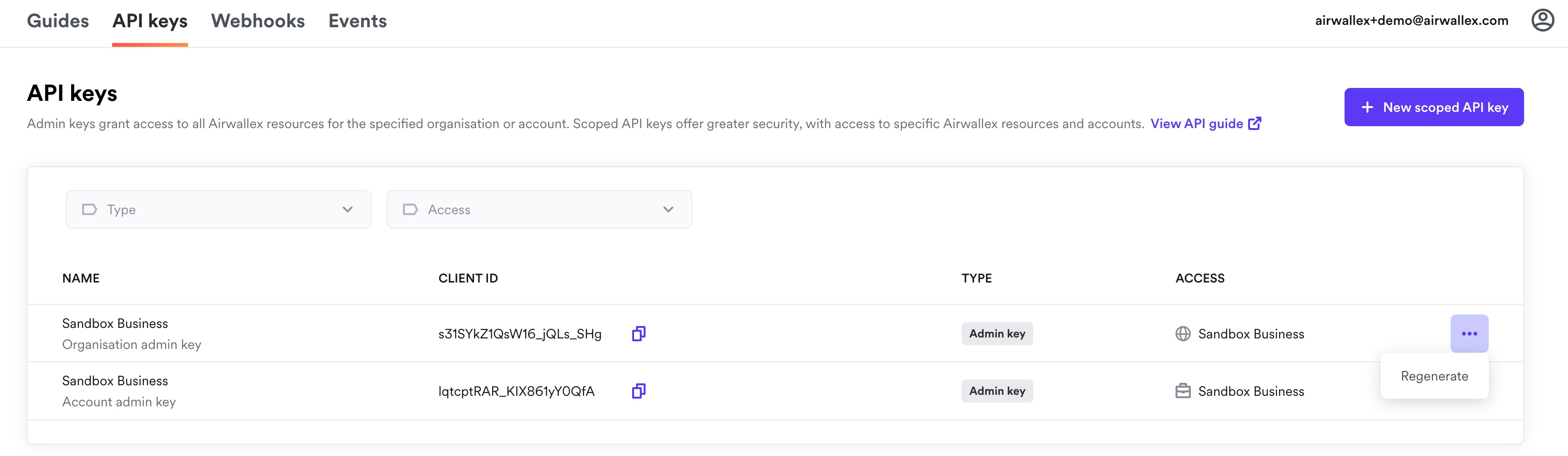
- Click the three dots (…) next to your admin API key, and choose Regenerate.
- Enter your login password.
- Copy the new API key and store it securely, as you will not be able to view it again in the web app.
Scoped API keys
Scoped API keys (previously called restricted API keys) provide secure, limited access to specific Airwallex APIs for an organization and/or account(s). You can specify which Airwallex APIs each scoped API key can access, including the permitted action (Read or Write) for each resource. By using scoped API keys, you can minimize risk when developing or operating microservices. For example, you might use scoped API keys to connect only with Online Payments shopping platform plugins.
Scopes correspond to resource names in Airwallex APIs. Scopes with Read permissions allow access to GET endpoints, while Write permissions allow access to both GET and POST endpoints. Scoped API keys are available for select APIs only. See API key scopes for the full catalog of available scopes.
Create a scoped API key
Follow these steps to create scoped API keys:
- Log in to the Airwallex web app and select Settings > Developer > API keys.
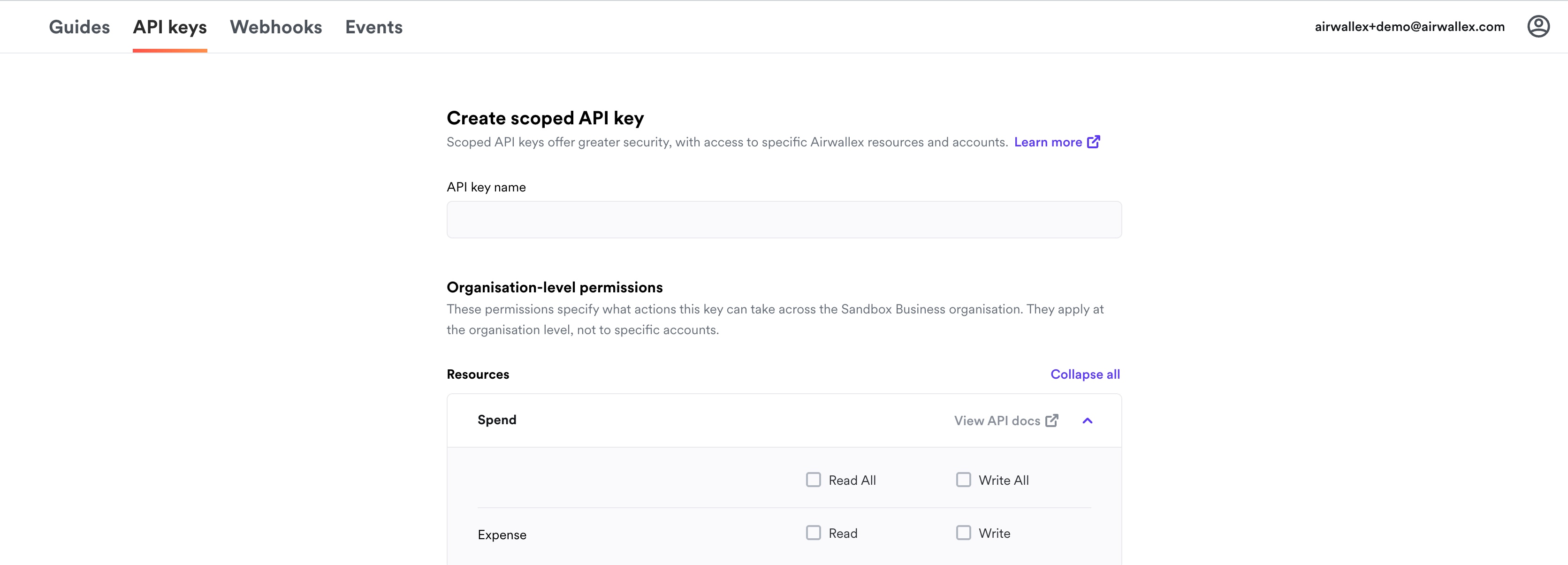
- Click New scoped API key.
- Enter a name for the scoped key in the API key name field.
- Configure the desired scope for this API key based on the type of access you need:
- Organization-level only: To access organization-level resources (for example, Billing APIs), go to Organization-level permissions and select the API resources with Read and/or Write permissions you want to enable.
- Account-level only: To access account-level resources (for example, Payments APIs), go to Account-level permissions and:
- From the Account(s) dropdown, select one or more accounts or click Select all.
- In the Resources section, select the API resources with Read and/or Write permissions you want to enable.
- Both organization and account-level: To access both organization and account-level resources (for example, Billing and Payment APIs), configure both:
- Go to Organization-level permissions and specify the resources the API key can access at the organization level.
- Go to Account-level permissions and specify the resources the API key can access for each account.
- Click Create to generate the scoped API key.
- Copy the API key and store it securely, as you will not be able to view it again in the web app.
Create an access token using a scoped API key
To authenticate API requests using a scoped key, first create an access token by calling Obtain an access tokenAPI endpoint and providing the required header fields. This returns a bearer token that allows you to access Airwallex APIs in scope for the organization or account.
The access token remains valid for 30 minutes and should be reused for all API calls during that period. Do not call the authentication endpoint before each API request—store and reuse the token until it expires.
Header fields include:
x-api-key: Your scoped API key.x-client-id: Your client ID for this key.x-login-as: (Optional) The target account ID. See the scenarios below for when this header is required or optional.
1curl -X POST https://api.sandbox.airwallex.com/api/v1/authentication/login \2 -H 'Content-Type: application/json' \3 -H 'x-api-key: {{YOUR_SCOPED_API_KEY}}' \4 -H 'x-client-id: {{YOUR_CLIENT_ID}}' \5 -H 'x-login-as: {{YOUR_TARGET_ACCOUNT_ID}}'
Important considerations for the x-login-as header
Scoped API keys belong to an organization. The x-login-as header determines which account the access token is authorized for. Whether you need it depends on the permissions on the key and how many accounts it is linked to:
- Not required: If the key has organization-level permissions only, or is linked to exactly one account, omit the
x-login-asheader. The token includes the permissions granted to the key (organization-level, that account's permissions, or both). - Required for account access: If the key is linked to multiple accounts, include the
x-login-asheader when you need account-level permissions. The token then includes that account's permissions and any organization-level permissions granted to the key. If omitted, account-level permissions are not included. The token includes only organization-level permissions if the key has them, or no permissions if the key is account-only.
The table below shows which permissions the access token includes, depending on whether you send the x-login-as header.
| Key permissions | Accounts linked | x-login-as | Permissions without x-login-as | Permissions with x-login-as |
|---|---|---|---|---|
| Organization and account | Multiple | Required for account access | Organization-level only | Selected account and organization-level |
| Organization and account | Single | Not required | Account-level and organization-level | Account-level and organization-level |
| Organization only | — | Not required | Organization-level only | — |
| Account only | Single | Not required | Account-level only | Account-level only |
| Account only | Multiple | Required | None | Selected account |
Where to find your account ID: In the Airwallex web app, go to Settings > Account details. Your account ID is displayed in the Account Information section. Note that your account ID is different from your organization ID. The organization ID identifies your top-level organization, while the account ID identifies a specific account within that organization. When using the x-login-as header, provide the account ID (not the organization ID). For more information on how organizations and accounts are structured, see Global Entity Management.
Regenerate a scoped API key
Similar to the admin API key, you can regenerate scoped API keys if you've lost the API key or suspect it has been compromised. Regenerating your scoped key will overwrite your old key, and you will no longer be able to use the old key to connect to Airwallex APIs. Your Client ID will remain unchanged.
Follow these steps to regenerate your scoped API key for your Airwallex organization or account(s).
- Log in to the Airwallex web app and select Settings > Developer > API keys.
- Click the three dots (…) next to your scoped API key, and choose Regenerate.
- Enter your login password.
- Copy the new API key and store it securely, as you will not be able to view it again in the web app.
In addition to regenerating a scoped key, you can perform the following actions by clicking the three dots (…) next to the scoped key. All actions require you to enter your login password.
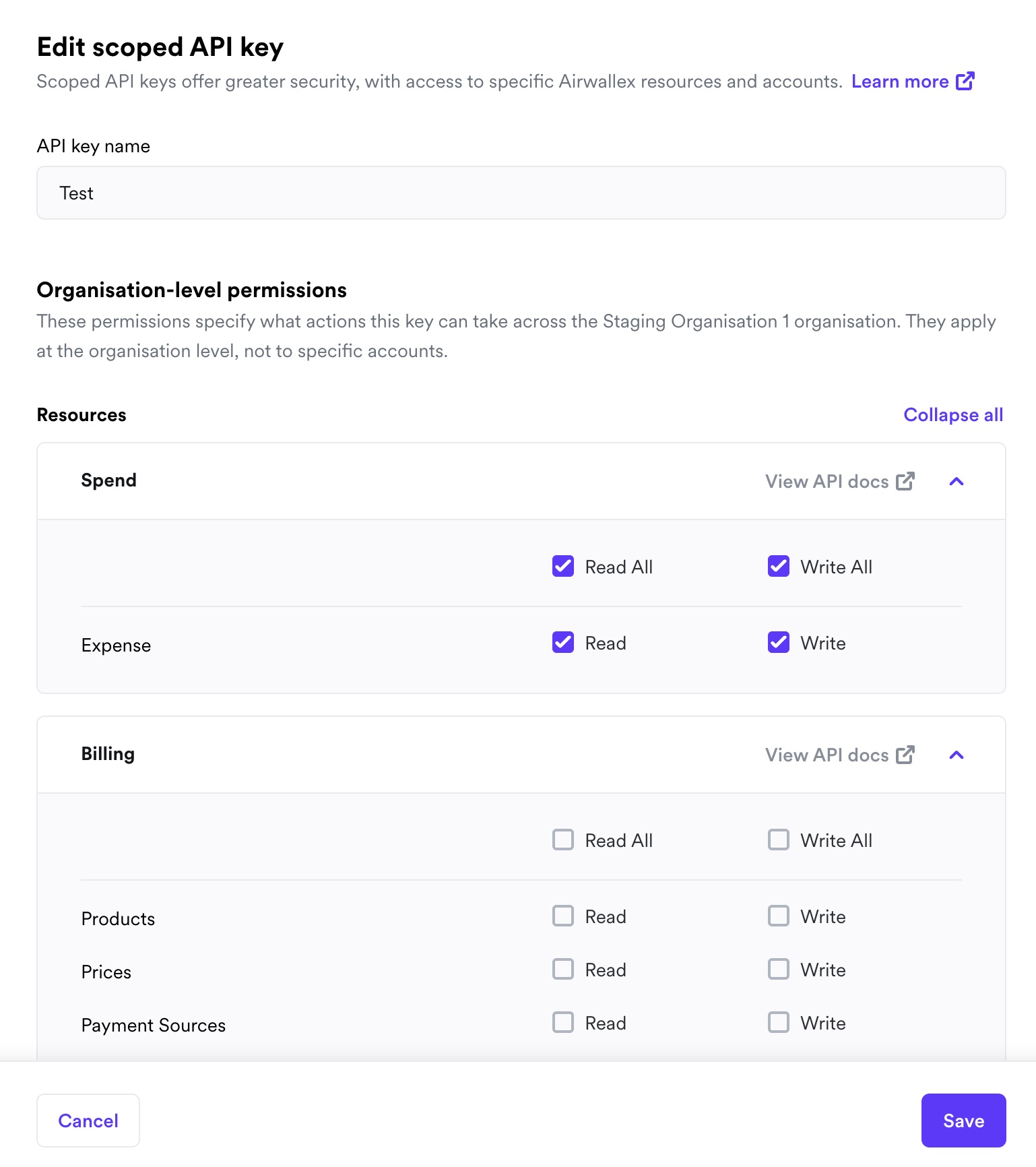
- Duplicate API key: Allows you to duplicate an existing scoped key to create a new one with the same scope.
- Edit API key: Allows you to edit the scope of the scoped key - this will not change the API key secret.
- Delete API key: Allows you to delete a scoped key.
Secure your API keys
API keys authenticate and authorize actions on your Airwallex account, so keep them secure and private. For guidance on scoped keys, IP whitelisting, secure storage, and rotation, see API key best practices.
Notifications
You will receive email notifications for the following webhook events:
- Admin API key
- Generate key for the first time
- Regenerate key
- Restricted API key
- Create key
- Regenerate key
- Duplicate an existing key
- Edit scope of an existing key
- Delete a key
FAQ
I'm getting 401 with correct credentials
Your access token has likely expired — check expires_at and obtain a new one by calling Obtain an access tokenAPI. Confirm you are sending the token from that response in Authorization: Bearer <token>, not your raw API key.
Which header carries the token?
Use Authorization: Bearer <token> on every API call. x-client-id and x-api-key are used only on /authentication/login to obtain the token.
I have a valid token but get 403
The token authenticates you, but your API key's scopes may not cover the endpoint or account. Check the endpoint's required scope against API key scopes, and confirm the x-login-as account is authorized for the key.
Do I need a new token for every request?
No. Reuse the token until expires_at.
Can I use the same credentials in sandbox and production?
No. Client IDs and API keys are environment-specific — use each environment's own credentials and base URL.