

Install Airwallex Affirm Payments App
Boost conversion and average order value by letting your U.S. shoppers pay over time with Affirm, buy now, pay later in just one click.
Follow these steps to install the Airwallex Affirm Payments app to start offering your shoppers buy now, pay later payments via Affirm.
For more details on features and available currency support please refer to our Affirm Docs.
Installation and Configuration
Ensure Affirm is activated
Please ensure that you have Affirm activated on your Airwallex account that you have linked to your Shopify app before allowing your shoppers to checkout.
Pre-requisites
- You must have a valid and activated Airwallex account. If you do not have one, please follow these instructions.
- Affirm must be enabled and activated as a payment method in Airwallex (Please ensure you do this before proceeding).
Installation Steps
-
Login to your Shopify Admin and select the store you want to integrate with Airwallex.
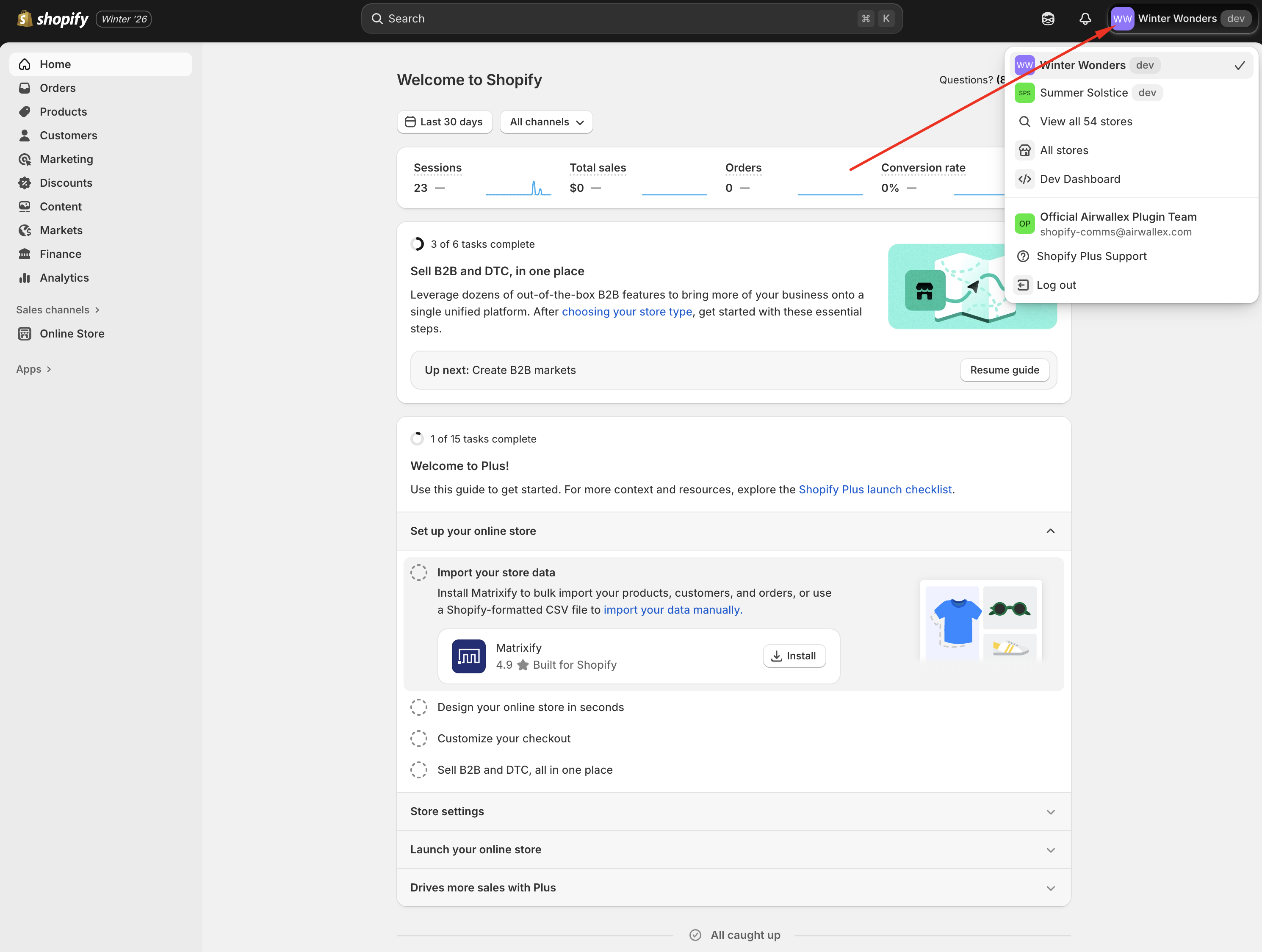
-
Click on the following link to go to the Shopify App Store listing for Airwallex Affirm Payments. Ensure the store name and URL match the one selected in the previous step.
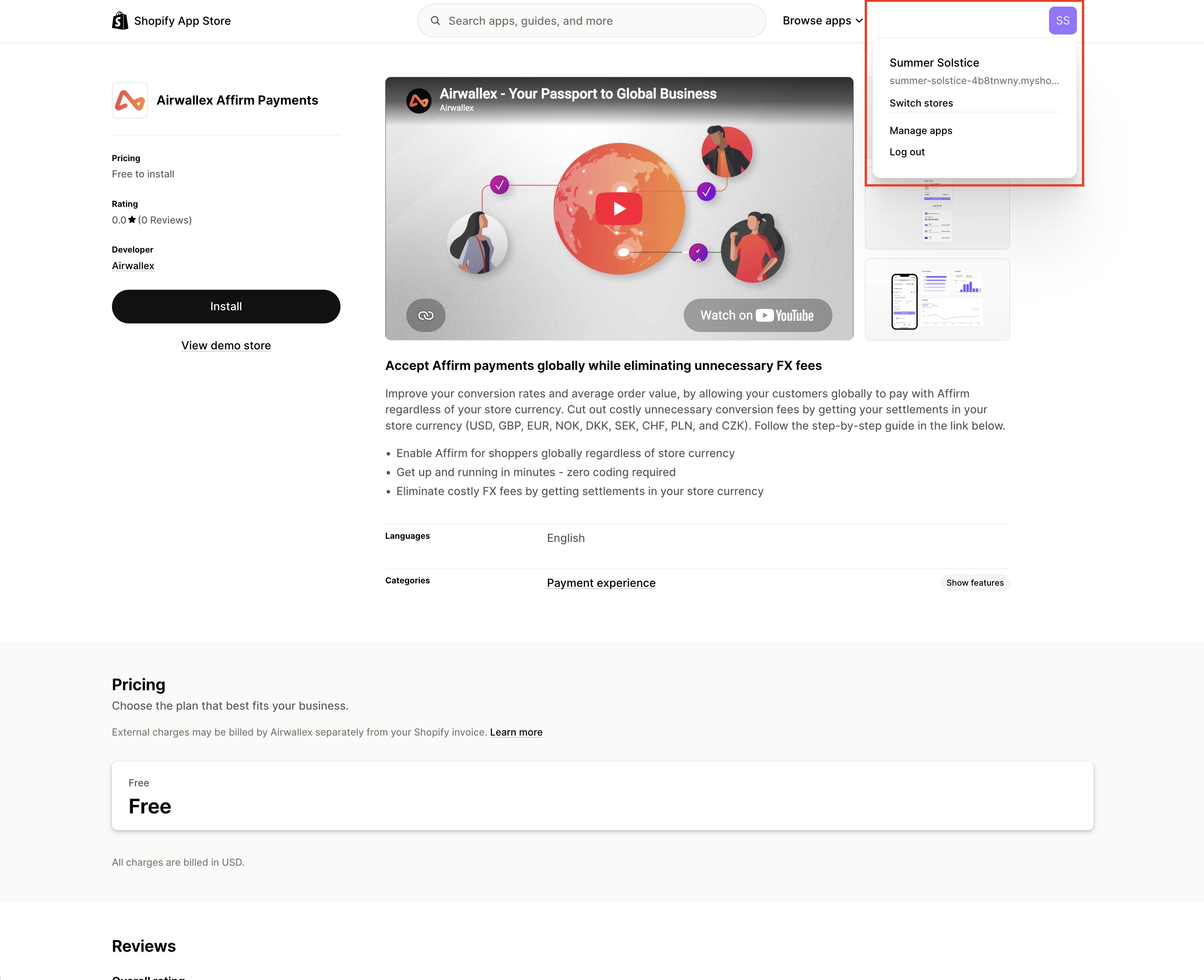
-
Click Install.
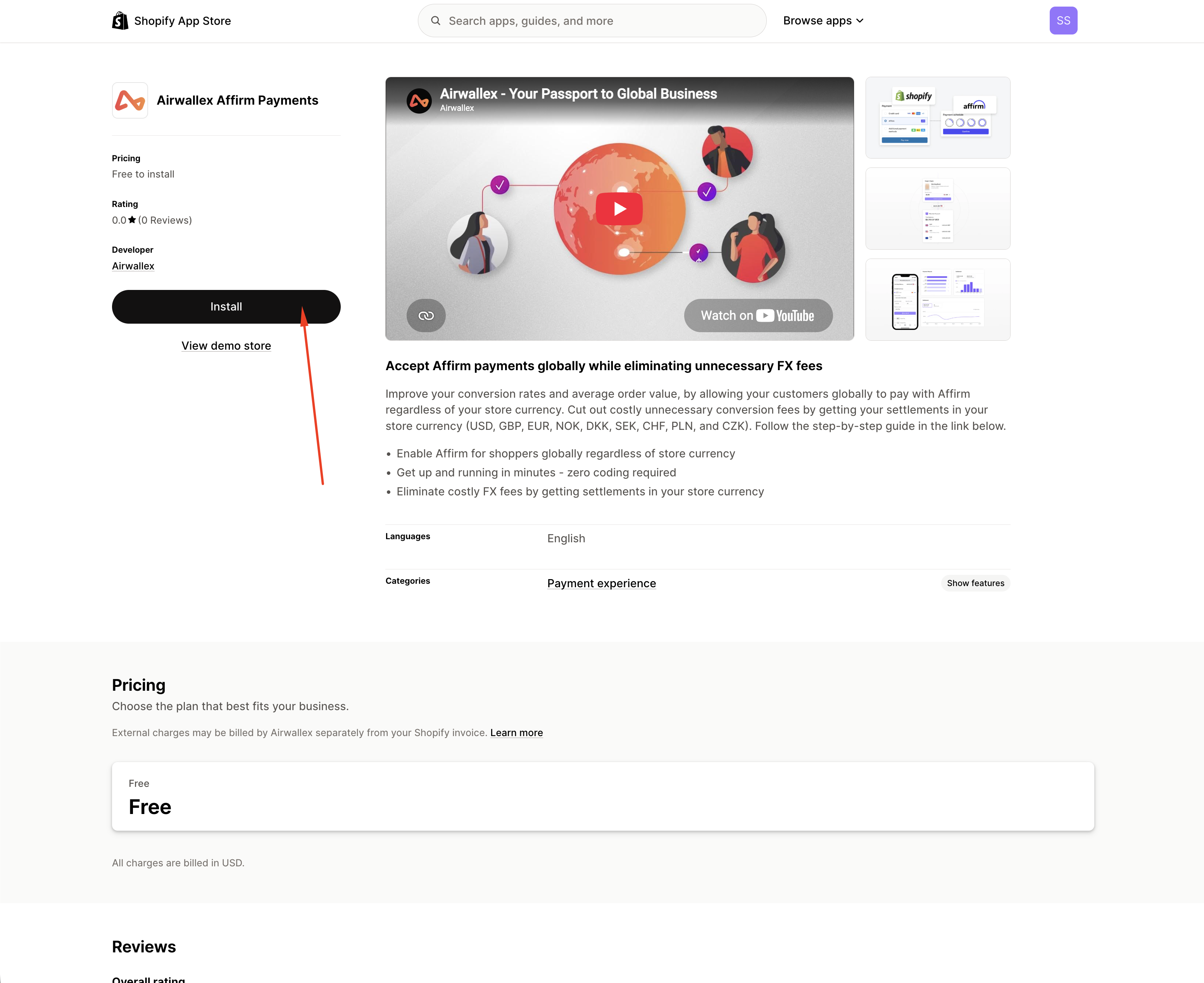
-
You will be redirected to Shopify Admin. Click Install to complete the installation.
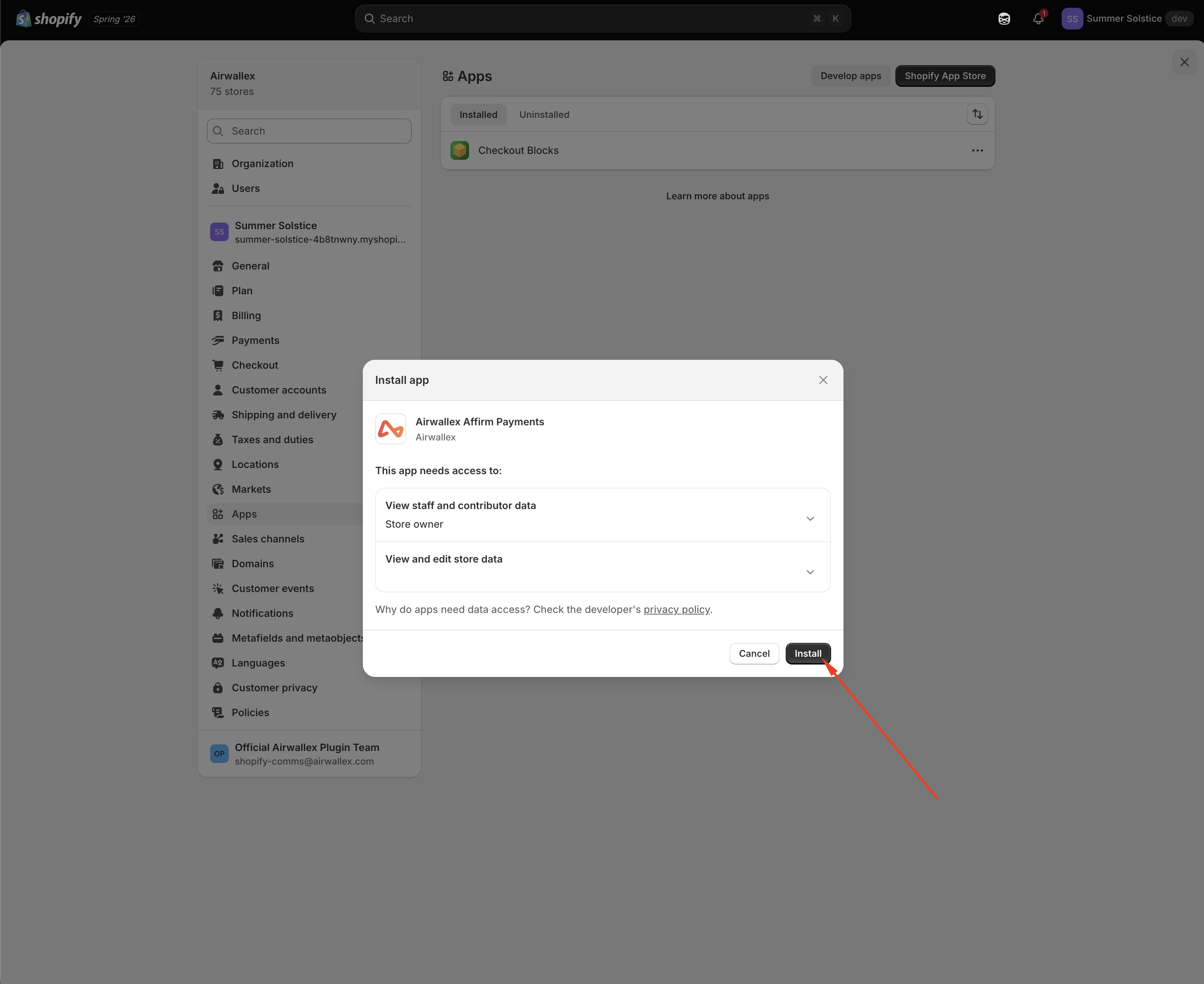
-
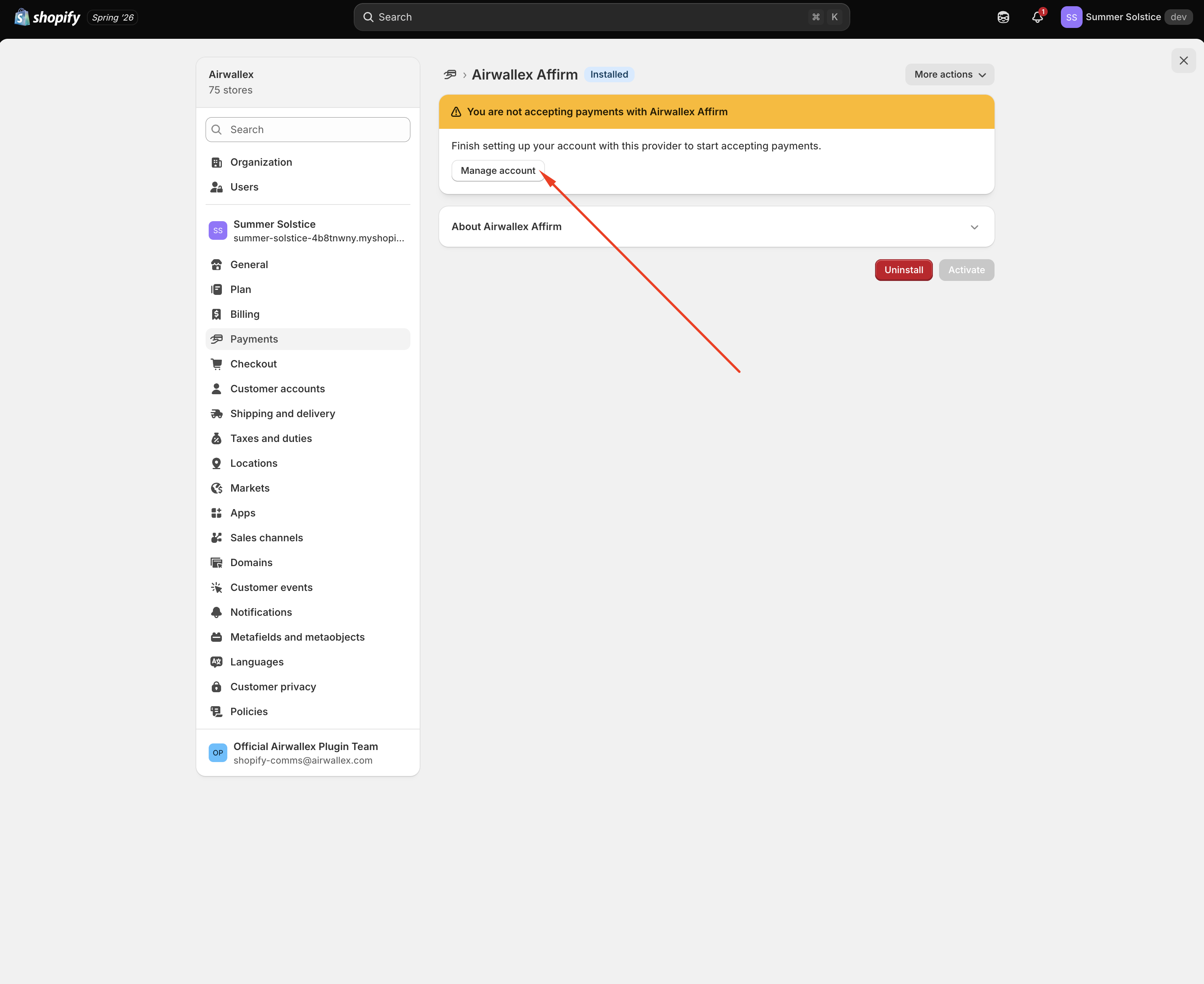
Before you can start accepting payments using Airwallex, you will need to connect your Airwallex account to Shopify. Click Manage Account.
-
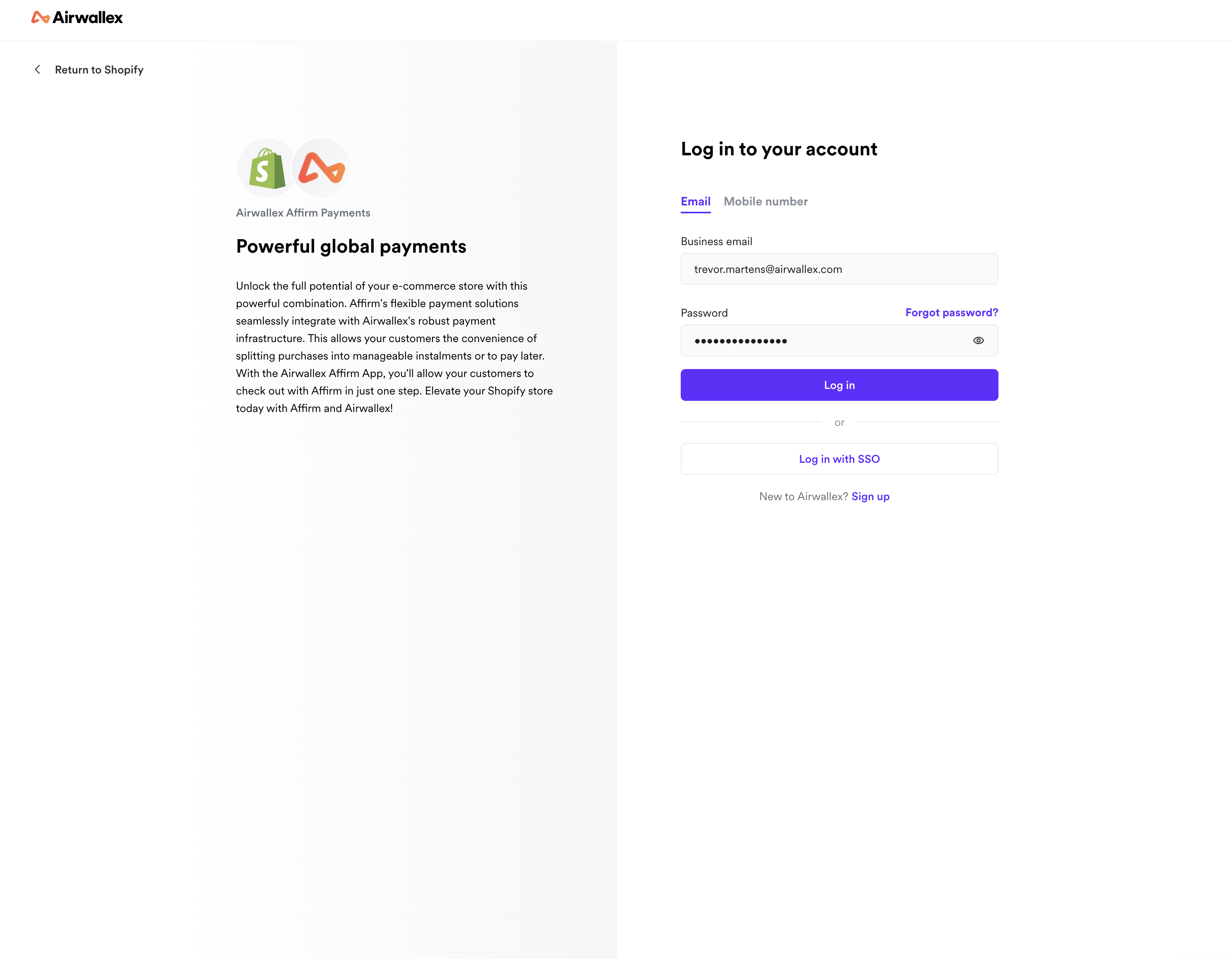
You will be redirected to an Airwallex login page. Login to your Airwallex account.
-
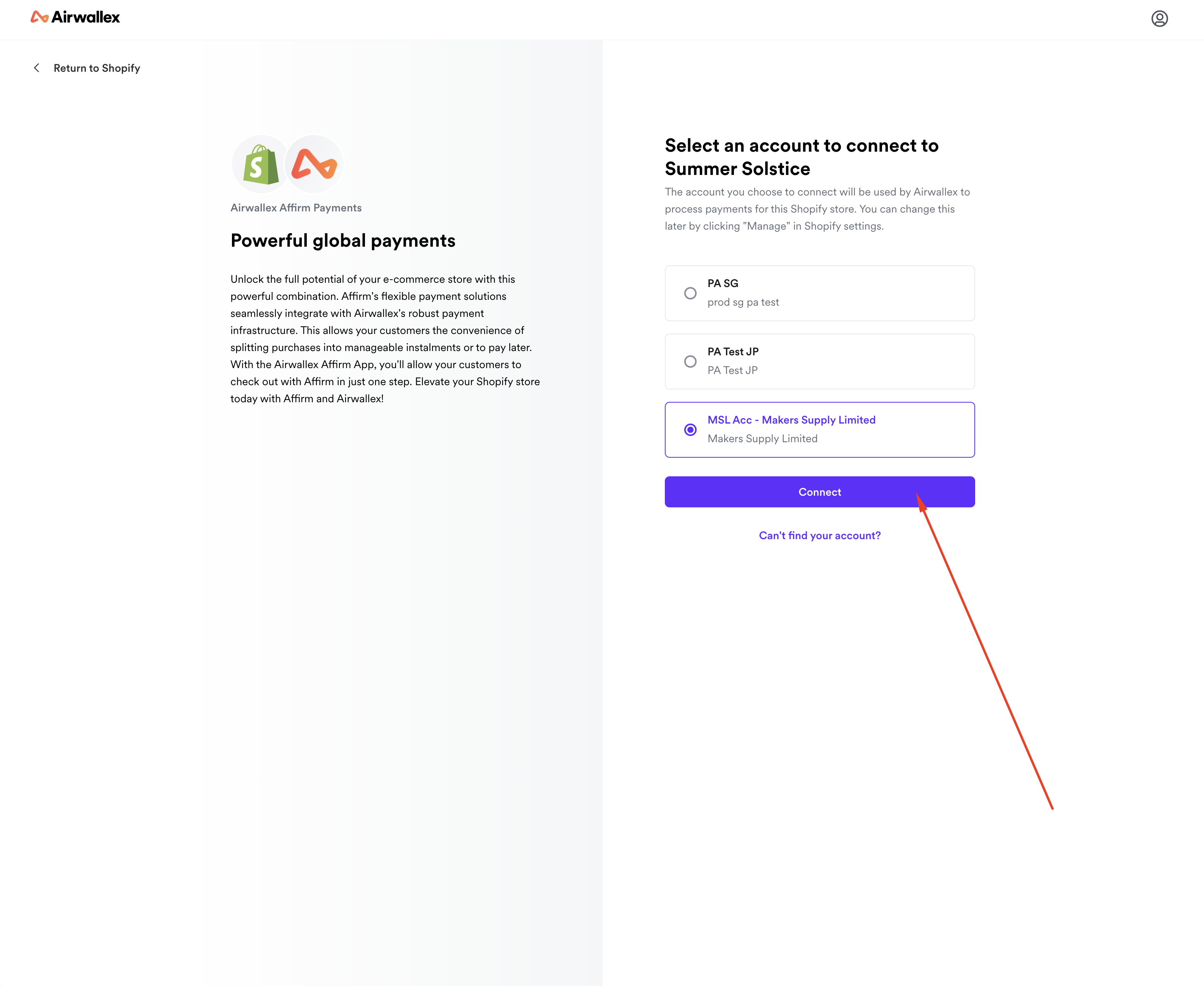
Select an account that you want to connect to your Shopify store, and click Connect. You will be redirected back to your Shopify settings after connecting.
-
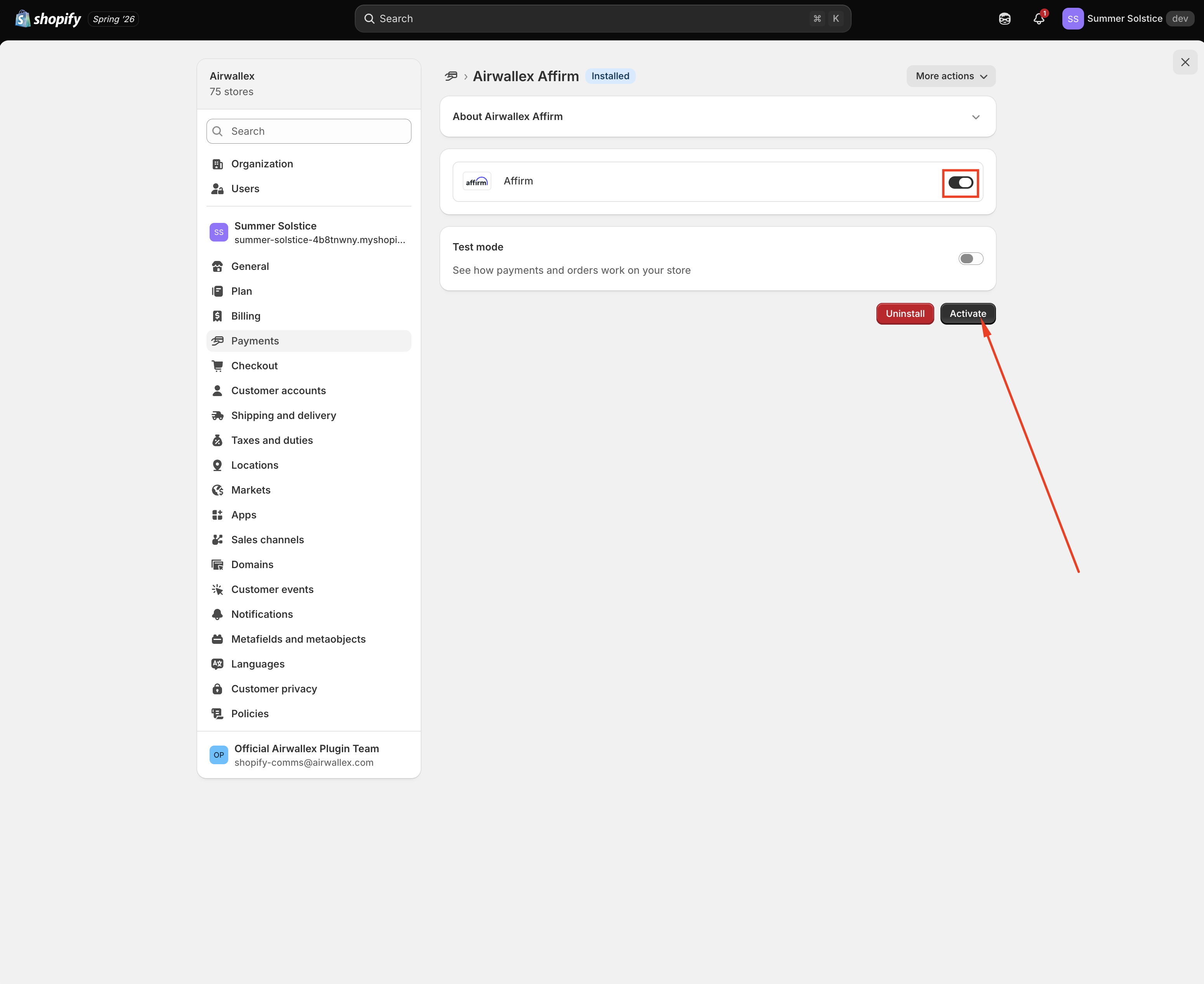
Ensure that Affirm is switched on so that the logo will be shown on your check-out page. Click Activate and you are all set. Note: Please only activate after Affirm is also activated on your linked Airwallex account.
-
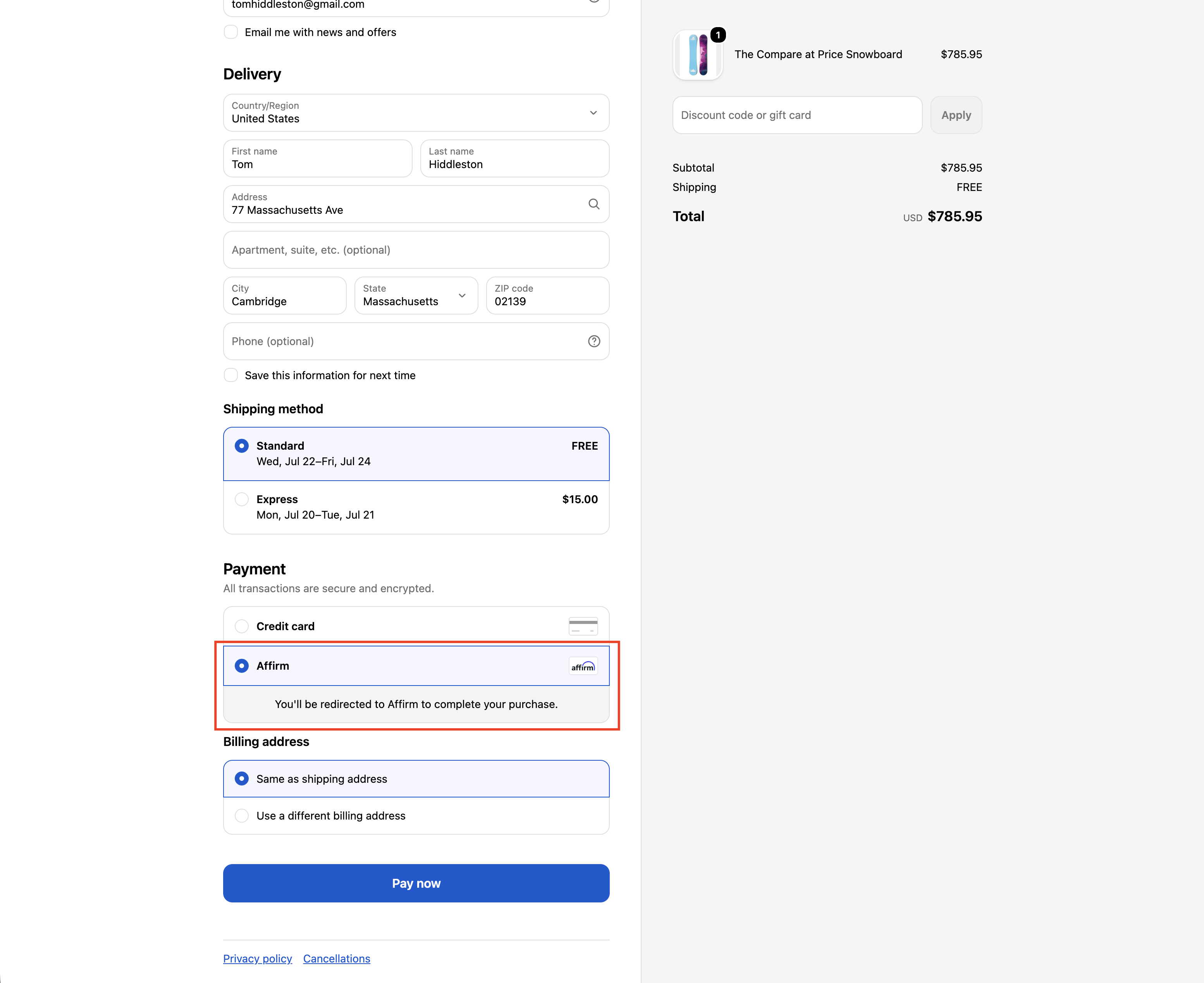
You should now be able to see Affirm as a payment method on your store.
-
Risk Management To help improve your success rates and reduce fraud you can install our Airwallex Fraud Protection App.
-
Enable Automatic Currency Switching (ACC) (Optional) to allow your shoppers to pay in their preferred currency and payment methods. You can do so via Payments > Settings > Automatic Currency Conversion in your Airwallex WebApp.

Testing
-
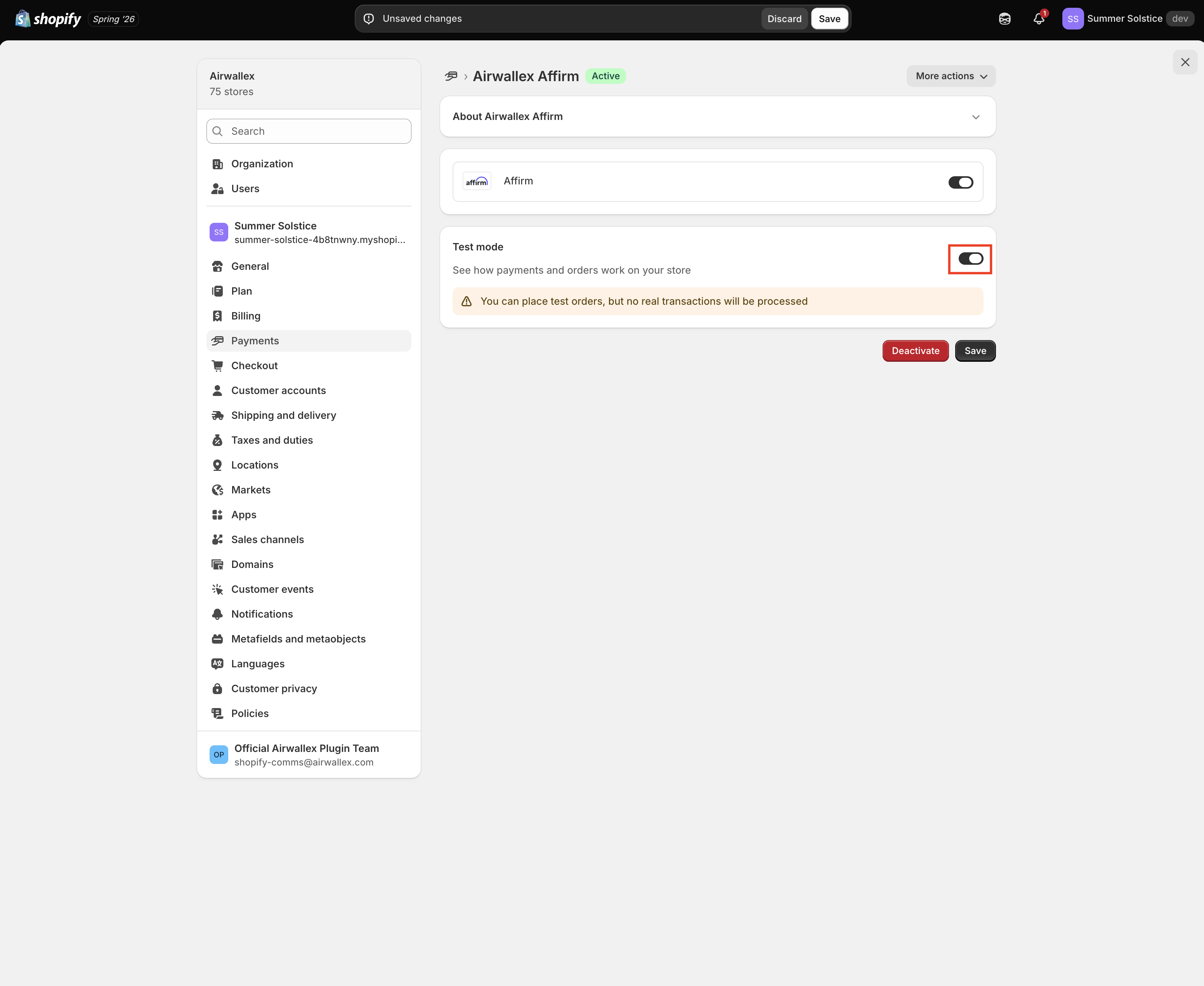
Enable test mode in Settings > Payments > Airwallex Affirm > Manage if you want to mock successful and failed transactions before going live.
-
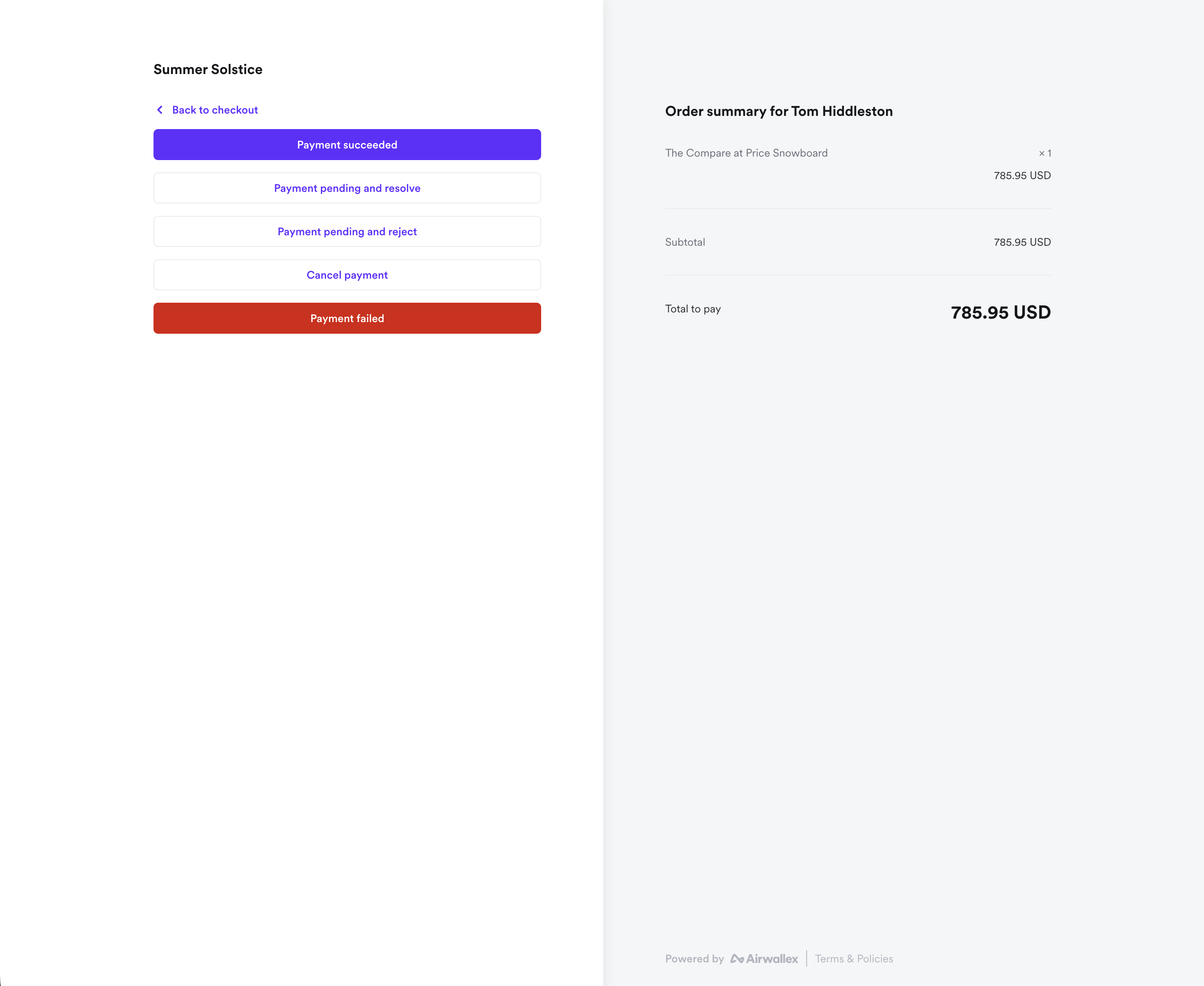
You can then go to your store and attempt to check out with Affirm. You will be able to see the following page after selecting Affirm as a payment method.
-
Mock the different statuses by clicking on the status that you wish to test. For the payment pending states, they will be pending before transitioning to "Success" or "Failure" after 10 minutes.
Shopper Experience
Overview
Affirm is a leading buy now, pay later (BNPL) provider in the U.S. that lets shoppers split purchases into 4 interest-free installments or monthly installments of up to 24 months, with no late or hidden fees. Offering Affirm helps you drive higher conversion, increase average order value, and attract new customers.
Affirm accepts payments in USD and is typically used by shoppers in the United States. For more details you can check out our Affirm Docs.
Experience Walk-through
When a customer visits your online store, they will be able to see a row under Payment in the checkout page named Affirm.
Possible Scenarios
There are four possible scenarios that a shopper can experience when using Affirm on your store.
Scenario 1
Scenario: Shopper is shopping in a store with eligible store currency (USD).
Shopper Experience:
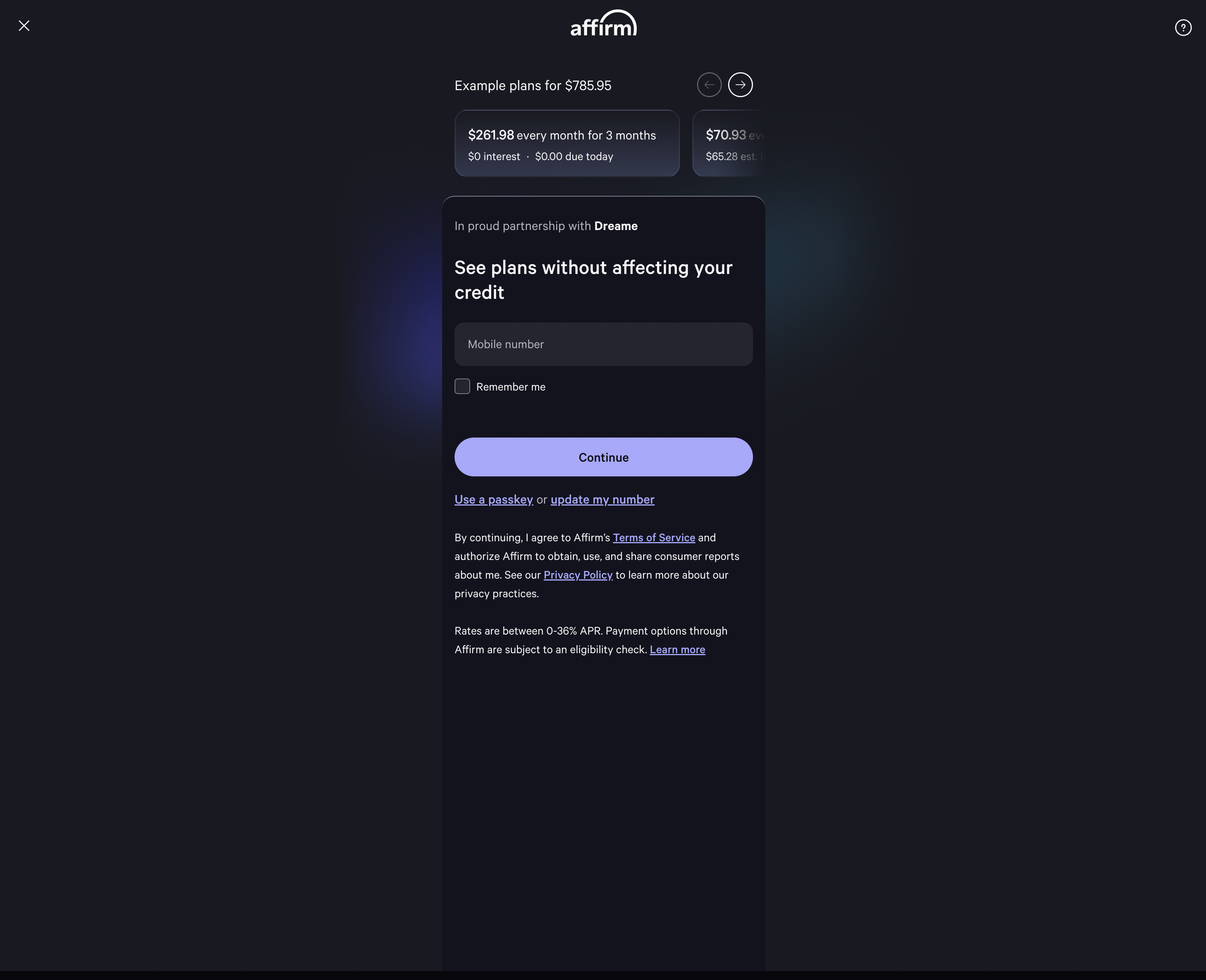
Shoppers will be brought to Affirm directly where they can log in or create an account and select their preferred payment plan before order confirmation.
Scenario 2
Scenario: Shopper is shopping in a store with ineligible store currency. Affirm only accepts payments in USD. You have turned on Automatic Currency Conversion.
Shopper Experience:
Shoppers will be brought to a page where they will be shown the currency they will pay in and the rate that was used for conversion. This is to provide transparency to the shopper. After clicking Confirm, they will then be brought to Affirm to complete their payment.
Scenario 3
Scenario: Shopper is shopping in a store with ineligible store currency. Affirm only accepts payments in USD. You did not turn on Automatic Currency Conversion.
Shopper Experience:
Shoppers will be brought to a page where they will be shown that they will not be able to pay. This is to provide transparency to the shopper.
Scenario 4
Scenario: Shopper's basket size is below the minimum order value of USD 35.
Shopper Experience:
Shoppers will be brought to a page where they will be shown that they will not be able to pay. This is to provide transparency to the shopper.
Steps to disconnect the app from Shopify store
The only way to disconnect the Airwallex Affirm Payments App from your Shopify store is to uninstall it. To uninstall the app:
- Go to your Shopify Admin and click Settings (bottom left).
- Click Apps in the left sidebar.
- Find the Airwallex Affirm Payments App and uninstall it.