

Low-level API integration
Allows you to build your own custom UI on top of our low-level APIs.
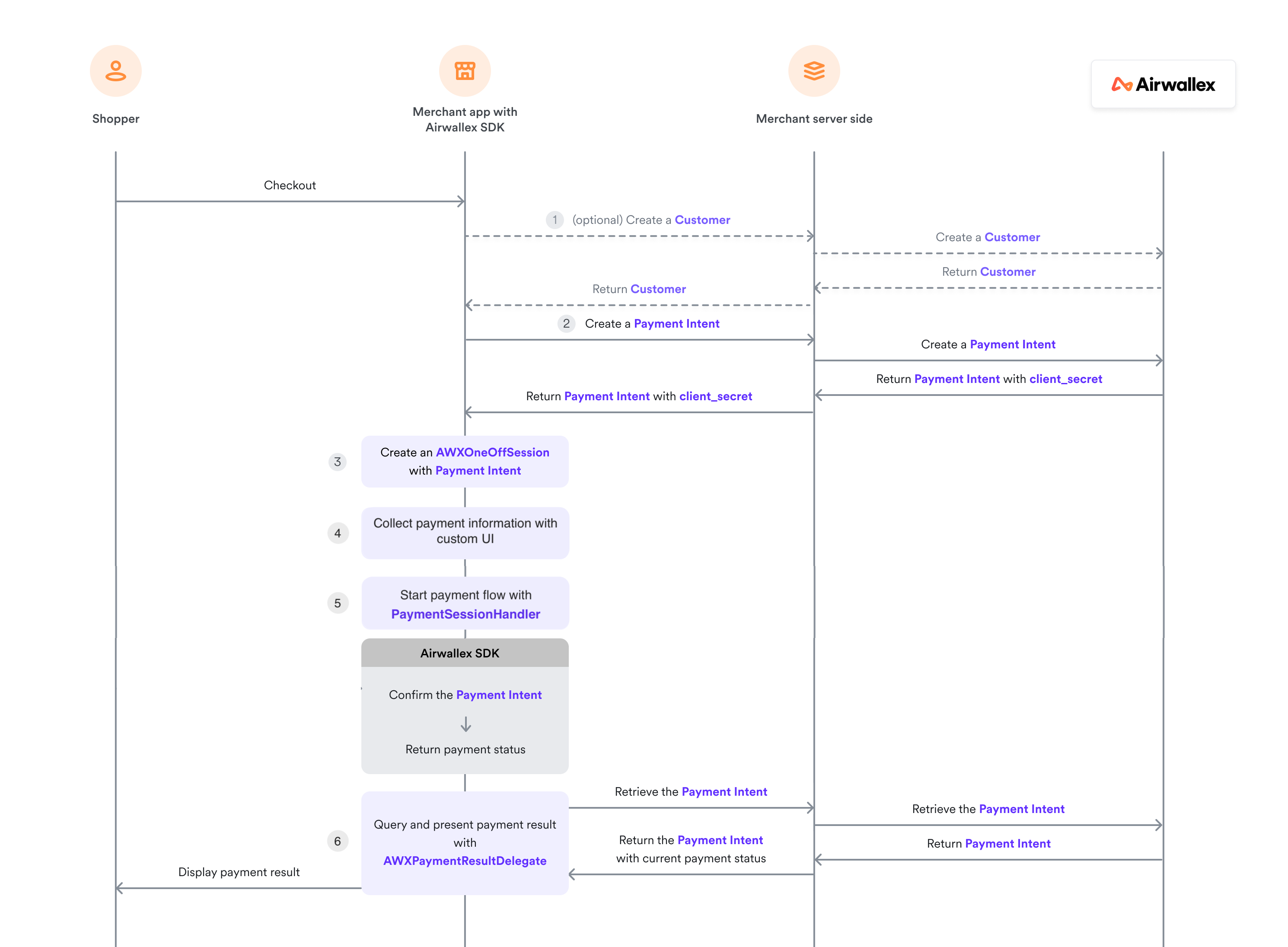
Step 1: (Optional) Create a Customer
Create a Customer object and pass it to your server if you want to save your customer's details and attach payment information to this object. Note that this step is compulsory when you process recurring payments for a new customer.
From your server, access Airwallex API to Create a CustomerAPI.
Step 2: Create a PaymentIntent
Your client app will need a PaymentIntent to create a Session for Airwallex SDK to present a payment flow.
From your server, access Airwallex API to Create a PaymentIntentAPI and pass the returned PaymentIntent to the client app.
Step 3: Configuration and create Session
After setting up the SDK, configure it with the required parameters.
Configuration
Initialize the SDK in your Application class:
1Airwallex.initialize(2 this,3 AirwallexConfiguration.Builder()4 .enableLogging(true) // Enable log in SDK, best set to false in release version5 .saveLogToLocal(false) // Save logs locally6 .setEnvironment(environment)7 .setSupportComponentProviders(8 listOf(9 CardComponent.PROVIDER,10 WeChatComponent.PROVIDER,11 RedirectComponent.PROVIDER,12 GooglePayComponent.PROVIDER13 )14 )15 .build()16)
Create Session
Create a Session with all the order related information:
1import com.airwallex.android.core.Session23val session = Session.Builder(4 paymentIntent = paymentIntent, // PaymentIntent created for this order5 countryCode = "Your country code"6)7 .setReturnUrl("App return url")8 .build()
For recurring transactions, set PaymentConsentOptions and ensure customerId is provided. See Prepare Session object for the full flow matrix.
For Google Pay, you need to add GooglePayOptions to the session. See Prepare Session object.
1val googlePayOptions = GooglePayOptions(2 billingAddressRequired = true,3 billingAddressParameters = BillingAddressParameters(4 format = BillingAddressParameters.Format.FULL5 ),6 merchantId = "Your Google Pay Merchant ID"7)89val session = Session.Builder(10 paymentIntent = paymentIntent,11 countryCode = "Your country code",12 googlePayOptions = googlePayOptions13)14 .setReturnUrl("App return url")15 .build()
Step 4: Collect payment information using custom UI
For native UI integration, this step is handled by the Airwallex-provided UI. For low-level API integration, you must implement your own UI to collect all the information required for payment.
PCI-DSS compliance
For card payment, your app must be PCI-DSS compliant if using Confirm card payment with card and billing details flow. Provide a PCI-DSS AOC and renew it regularly.
For redirect payments, make sure you collect all the required information (e.g. shopper phone number, email) specified in the response from Get available payment method typesAPI.
Step 5: Create Airwallex object and confirm payments
Create Airwallex object
1val airwallex = Airwallex(activity)
airwallex.confirmPaymentIntent(...) is deprecated. Use airwallex.checkout(...) for all card and consent-based payments, and airwallex.startGooglePay(...) for Google Pay.
Checkout with card and billing details
1import com.airwallex.android.core.Airwallex2import com.airwallex.android.core.AirwallexPaymentStatus3import com.airwallex.android.core.model.PaymentMethod4import com.airwallex.android.core.model.PaymentMethodType56val paymentMethod = PaymentMethod.Builder()7 .setType(PaymentMethodType.CARD.value)8 .setCard(9 PaymentMethod.Card.Builder()10 .setNumber("4012000300000021") // Card number collected by your custom UI11 .setName("John Citizen")12 .setExpiryMonth("12")13 .setExpiryYear("2029")14 .setCvc("737")15 .build()16 )17 .setBilling(null) // Optional billing information18 .build()1920airwallex.checkout(21 session = session,22 paymentMethod = paymentMethod,23 cvc = "737",24 saveCard = false, // Set to true to save the card as a consent while making the payment25 listener = object : Airwallex.PaymentResultListener {26 override fun onCompleted(status: AirwallexPaymentStatus) {27 // Handle different payment statuses and perform UI actions accordingly28 when (status) {29 is AirwallexPaymentStatus.Success -> {30 // Payment successful31 }32 is AirwallexPaymentStatus.InProgress -> {33 // Payment in progress34 }35 is AirwallexPaymentStatus.Failure -> {36 // Payment failed37 }38 is AirwallexPaymentStatus.Cancel -> {39 // Payment cancelled40 }41 }42 }43 }44)
Checkout with saved card (consent)
Pass a PaymentConsent containing at least id and nextTriggeredBy to checkout(...).
1import com.airwallex.android.core.Airwallex2import com.airwallex.android.core.AirwallexPaymentStatus3import com.airwallex.android.core.model.PaymentConsent45airwallex.checkout(6 session = session,7 paymentMethod = paymentMethod, // can be retrieved from other existing variable or paymentConsent.paymentMethod8 paymentConsent = paymentConsent,9 listener = object : Airwallex.PaymentResultListener {10 override fun onCompleted(status: AirwallexPaymentStatus) {11 // Handle different payment statuses and perform UI actions accordingly12 }13 }14)
The paymentConsentId: String? parameter on airwallex.checkout(...) is deprecated and has been removed in SDK > 6.7.1. Pass a PaymentConsent object via the paymentConsent parameter instead — at minimum, provide id and nextTriggeredBy.
Pay with Google Pay
Make sure you have set up Google Pay correctly. See the Google Pay section in Prepare Session object.
1airwallex.startGooglePay(2 session = session,3 listener = object : Airwallex.PaymentResultListener {4 override fun onCompleted(status: AirwallexPaymentStatus) {5 // Handle different payment statuses and perform UI actions accordingly6 }7 }8)
Pay by redirection
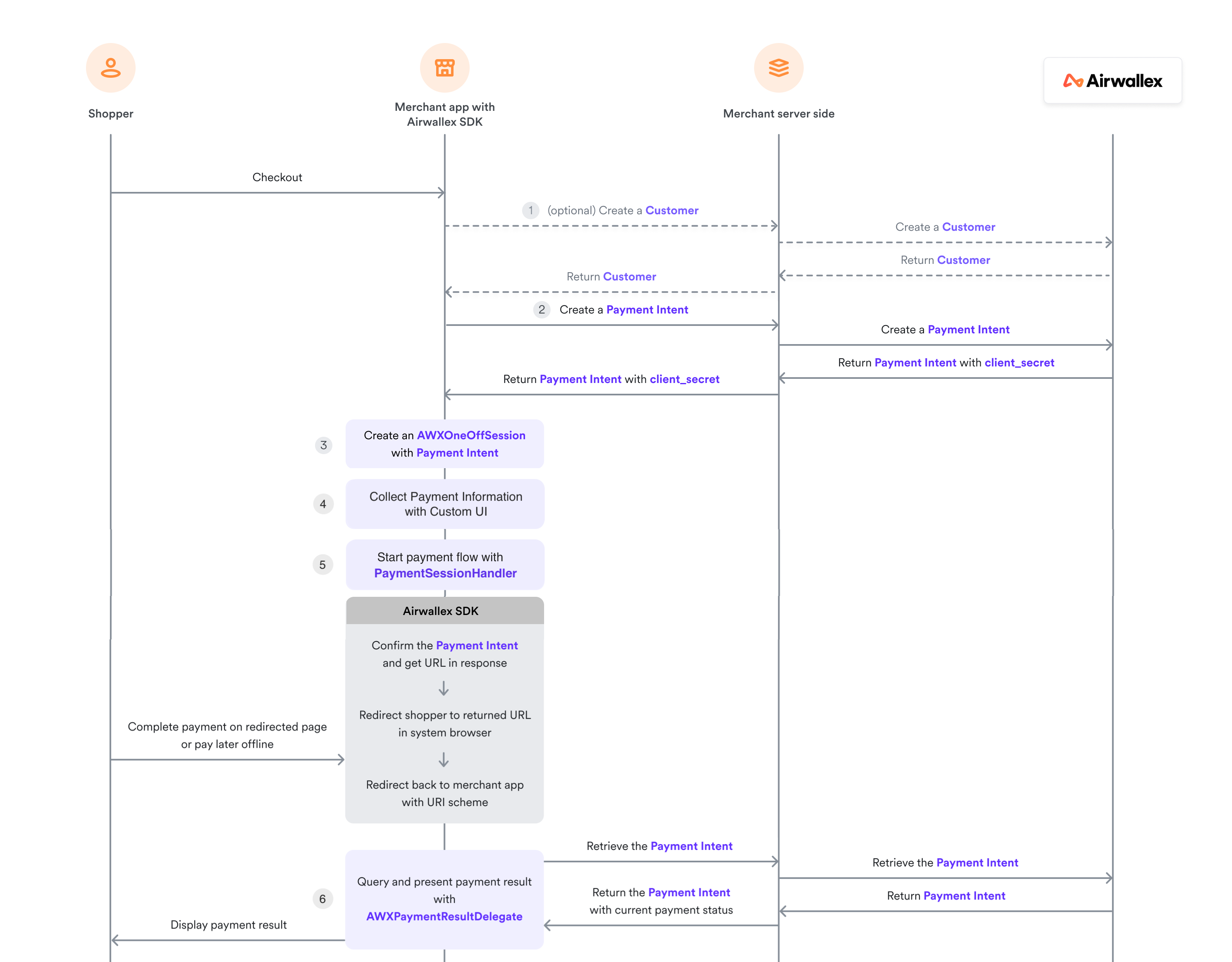
Use the redirect payment method for payment methods like Alipay, AlipayHK, DANA, GCash, Kakao Pay, Touch 'n Go, etc.
1airwallex.startRedirectPay(2 session = session,3 paymentType = "alipayhk", // Payment method type (e.g., "alipaycn", "alipayhk", "gcash", "dana")4 listener = object : Airwallex.PaymentResultListener {5 override fun onCompleted(status: AirwallexPaymentStatus) {6 // Handle different payment statuses and perform UI actions accordingly7 }8 }9)
Step 6: Handle payment result
After the payment is confirmed, the onCompleted callback will be invoked by the SDK automatically. You can check the status to see whether the payment process has completed or not.
The AirwallexPaymentStatus can be one of the following:
AirwallexPaymentStatus.Success- Payment completed successfullyAirwallexPaymentStatus.InProgress- Payment is still in progressAirwallexPaymentStatus.Failure- Payment failedAirwallexPaymentStatus.Cancel- Payment was cancelled
1listener = object : Airwallex.PaymentResultListener {2 override fun onCompleted(status: AirwallexPaymentStatus) {3 when (status) {4 is AirwallexPaymentStatus.Success -> {5 // Payment completed successfully6 val paymentIntentId = status.paymentIntentId7 // Show success message to user8 }9 is AirwallexPaymentStatus.InProgress -> {10 // Payment is still in progress11 // This might require further action from the user12 }13 is AirwallexPaymentStatus.Failure -> {14 // Payment failed15 val exception = status.exception16 // Show error message to user17 }18 is AirwallexPaymentStatus.Cancel -> {19 // Payment was cancelled by user20 // Return to previous screen or show message21 }22 }23 }24}