

Quickstart with Postman
This tutorial helps you get started with Airwallex APIs using Postman. Fork the public collection, add your credentials, and send your first request.
Step 1: Generate Client ID and API key
Create your sandbox account and generate sandbox API credentials. For instructions, see Manage API keys.
Treat API keys like passwords—even in sandbox. Before you move to production, review API key best practices.
Step 2: Fork the Airwallex Postman collection
Fork the Airwallex Postman collection into your private Postman workspace. Sign in to Postman, or create an account if needed.
Airwallex updates this collection in place with the latest supported API version. Check its description for the source version.
Step 3: Set up a private Postman environment
Create a private environment in Postman, add the following variables, and select it before sending requests. Keep your credentials in local values; do not share or publish them.
| Variable | Sandbox value | Production value |
|---|---|---|
client_id | Your sandbox Client ID | Your production Client ID |
api_key | Your sandbox API key | Your production API key |
url | https://api.sandbox.airwallex.com | https://api.airwallex.com |
file_url | https://files.sandbox.airwallex.com | https://files.airwallex.com |
Start with sandbox credentials and URLs. Keep the collection's default api_version unless you need to select a different API version.
The collection's Variables tab shows the available variables and default values. Add your credentials to your private environment, as described above.
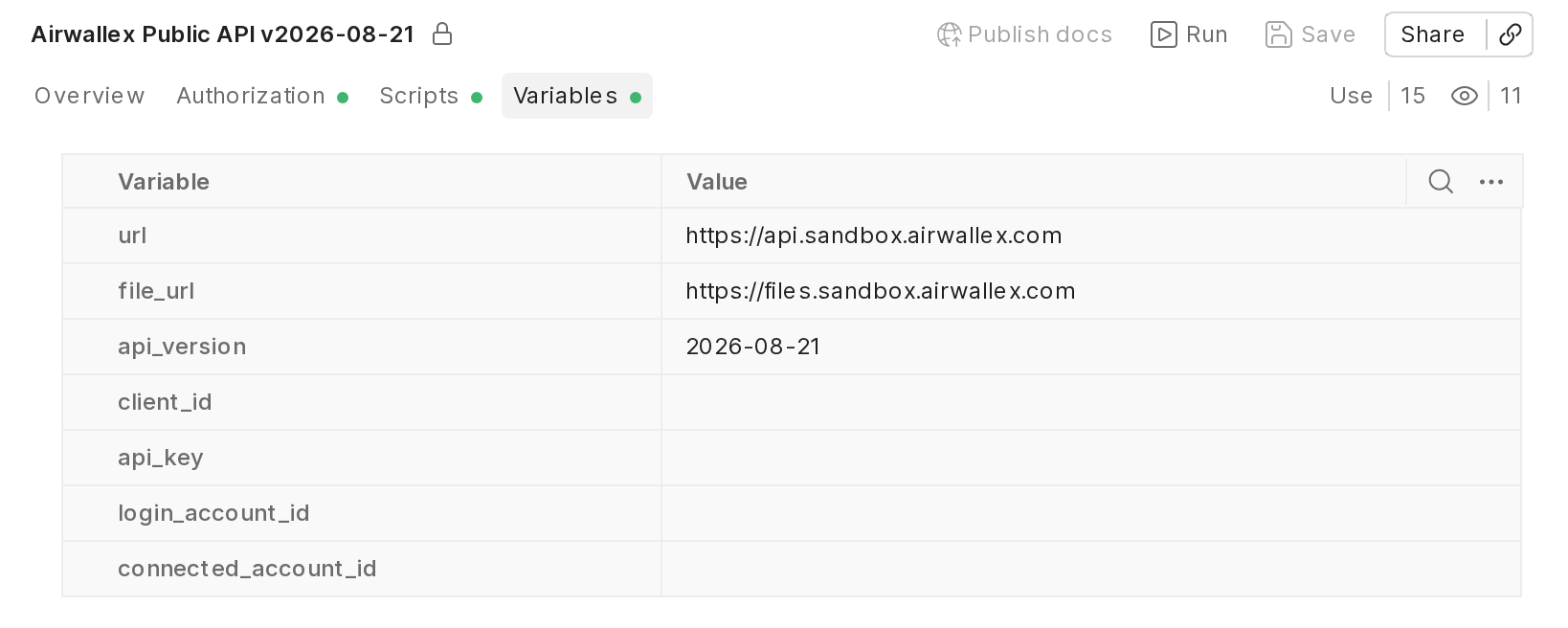
If your API key is scoped to multiple accounts, set login_account_id in your environment to the account you want to authenticate as. The collection supplies the x-login-as header automatically. Leave it empty for a key scoped to a single account. See Manage API keys.
For requests made on behalf of a connected account, set connected_account_id and enable the request's x-on-behalf-of header. This selects the account context; an account_id path or body variable identifies the resource the request operates on.
Step 4: Send your first request
Find Obtain Access Token under Authentication in the forked collection and click Send. A successful response includes a token and its expiry.
Other requests authenticate automatically using your environment credentials and supply the bearer token. During a collection run, the collection reuses the token until it needs refreshing. You do not need to copy tokens into request headers.