

A Meter is a configurable resource that defines the logic for transforming raw usage events into billable quantities for each billing period.
To configure a meter, you choose the usage event to monitor and how to aggregate its values over the billing period.
- Usage event name: The name of the usage event this meter monitors. The meter will ignore any incoming events that do not match this name.
- Aggregation method: The mathematical operation applied to the aggregation property to calculate the total billable quantity (in a billing period) for each customer.
- SUM - Adds all values received
- COUNT - Counts the total number of usage events received
- UNIQUE COUNT - Counts the number of distinct values received
- MAX - Records the highest single value received
- LAST - Uses the most recent value received
- Aggregation property: The specific field within the usage event payload that contains the value to be aggregated, for example 100 (tokens). Note: This field is required for all aggregation methods except COUNT. Values must be >=0 else the event will be rejected.
- Dimension keys (optional): Property names from the usage event
propertiesobject used to group usage. Declaring keys such asmodelandtoken_typeproduces a separate billable quantity for each combination of values. Keys that are not declared are stored with the event and do not affect aggregation. You can add dimension keys after the meter is created. You cannot rename, reorder, or remove existing keys. See Usage events. A Rate Card uses these keys to price each combination.
Create a meter
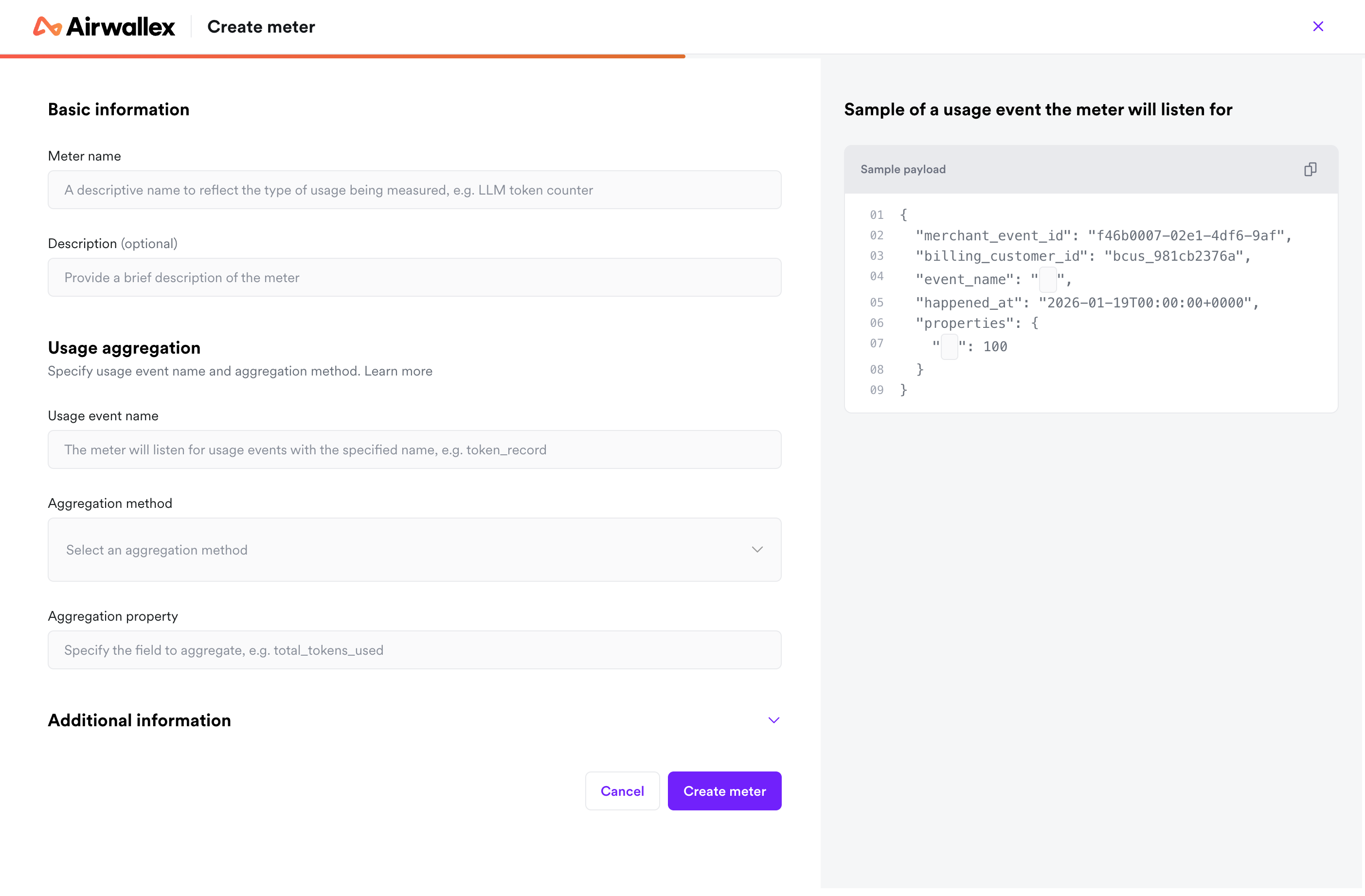
Steps:
- Go to the Usage Metering app, select the Meters tab and click + Create meter
- Under Basic information, enter a Meter name and an optional Description.
- Under Usage aggregation, specify the Usage event name, Aggregation method, and Aggregation property.
- (Optional) Expand Advanced settings to add Dimension keys, for example
modelortoken_type, if you plan to price usage across attributes with a rate card. - Click Create Meter
- Once created, the meter will appear in your Meters table.
Edit a meter
To maintain billing auditability, a meter's core aggregation logic cannot be modified once it is created. You may only edit descriptive fields (for example, name, description, metadata). Under Advanced settings, you can append new dimension keys. Existing keys cannot be renamed, reordered, or removed.
Steps:
- Open the meter details page, select Edit from the Manage dropdown.
- Update your meter information and click Save changes.
Archive a meter
Archiving deprecates a meter, making it unavailable for linking to any new usage-based prices.
You can only archive meters under these scenarios:
- Meter has no linked prices
- Meter has linked prices, but all are archived
Archiving a meter does not affect finalized invoices or existing subscriptions containing its linked prices.
Steps:
- On the meter details page, select Archive from the Manage dropdown
- Click the Archive meter on the confirmation dialog that appears.
Restore a meter
Restoring a meter reverses the archival, making the meter active again. Once restored, the meter can be linked to new prices.