

Install Airwallex Card Payments app
Boost sales by accepting Apple Pay, Google Pay, Visa, Mastercard, Amex, UnionPay, and JCB—no payment redirects.
Follow these steps to install the Airwallex Card Payments app to accept card payments, Google Pay (Express Checkout) and Apple Pay (Express Checkout) directly on your Shopify store.
Requirements
- You must have a valid and activated Airwallex account. If you do not have one, please follow instructions here
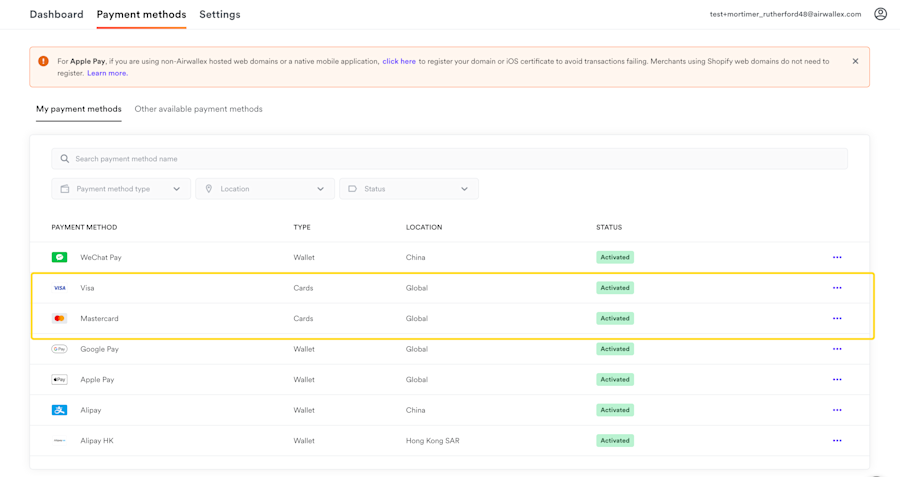
- At least one card scheme (Visa, Mastercard etc) must be enabled and activated as a payment method in Airwallex (Please ensure you do this before proceeding)
Installation and Configuration
-
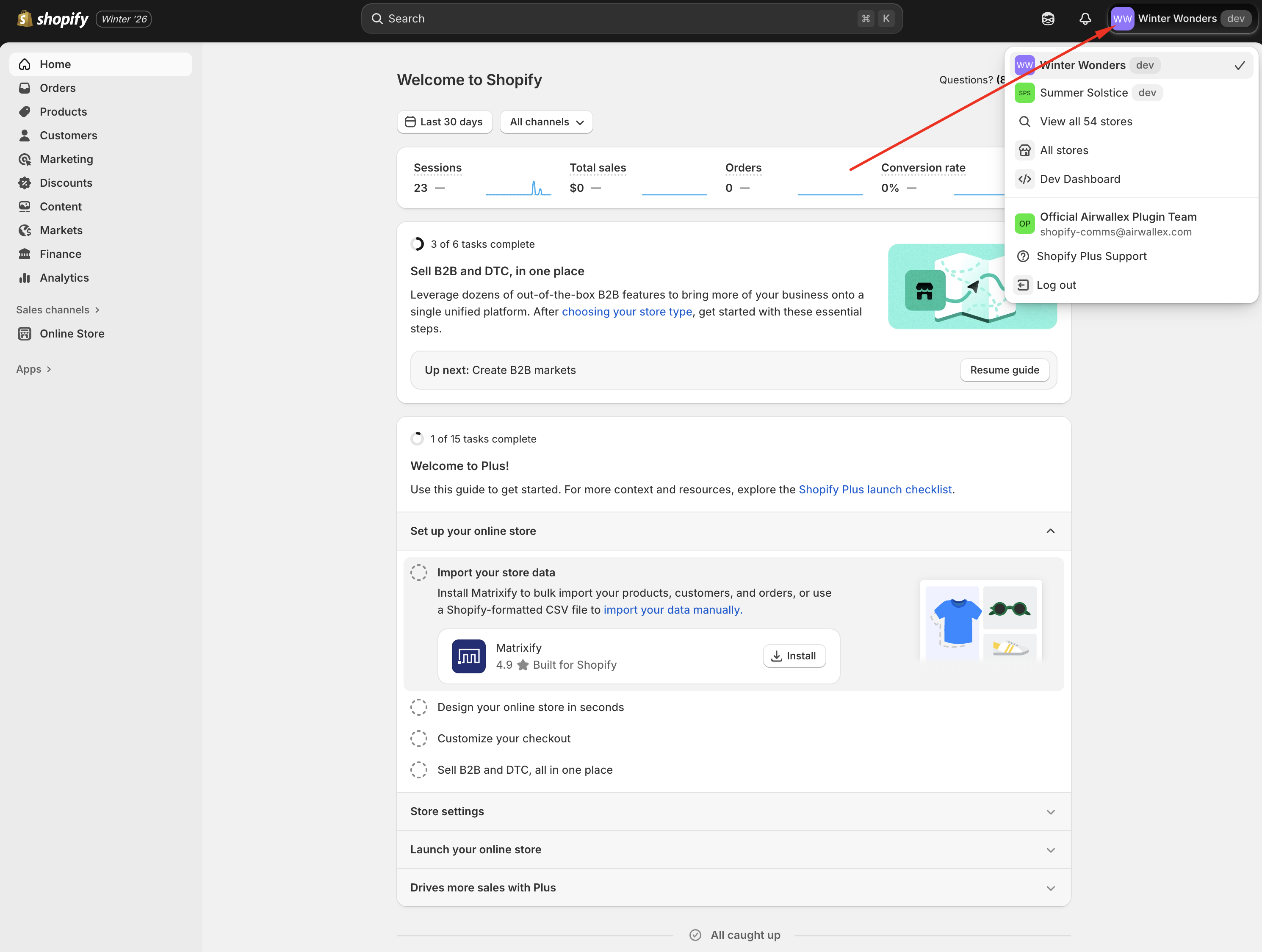
Login to your Shopify Admin and select the store you want to integrate with Airwallex.
-
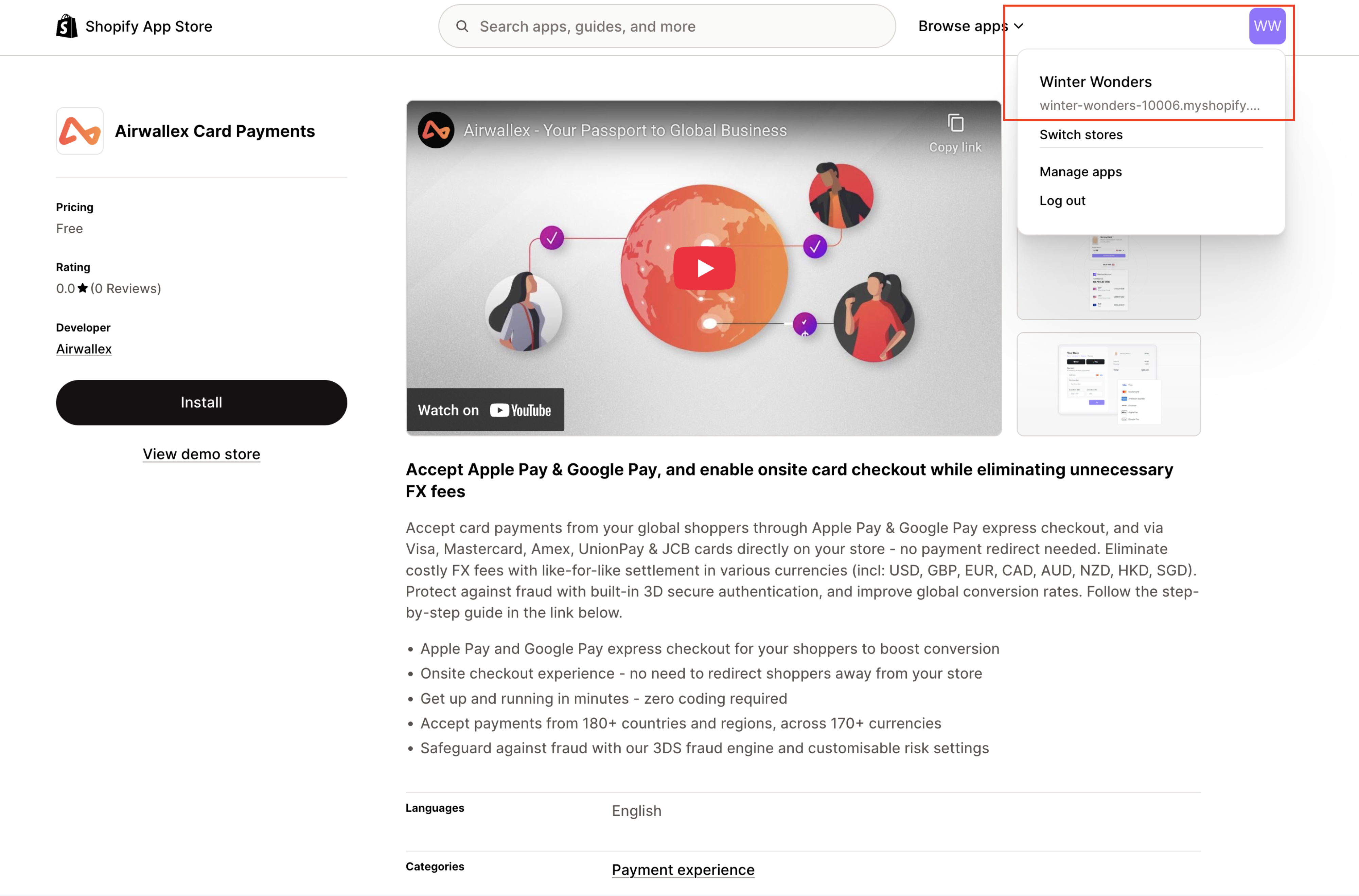
Click on the following link to go to the Shopify App Store listing for Airwallex Card Payments. Ensure the store name and URL match the one selected in the previous step.
-
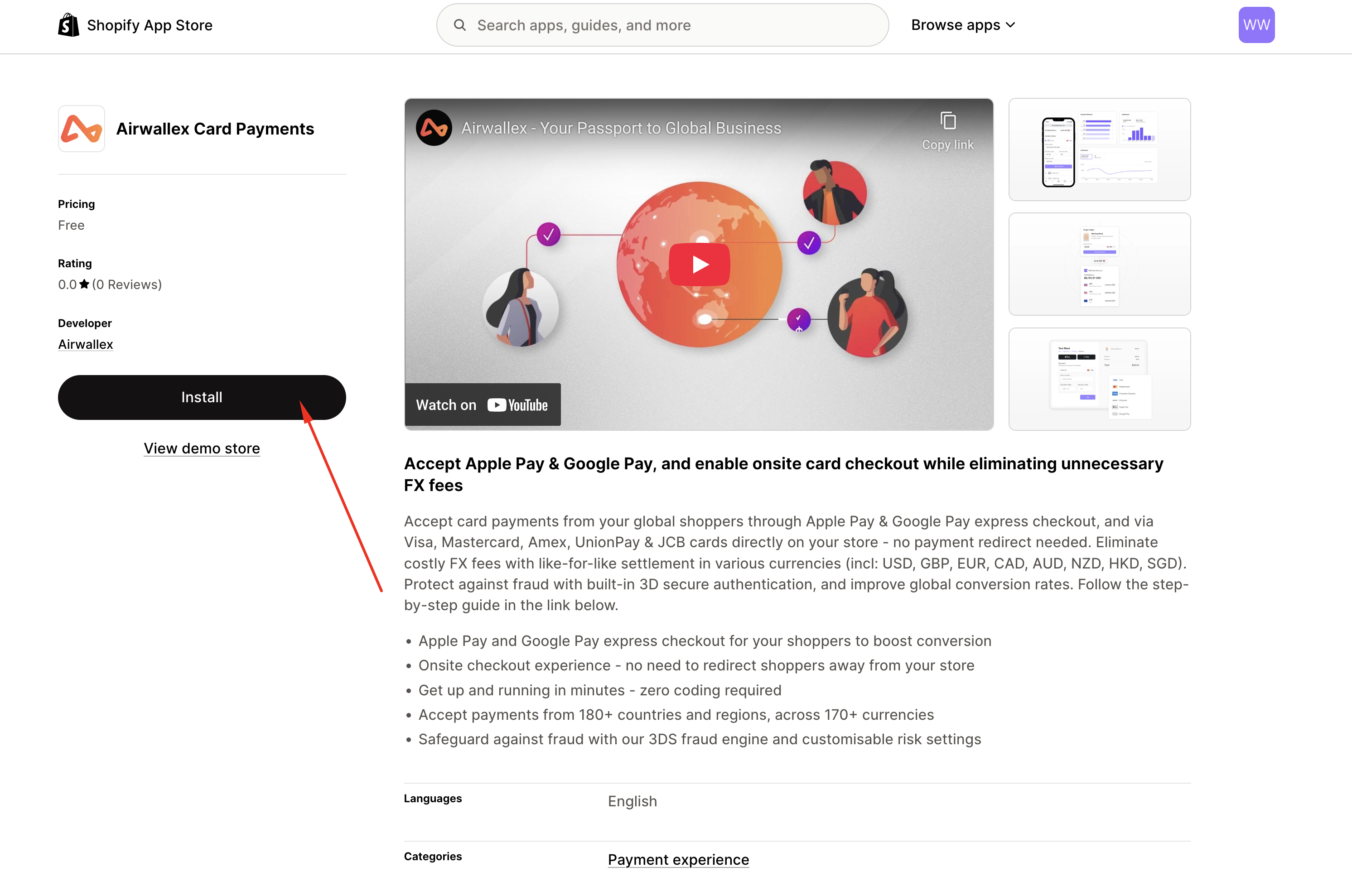
Click Install.
-
You will be redirected to Shopify Admin. Click Install to complete the installation.
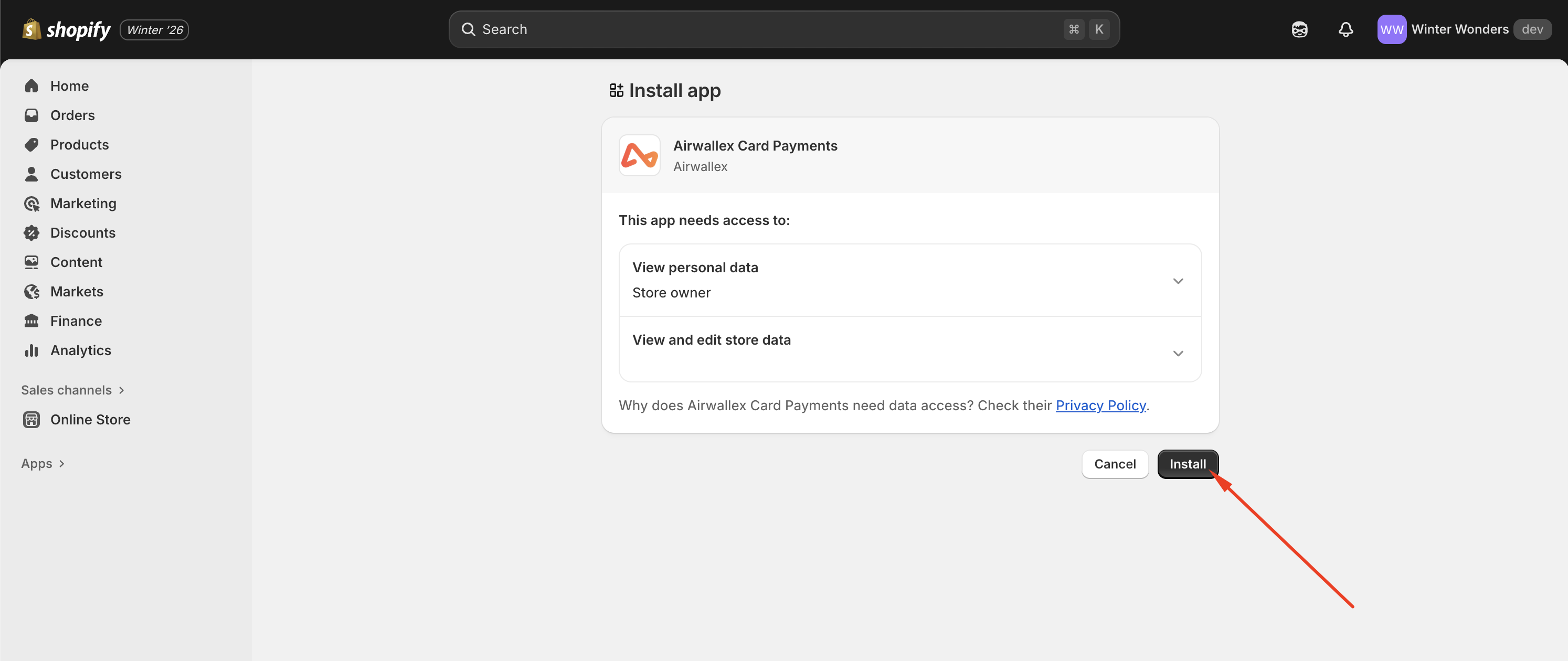
-
Before you can start accepting payments using Airwallex, you will need to connect your Airwallex account to Shopify. Click Manage Account.
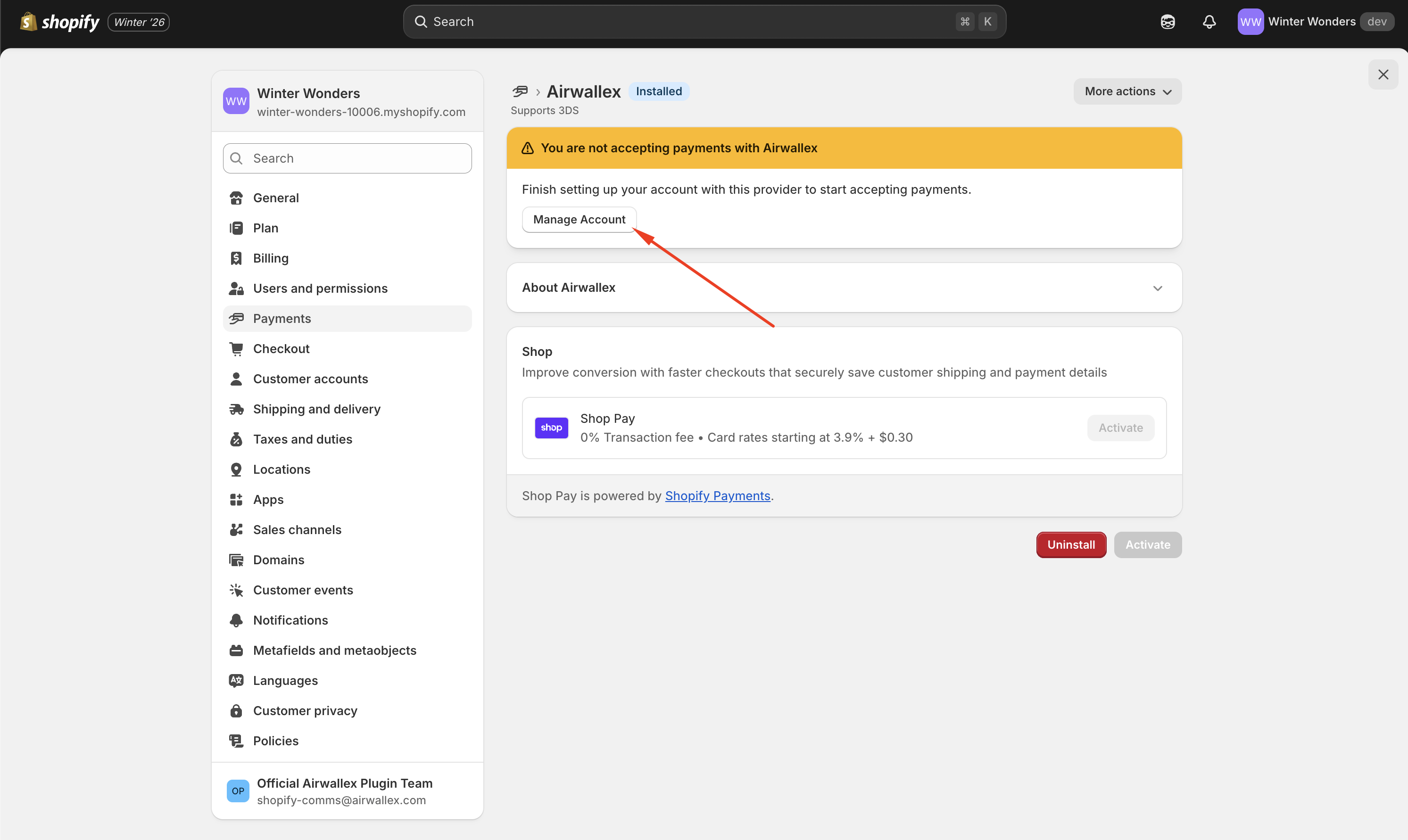
-
You will be redirected to an Airwallex login page. Login to your Airwallex account.
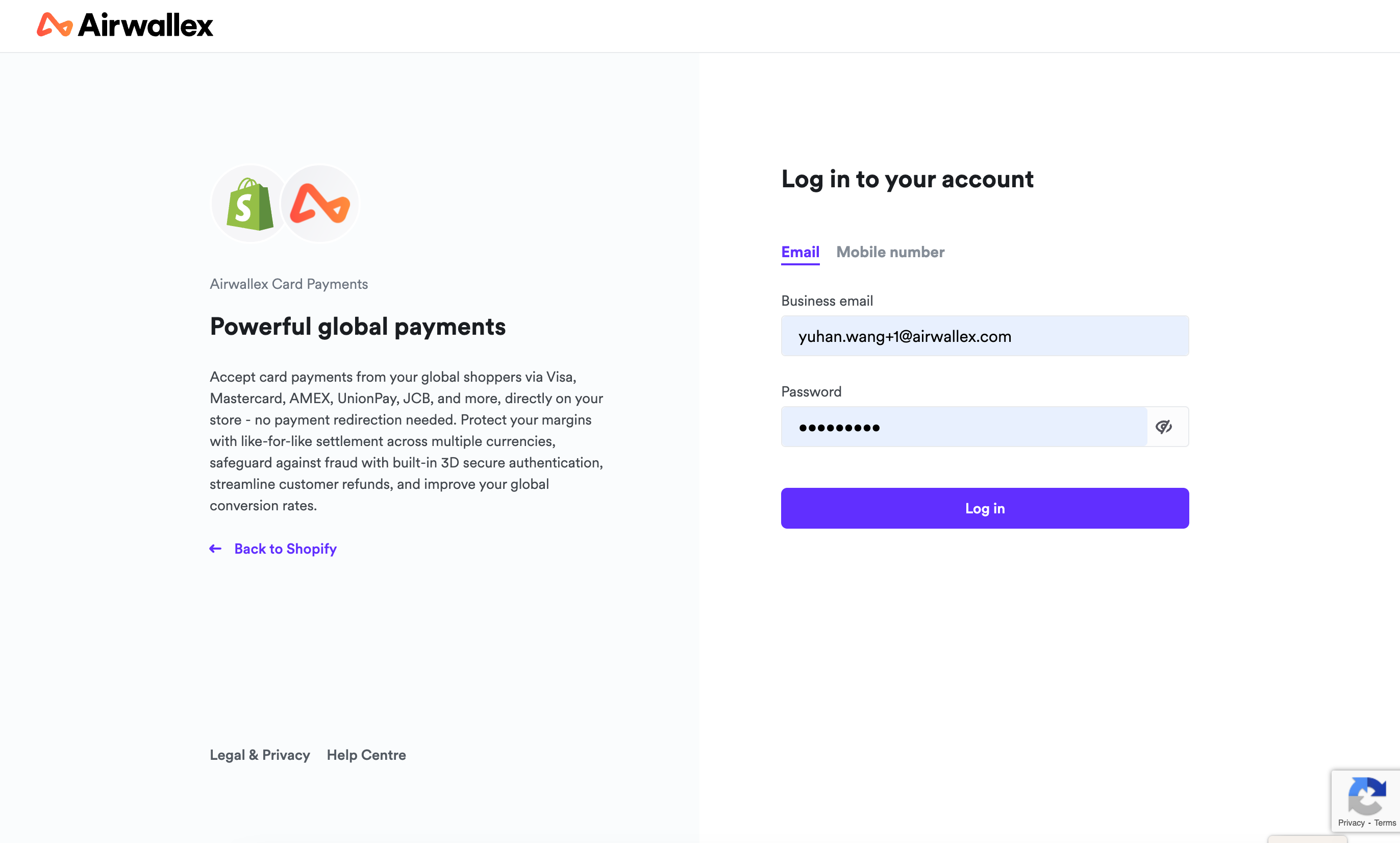
-
Select an account that you want to connect to your Shopify store, and click Connect. You will be redirected back to your Shopify settings after connecting.
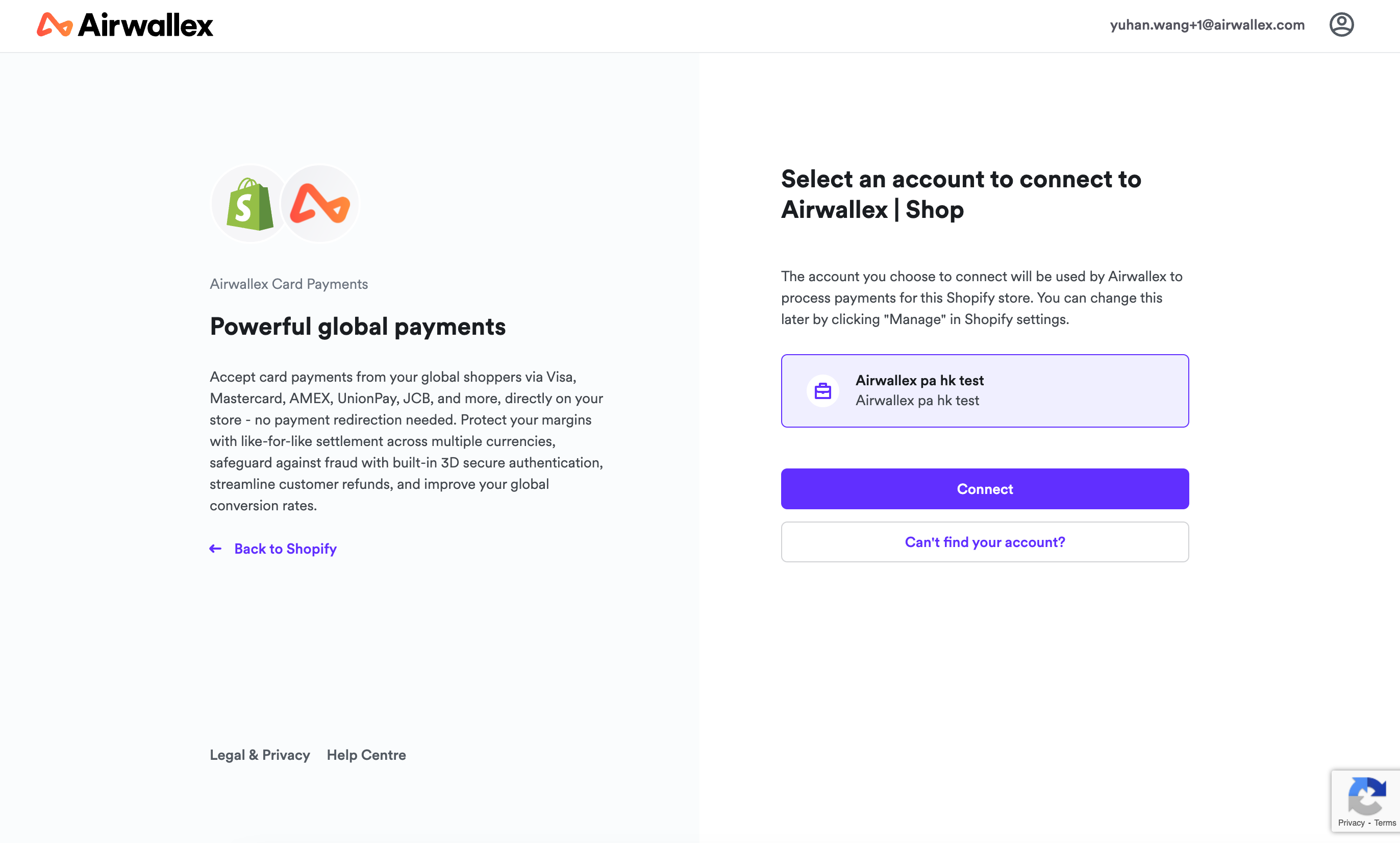
-
The app is now ready to be activated. Before that, you should configure which card schemes you would like to display on your checkout. Select only the card schemes that you have enabled on your Airwallex account (e.g. if AMEX is not activated on your Airwallex account, do not select the AMEX logo on your Shopify settings).
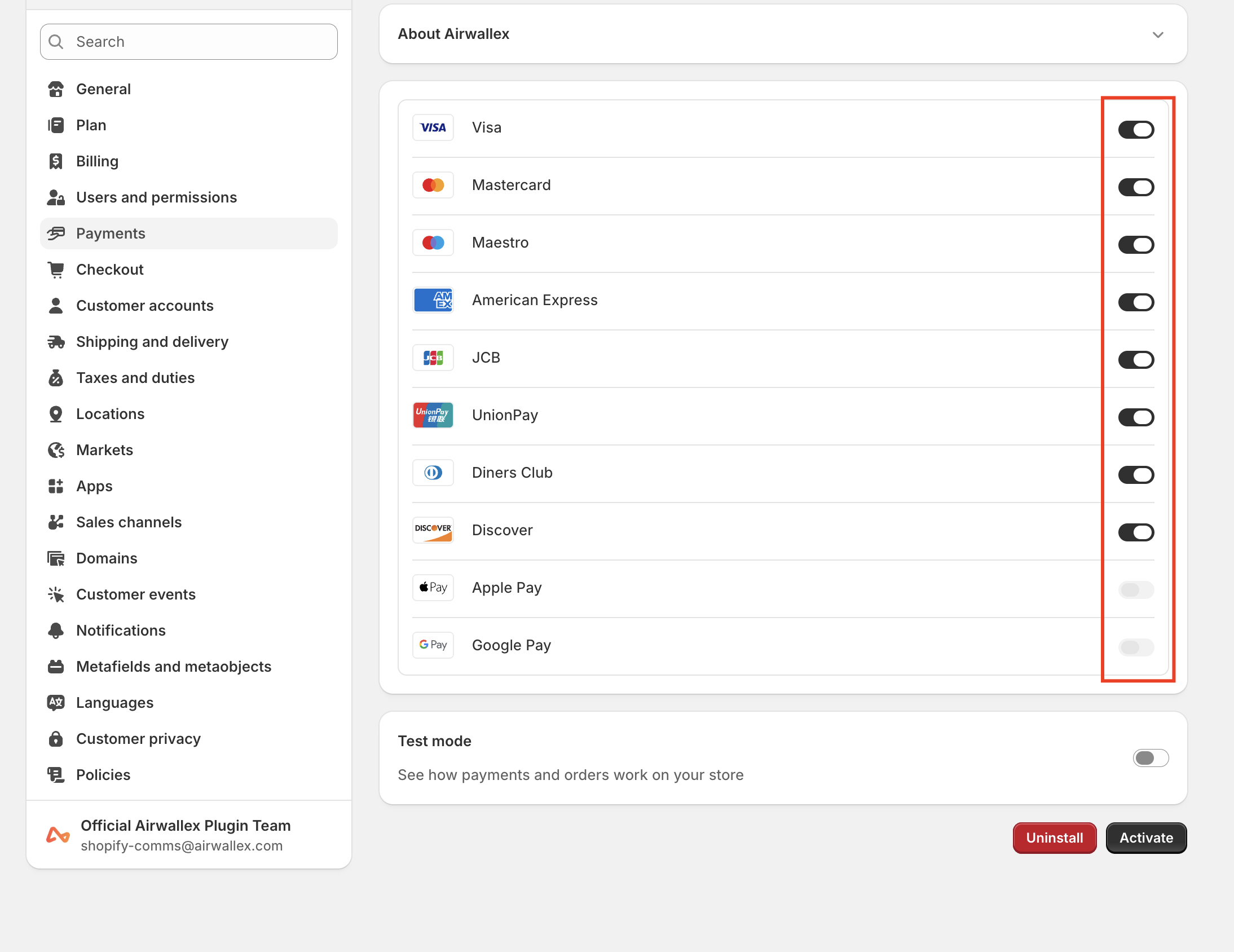 Note: If you have Mastercard enabled on your Airwallex account, you should select both Mastercard and Maestro in your Shopify settings.
 -
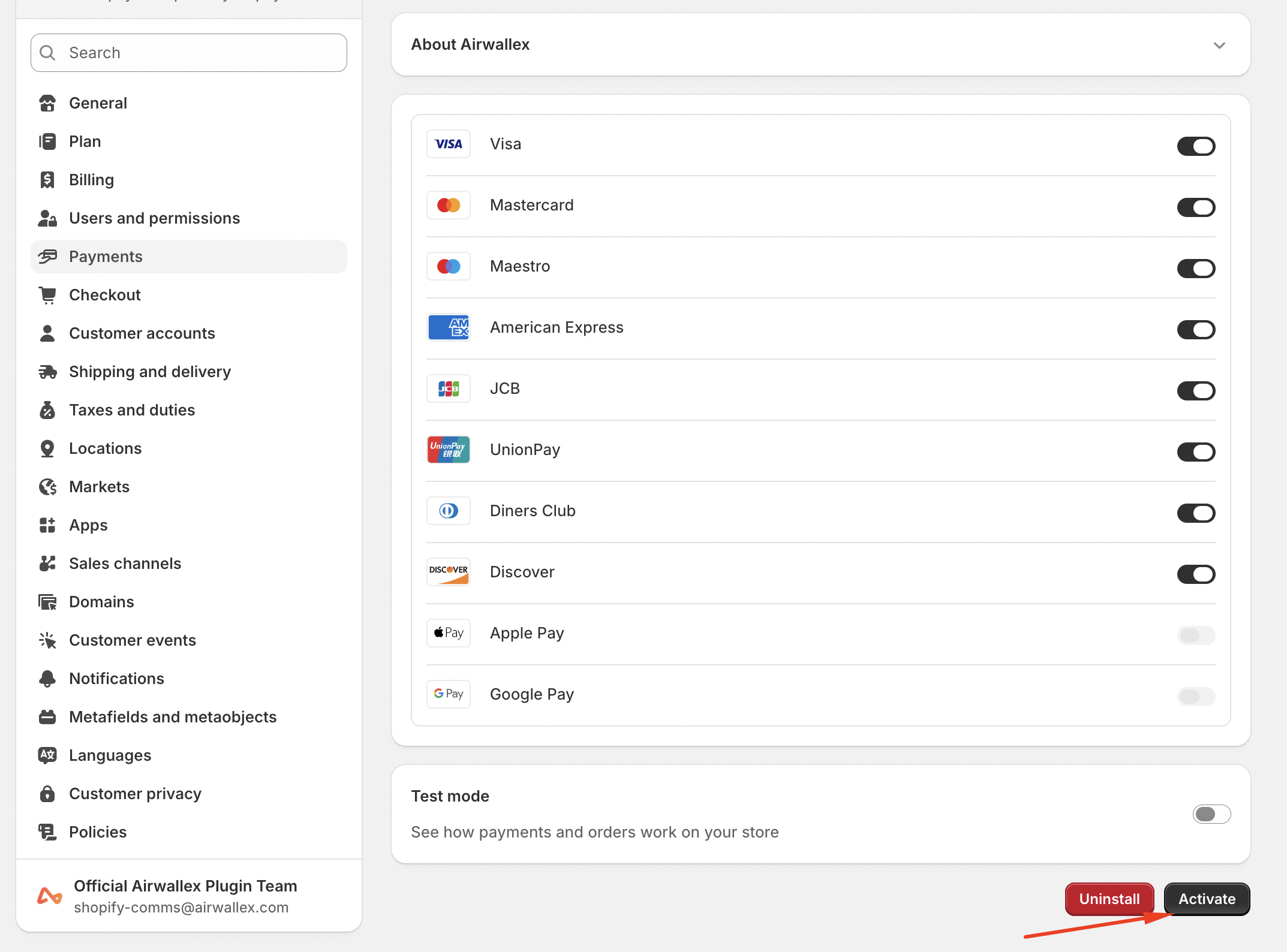
Click Activate. You should now be able to see the card experience on your store!
-
Risk Management To help improve your success rates and reduce fraud you can install our Airwallex Fraud Protection App .
Additional Configurations
Shopper Experience
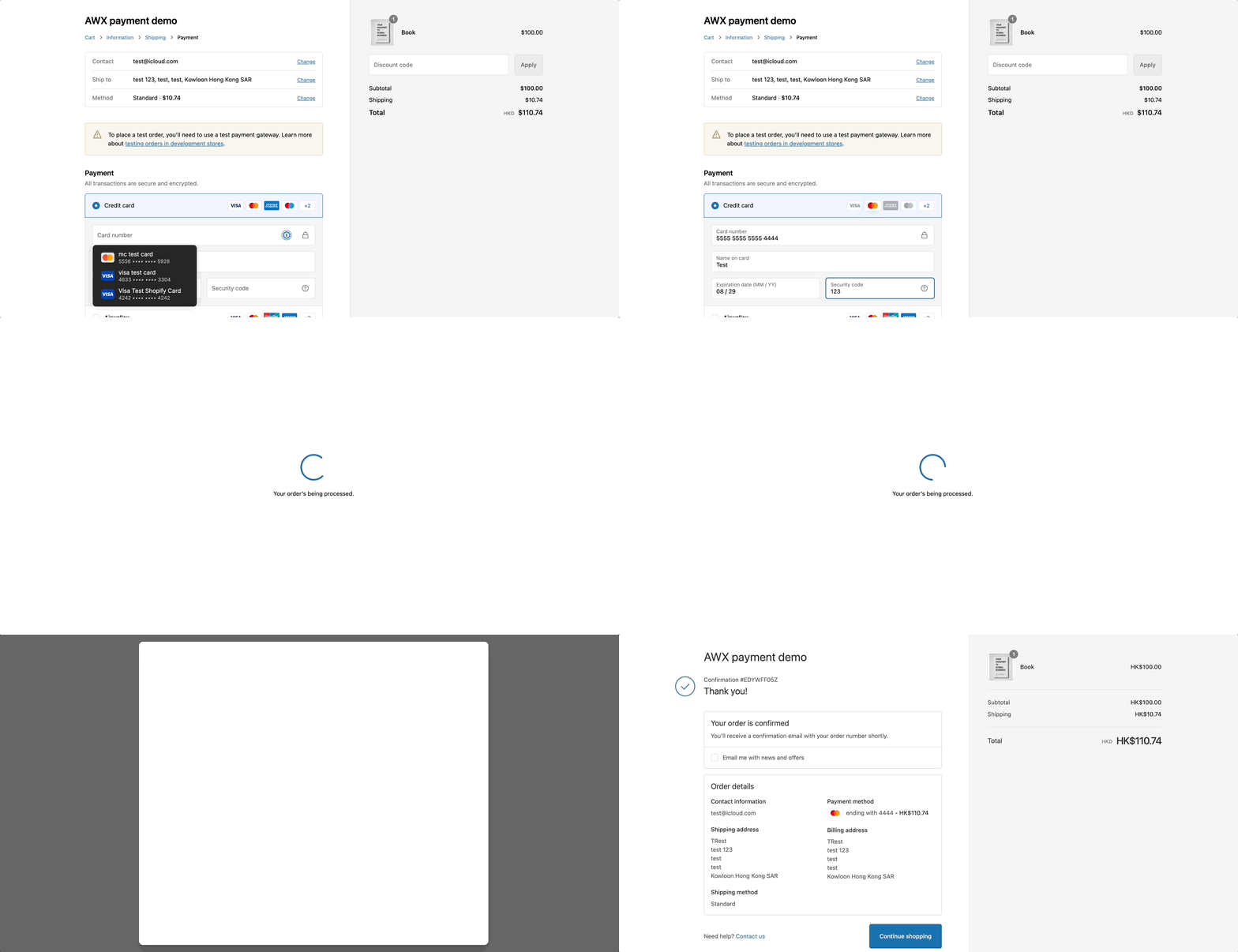
When a customer visits your online store, they will be able to checkout on the checkout page with their card details.
Testing
Enable test mode in Settings > Payments > Airwallex > Manage if you want to mock successful and failed transactions before going live. You can use the following card numbers when mocking transactions for card-only transactions:
Use the following card numbers for each card scheme to simulate a successful transaction:
| Card Scheme | Card Number |
|---|---|
| Visa | 4242424242424242 |
| Mastercard | 5555555555554444 |
| American Express | 378282246310005 |
| JCB | 3530111333300000 |
| UPI | 6250947000000014 |
Use the following card numbers to simulate a failed transaction:
| Error Reason | Card Number |
|---|---|
| Card Declined | 4000000000000002 |
| Incorrect Card Number | 4242424242424241 |
For CVV and Expiry Date: You can fill any number and date as long as the expiry date is a future date.