

Set up Developer MCP
Connect your AI assistant to the Airwallex Developer MCP server
To connect a compatible AI assistant to the Airwallex Developer Model Context Protocol (MCP) server and search Airwallex documentation or run sandbox operations from your coding environment, complete the steps in this guide.
Before you begin
Before you connect your AI assistant to the Developer MCP server, ensure you have:
- A compatible AI assistant installed (Cursor, Claude Code, or other MCP-compatible tool).
- Network access to
https://mcp-demo.airwallex.com. - A sandbox account if you want to use the remote
/developerendpoint or the local server. - Sandbox API credentials (Client ID and API Key) if you want to use the local server.
- Node.js version 18.x or later installed and available on your PATH if you want to use the local server.
Connect your AI assistant
Cursor
You can use one-click installation links or manual configuration.
Documentation and sandbox tools at /developer. Cursor initiates OAuth to authenticate with Airwallex.

Or manually add to your Cursor MCP settings:
1{2 "mcpServers": {3 "airwallex-dev": {4 "type": "http",5 "url": "https://mcp-demo.airwallex.com/developer"6 }7 }8}
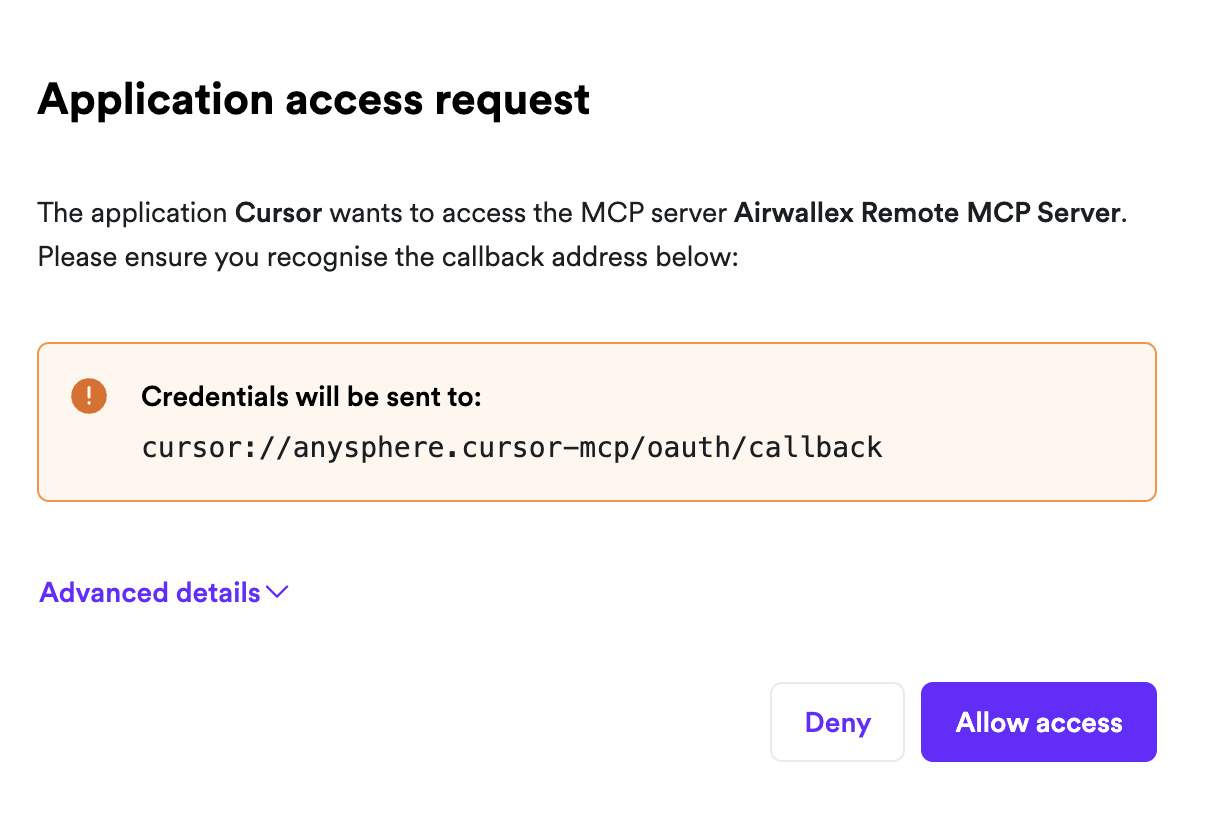
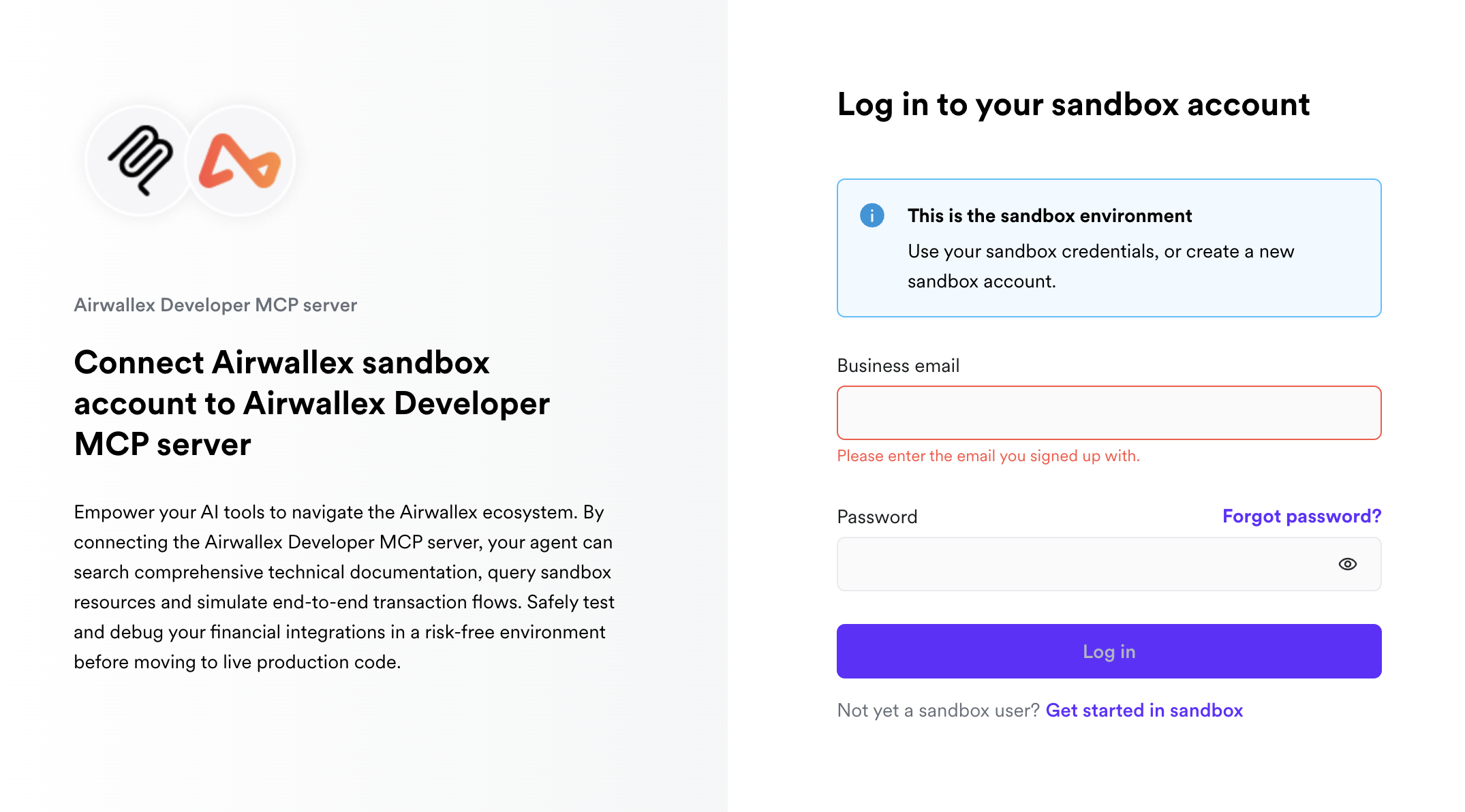
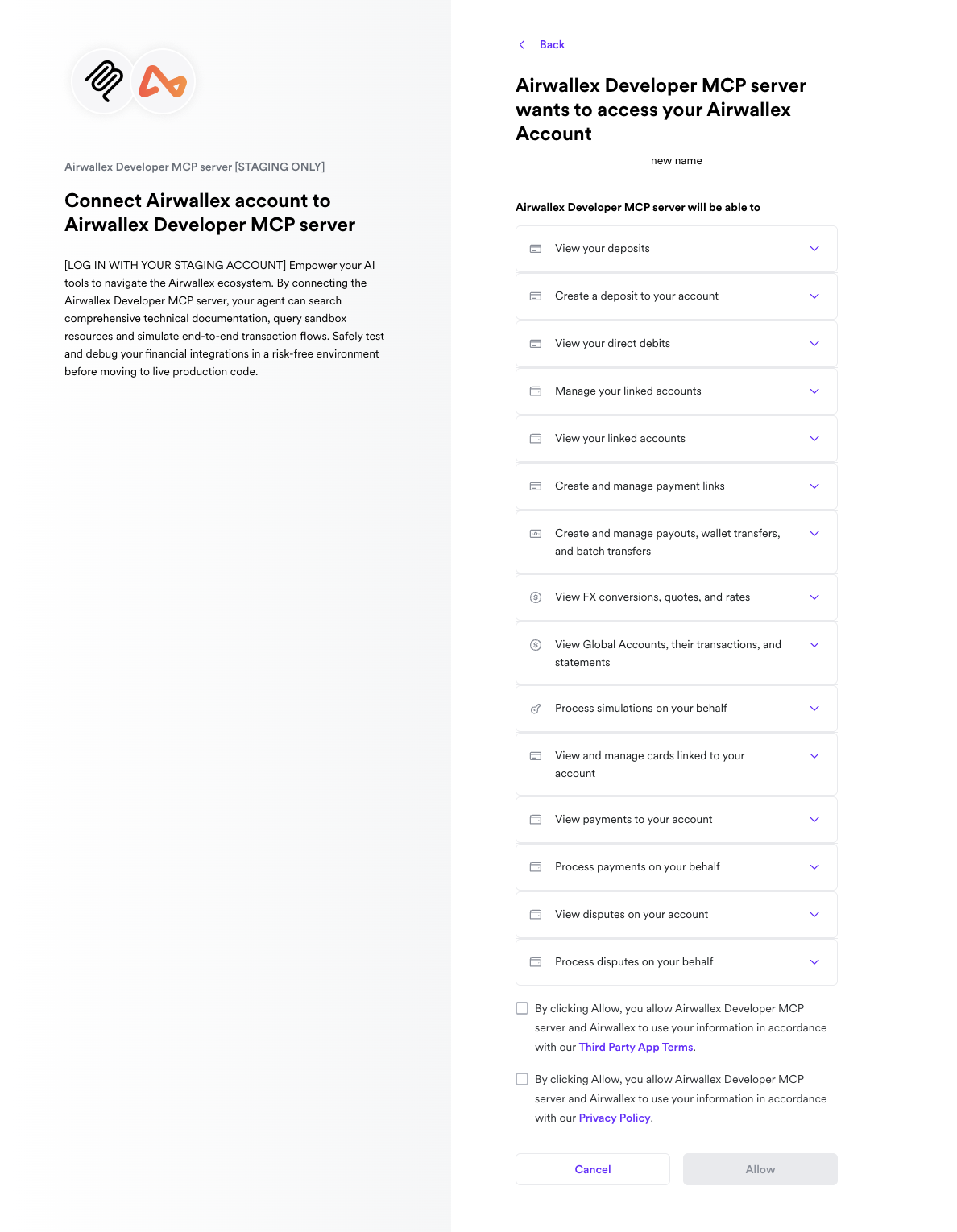
Documentation-only access at /docs, without authentication.
Or manually add to your Cursor MCP settings:
1{2 "mcpServers": {3 "airwallex-docs": {4 "type": "http",5 "url": "https://mcp-demo.airwallex.com/docs"6 }7 }8}
Full tool access including billing tools, without OAuth.
Or manually add the following to your Cursor MCP settings and fill in your sandbox credentials:
1{2 "mcpServers": {3 "airwallex-dev": {4 "command": "npx",5 "args": ["-y", "@airwallex/developer-mcp@latest"],6 "env": {7 "AIRWALLEX_SANDBOX_CLIENT_ID": "",8 "AIRWALLEX_SANDBOX_API_KEY": "",9 "AIRWALLEX_SANDBOX_ACCOUNT_ID": ""10 }11 }12 }13}
Claude Code
You can use one-click installation commands or manual configuration.
Documentation and sandbox tools at /developer. Claude Code initiates OAuth to authenticate with Airwallex.
1claude mcp add-json airwallex-dev '{ "type": "http", "url": "https://mcp-demo.airwallex.com/developer" }'
Documentation-only access at /docs, without authentication.
1claude mcp add-json airwallex-docs '{ "type": "http", "url": "https://mcp-demo.airwallex.com/docs" }'
Full tool access including billing tools, without OAuth. Run the following command and fill in your sandbox credentials:
1claude mcp add-json airwallex-dev '{ "type": "stdio", "command":"npx", "args": ["-y", "@airwallex/developer-mcp@latest"], "env": { "AIRWALLEX_SANDBOX_CLIENT_ID": "", "AIRWALLEX_SANDBOX_API_KEY": "", "AIRWALLEX_SANDBOX_ACCOUNT_ID": "" } }'
Claude.ai/Claude Desktop
Connect using the built-in Airwallex Developer connector or a custom connector for documentation-only access.
Find the official Airwallex Developer connector from Settings > Connectors.
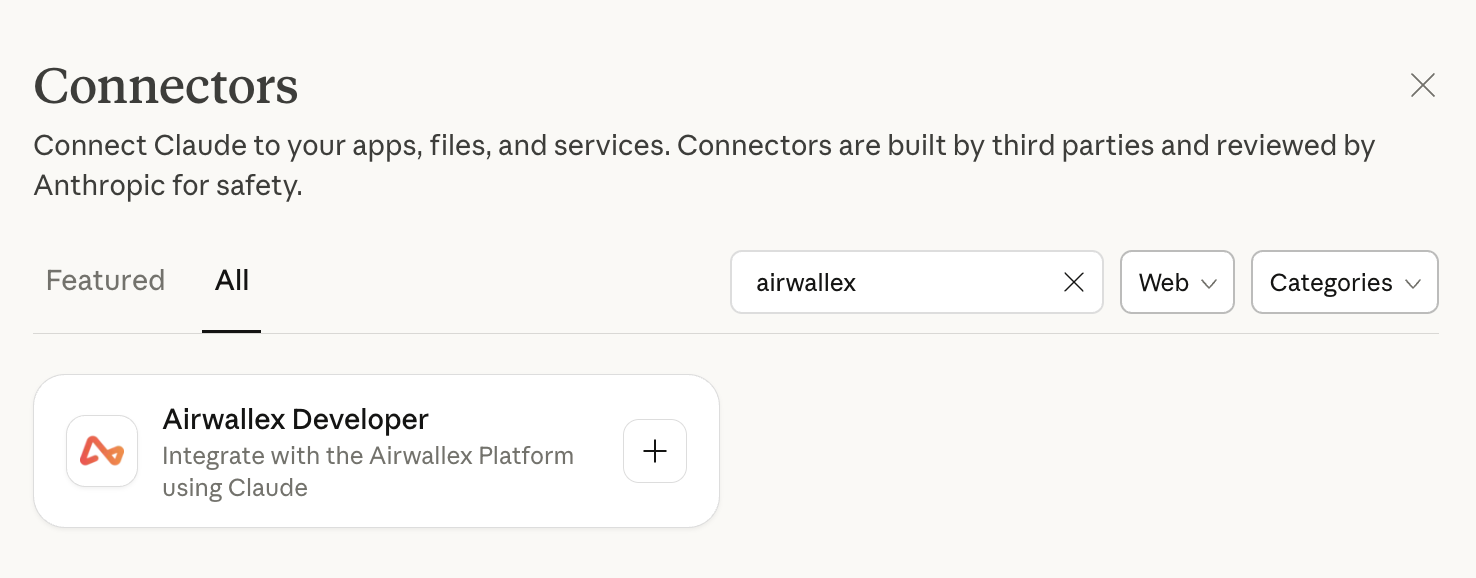
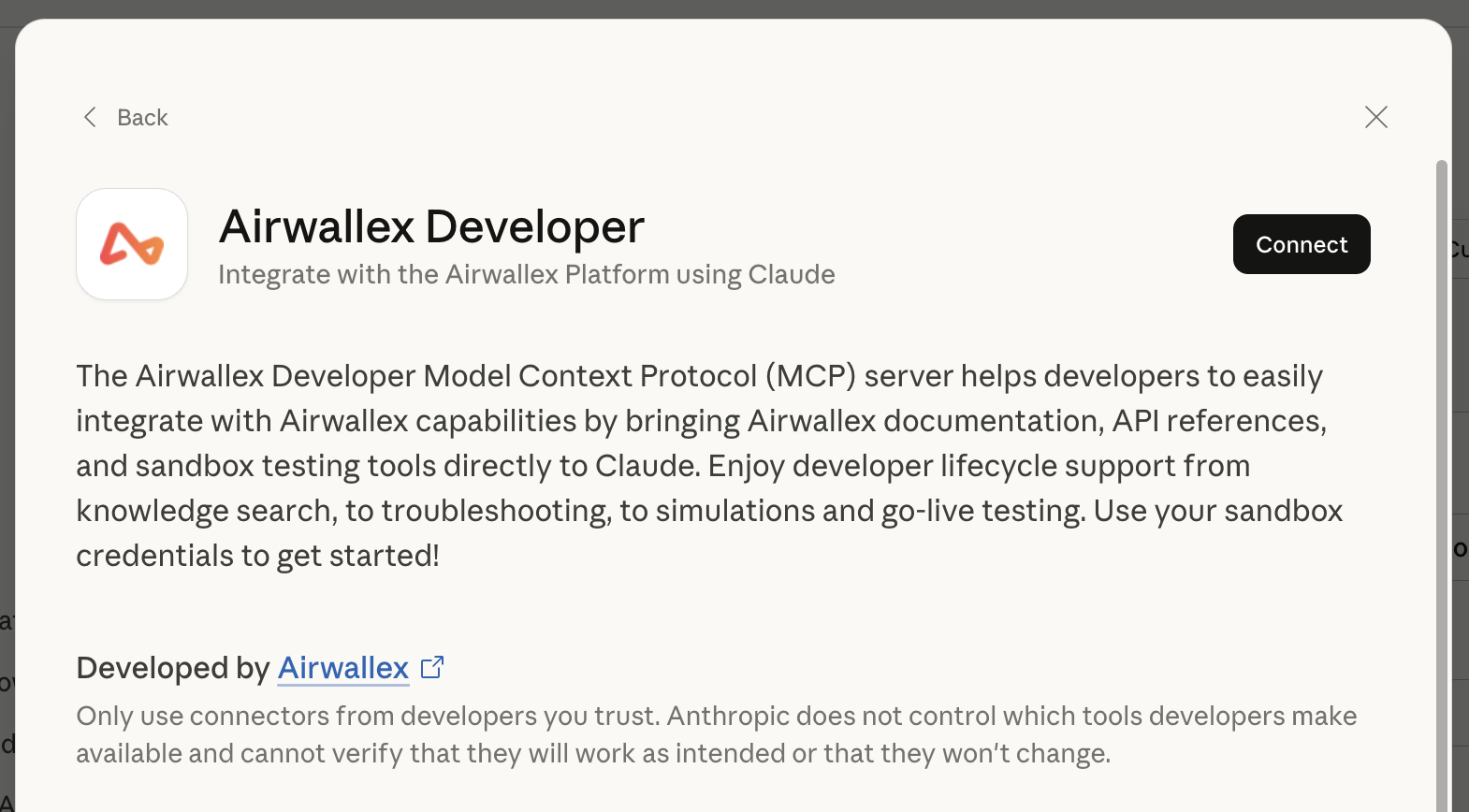
When you try to connect, Claude will initiate an OAuth flow to authenticate with Airwallex.
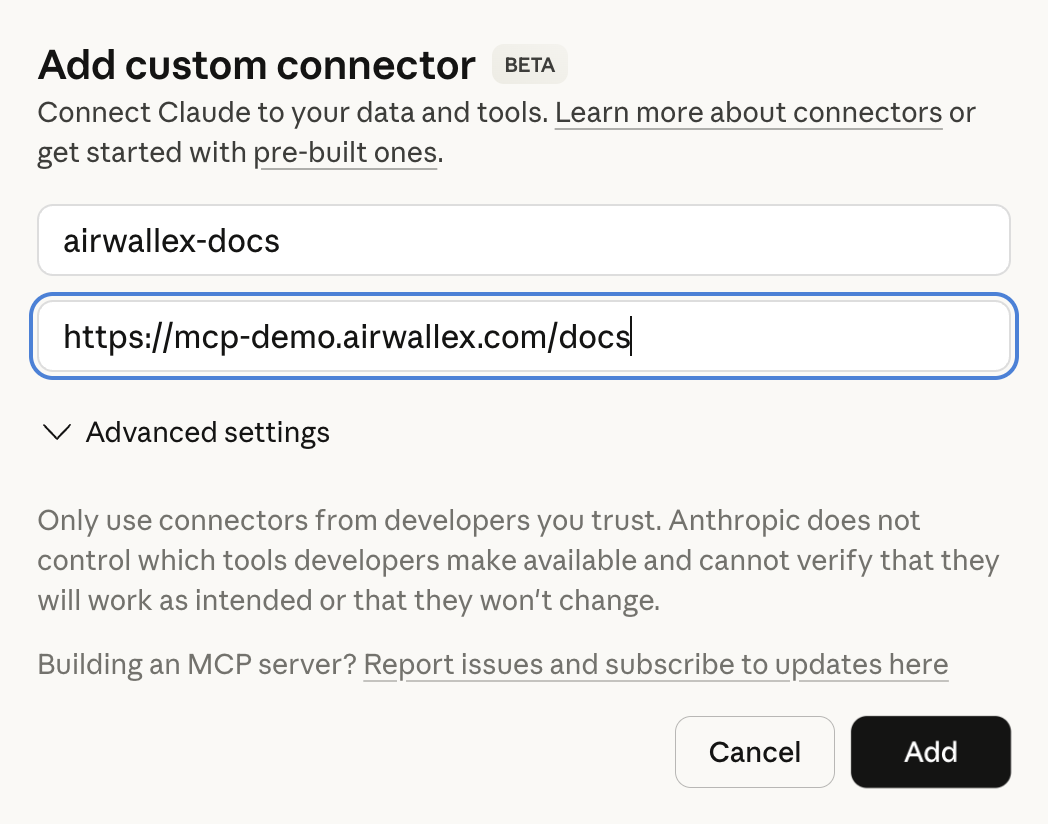
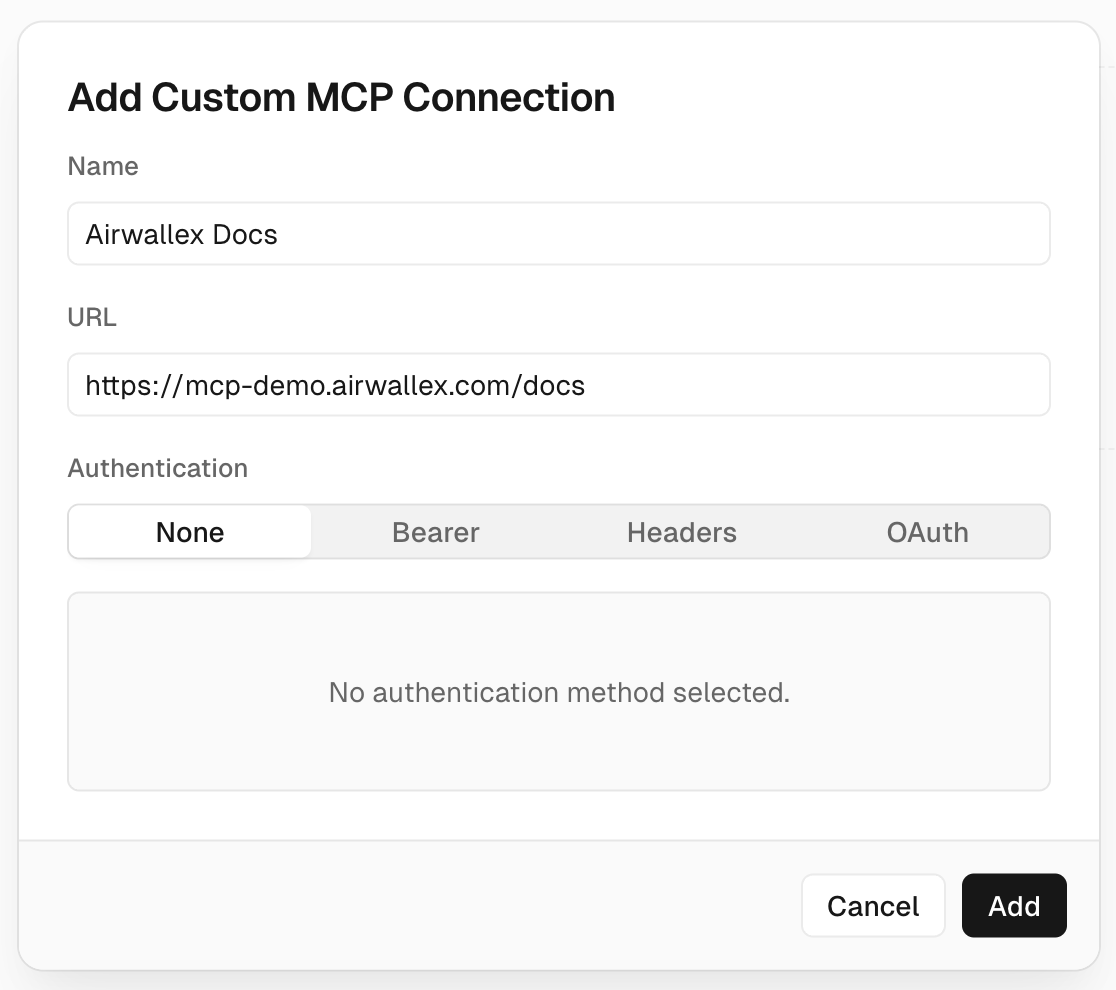
Add custom connector for documentation-only MCP (/docs) without authentication. From Settings > Connectors > Add custom connector, use https://mcp-demo.airwallex.com/docs as the Remote MCP server URL.
Gemini CLI
Add the MCP configuration to your Gemini CLI MCP settings file.
Add the following configuration to your Gemini CLI MCP settings for /developer. Gemini CLI initiates OAuth to authenticate with Airwallex.
1{2 "mcpServers": {3 "airwallex-dev": {4 "type": "http",5 "url": "https://mcp-demo.airwallex.com/developer"6 }7 }8}
Add the following configuration to your Gemini CLI MCP settings for documentation-only access at /docs (no authentication):
1{2 "mcpServers": {3 "airwallex-docs": {4 "type": "http",5 "url": "https://mcp-demo.airwallex.com/docs"6 }7 }8}
Full tool access including billing tools, without OAuth. Add the following to your Gemini CLI MCP settings and fill in your sandbox credentials:
1{2 "mcpServers": {3 "airwallex-dev": {4 "command": "npx",5 "args": ["-y", "@airwallex/developer-mcp@latest"],6 "timeout": 30000,7 "env": {8 "AIRWALLEX_SANDBOX_CLIENT_ID": "",9 "AIRWALLEX_SANDBOX_API_KEY": "",10 "AIRWALLEX_SANDBOX_ACCOUNT_ID": ""11 }12 }13 }14}
OpenAI Codex
Add the MCP configuration to your OpenAI Codex MCP settings file.
Add the following to your OpenAI Codex MCP settings for /developer. Codex initiates OAuth to authenticate with Airwallex.
1[mcp_servers.airwallex-dev]2type = "http"3url = "https://mcp-demo.airwallex.com/developer"
Add the following to your OpenAI Codex MCP settings for documentation-only access at /docs (no authentication):
1[mcp_servers.airwallex-docs]2type = "http"3url = "https://mcp-demo.airwallex.com/docs"
Full tool access including billing tools, without OAuth. Add the following to your OpenAI Codex MCP settings and fill in your sandbox credentials:
1[mcp_servers.airwallex-dev]2command = "npx"3args = ["-y", "@airwallex/developer-mcp@latest"]45[mcp_servers.airwallex-dev.env]6AIRWALLEX_SANDBOX_CLIENT_ID = ""7AIRWALLEX_SANDBOX_API_KEY = ""8AIRWALLEX_SANDBOX_ACCOUNT_ID = ""
Lovable
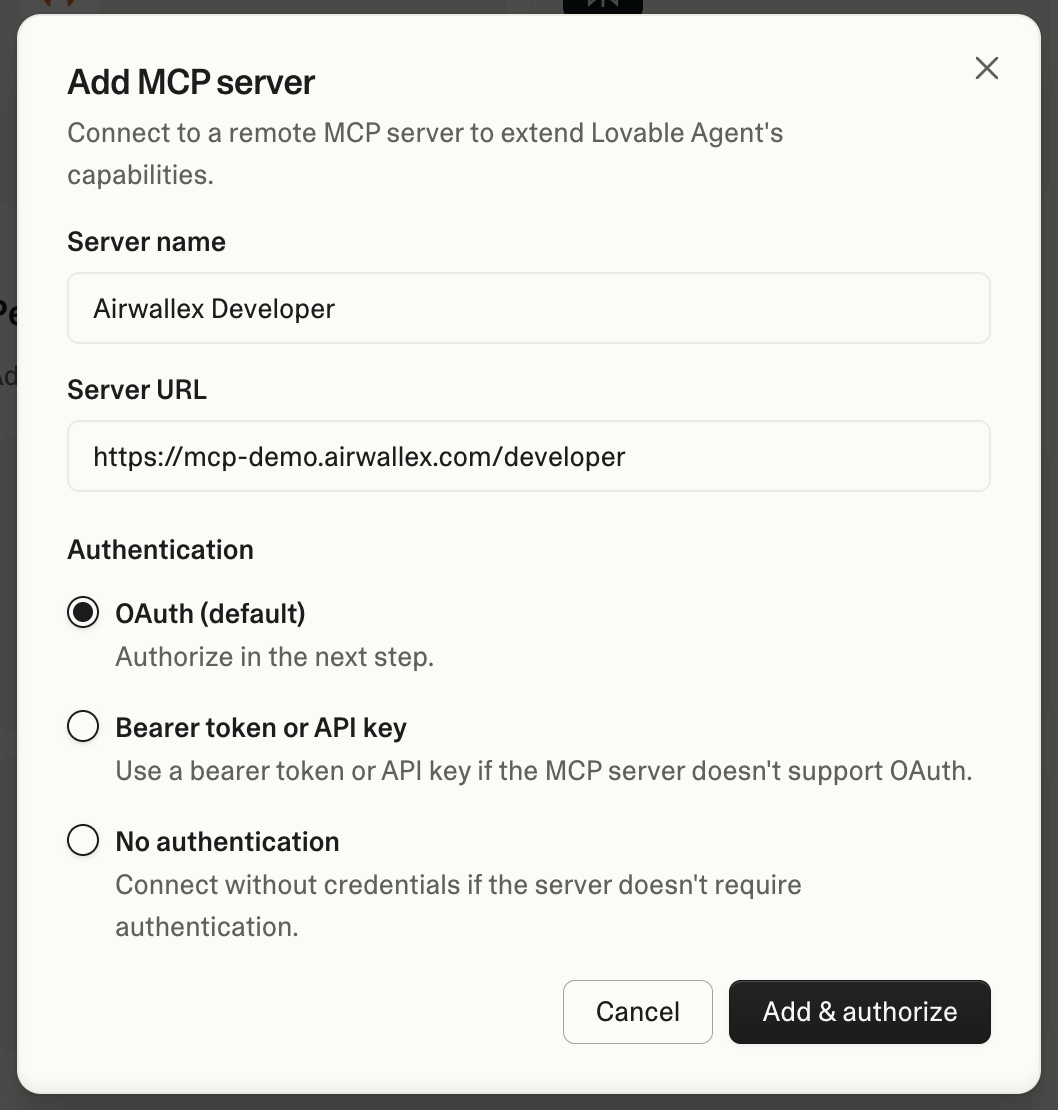
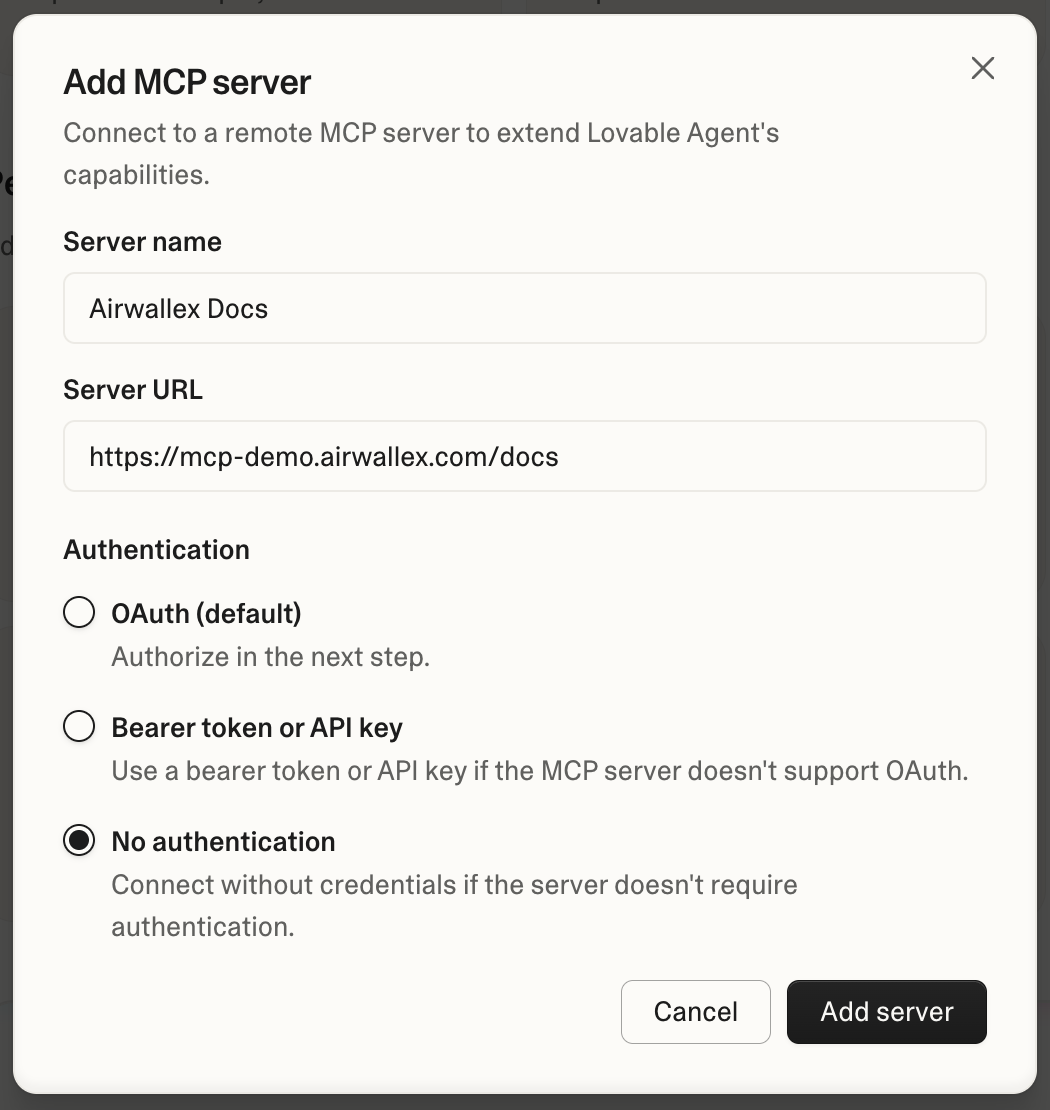
Lovable is a web-based coding agent that only supports remote MCP servers. MCP server support requires a paid plan. Connect using the MCP server settings in your Lovable project.
Documentation and sandbox tools at /developer. Lovable initiates OAuth to authenticate with Airwallex.
Documentation-only access at /docs.
V0
V0 by Vercel is a web-based AI coding agent that only supports remote MCP servers. MCP server support requires a paid plan. Connect using the MCP server settings in your V0 project.
V0 does not support the /developer endpoint today. Use the Docs tab for the documentation-only server, or another coding agent if you need sandbox tools.
Documentation-only access at /docs.
1{2 "mcpServers": {3 "airwallex-docs": {4 "type": "http",5 "url": "https://mcp-demo.airwallex.com/docs"6 }7 }8}
Repl.it
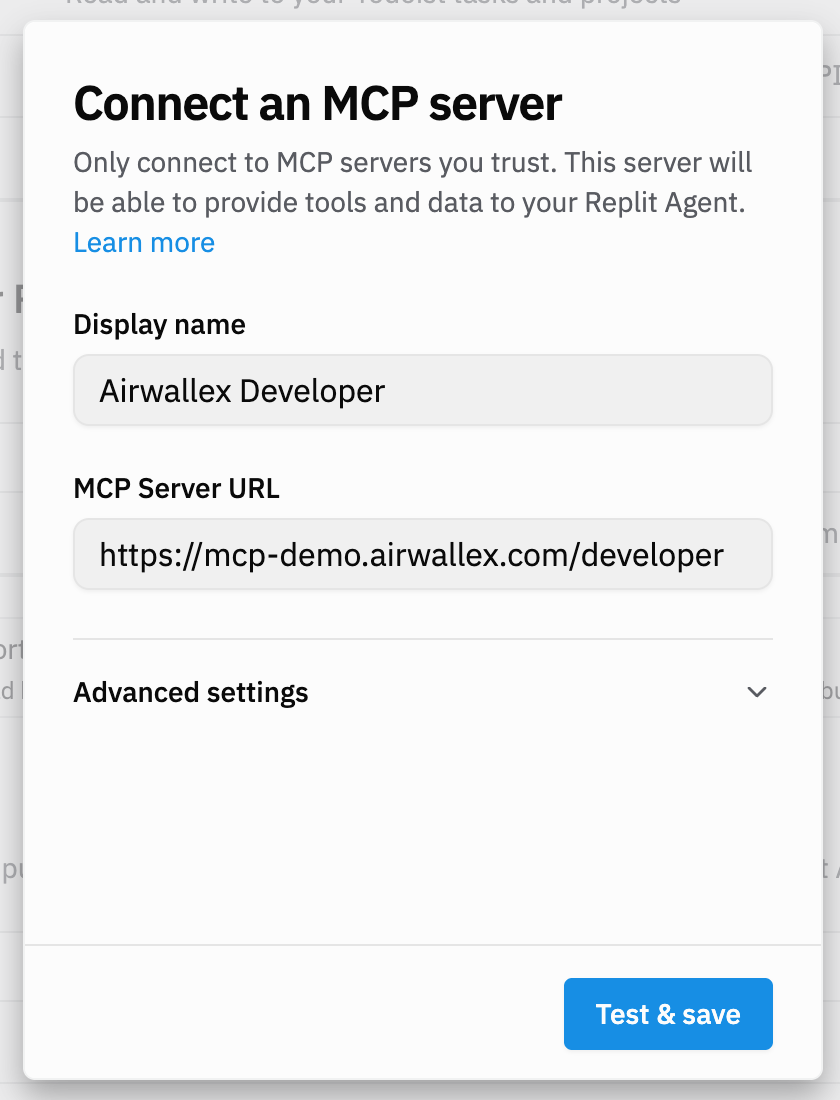
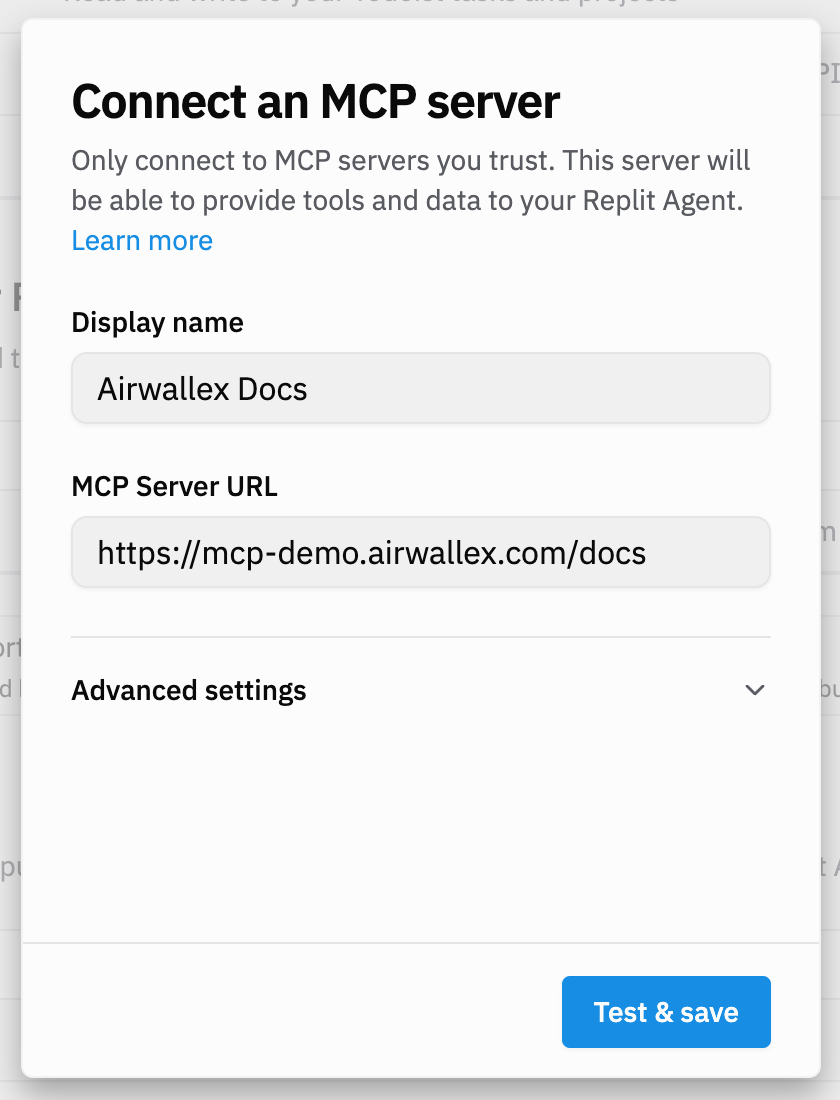
Repl.it is a web-based AI coding agent that only supports remote MCP servers. Connect using the MCP server settings in your Repl.it project.
Documentation and sandbox tools at /developer. Repl.it initiates OAuth to authenticate with Airwallex.
Documentation-only access at /docs.
Configure the local server
Add the following environment variables to the env block in your MCP settings and fill in your sandbox credentials:
| Name | Description | Required |
|---|---|---|
AIRWALLEX_SANDBOX_CLIENT_ID | Client ID associated with the sandbox API key. | No |
AIRWALLEX_SANDBOX_API_KEY | API key (admin or scoped) from the sandbox environment. Must have permissions for the APIs you want to use. | No |
AIRWALLEX_SANDBOX_ACCOUNT_ID | Account ID for a scoped API key that accesses organization or multi-account resources. Starts with acct_. | No |
DISABLE_TELEMETRY | Set to true to disable telemetry. When enabled, only anonymous tool usage data is collected — no parameters or responses are logged. Default: 0. | No |
Verify your connection
After setup, confirm the MCP server is connected before using it:
- Check that the Airwallex server appears in your editor's MCP configuration or settings panel.
- Send a test prompt that explicitly mentions Airwallex, for example: "Using Airwallex, show me how to create a test payment link in the sandbox."
- If the response references Airwallex documentation or invokes an Airwallex tool, the connection is working.
Next steps
Now that your AI assistant is connected, learn how to write effective prompts, explore the available tools, and troubleshoot common issues: Build integrations with Developer MCP.