

Enable Apple Pay (Express Checkout)
Enable Apple Pay express checkout on your WooCommerce store so shoppers can pay with one tap on desktop and mobile.
Apple Pay offers an accelerated checkout experience. Shoppers pay with their saved card, billing address, and shipping address in a single step — no manual entry required. You do not pay any extra fees for accepting Apple Pay through Airwallex.
Before you begin
- You have enabled Airwallex - Cards as a payment method. Follow the Cards setup guide if you have not done so.
- Your store has SSL activated (your URL must start with
https://). - Your store adheres to the Apple Pay API Acceptable Use Guidelines .
- Apple Pay is activated as a payment method in your Airwallex account.

Enable Apple Pay
-
In the WordPress Admin, go to WooCommerce > Settings > Payments > Airwallex.
-
Select the Express Checkout tab.
-
Check Enable Airwallex Express Checkout.
-
Under Express Checkout, select Apple Pay (you can also enable Google Pay at the same time).
-
The plugin automatically registers your domain with Apple for Apple Pay. If the automated registration fails, follow the Apple developer instructions to register manually.
-
Configure the following display and appearance settings:
Setting Description Show Button On Where to display the Apple Pay button: Checkout, Product Page, Cart. Select all placements to maximize conversion. Skip Billing Address for Virtual Items When enabled, billing address is not collected if every product in the order is virtual. Call To Action Button label: Only Icon, Buy, Donate, or Book. Button Theme Dark or Light. -
Click Save Changes.
Domain must match your onboarding domain
Apple Pay uses the domain you provided during Airwallex onboarding. If your WooCommerce store uses a different domain, contact your Account Manager or [email protected] to have it updated.
Card scheme configuration
Apple Pay supports the card schemes activated in your Airwallex account, including Visa, Mastercard, American Express, JCB, UnionPay, Discover, and Diners Club.
Activate schemes in the Airwallex WebApp under Payments > Payment Methods. If a scheme is not activated, shoppers can select that card in their Apple Pay wallet but the payment will fail at processing.
Shopper experience
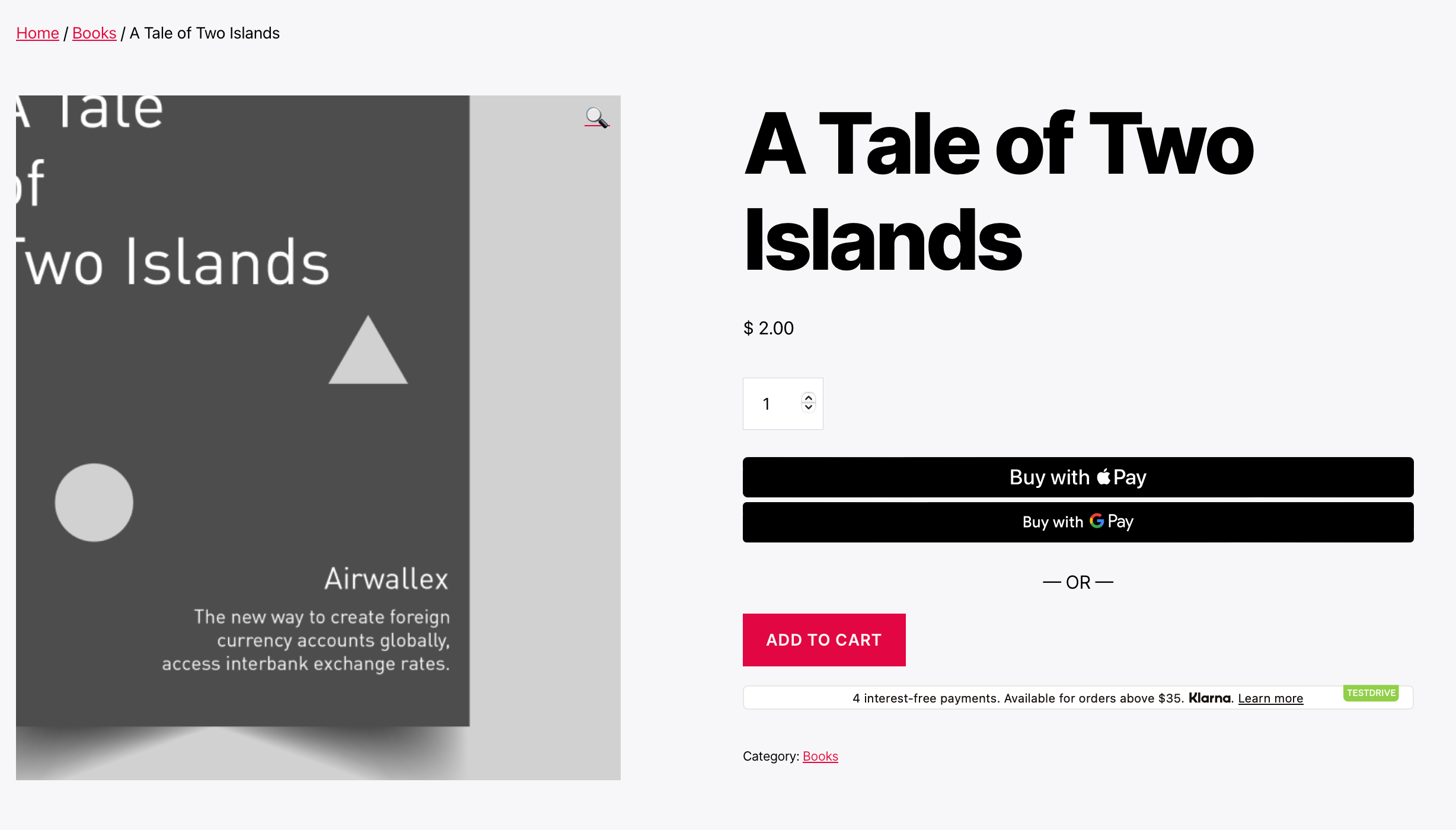
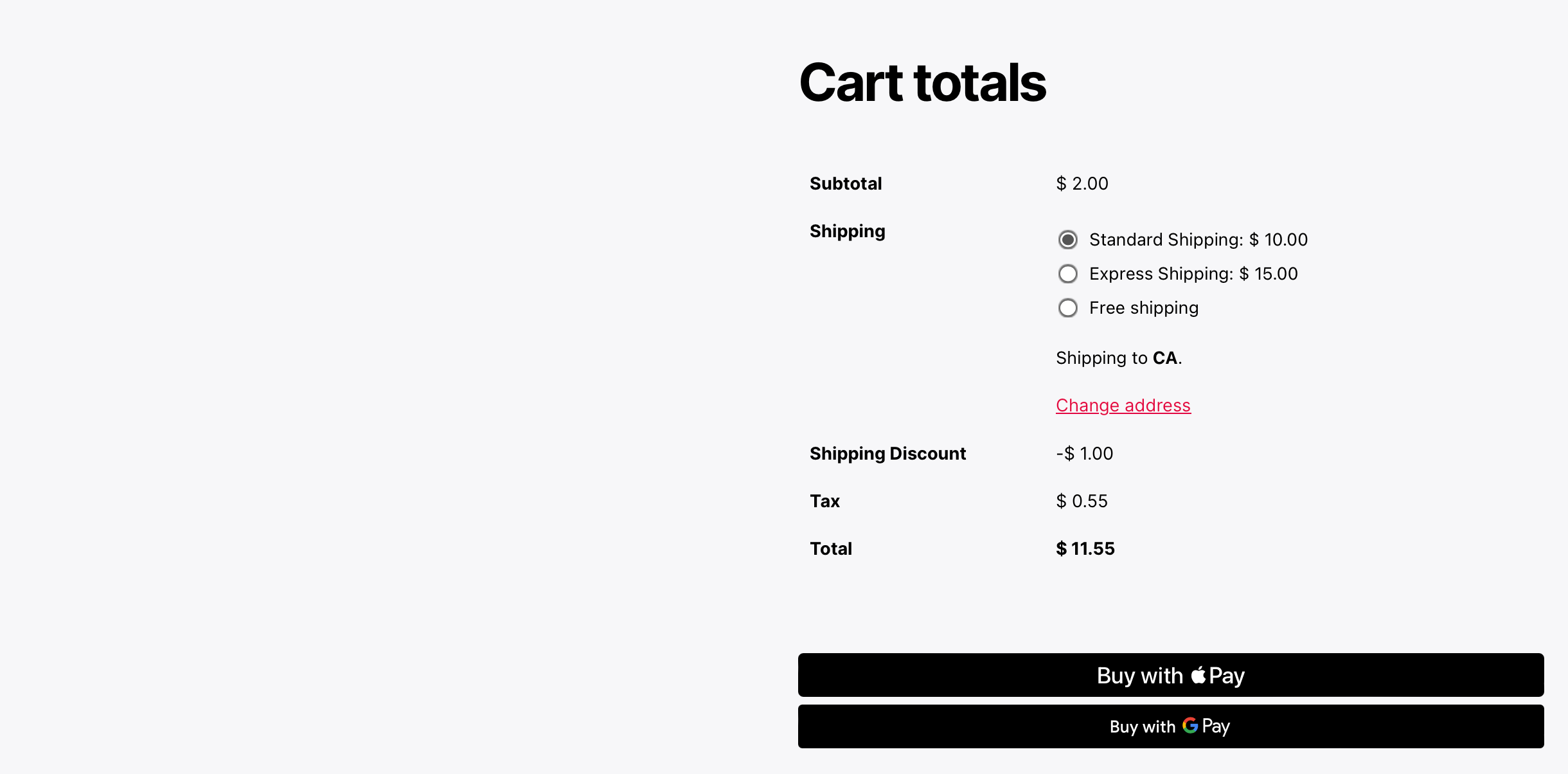
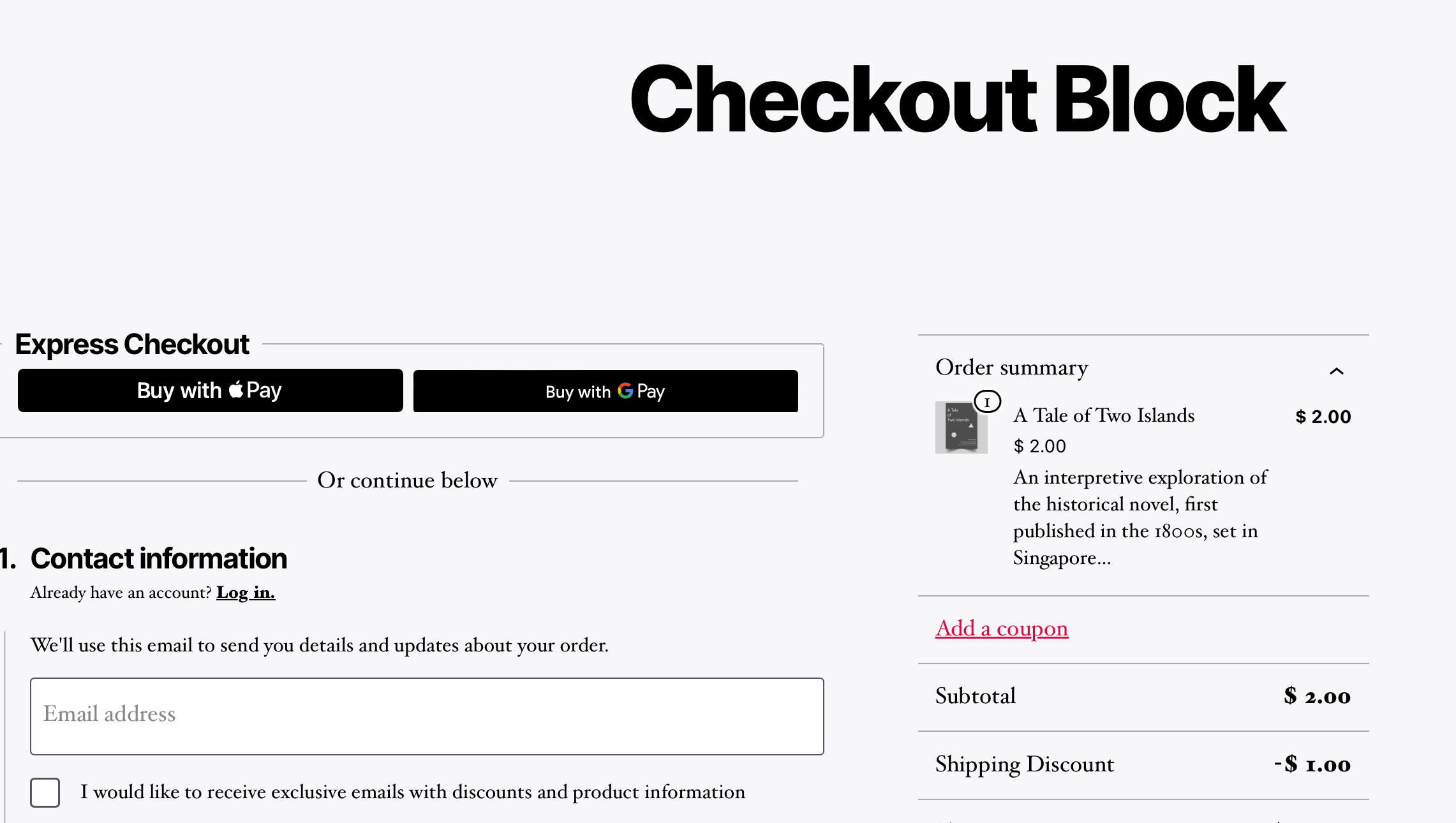
The Apple Pay button appears on the pages you selected (Product Page, Cart, Checkout). The button style reflects your Call To Action and Button Theme settings.
- Product Details Page
- Cart Page
- Checkout Page
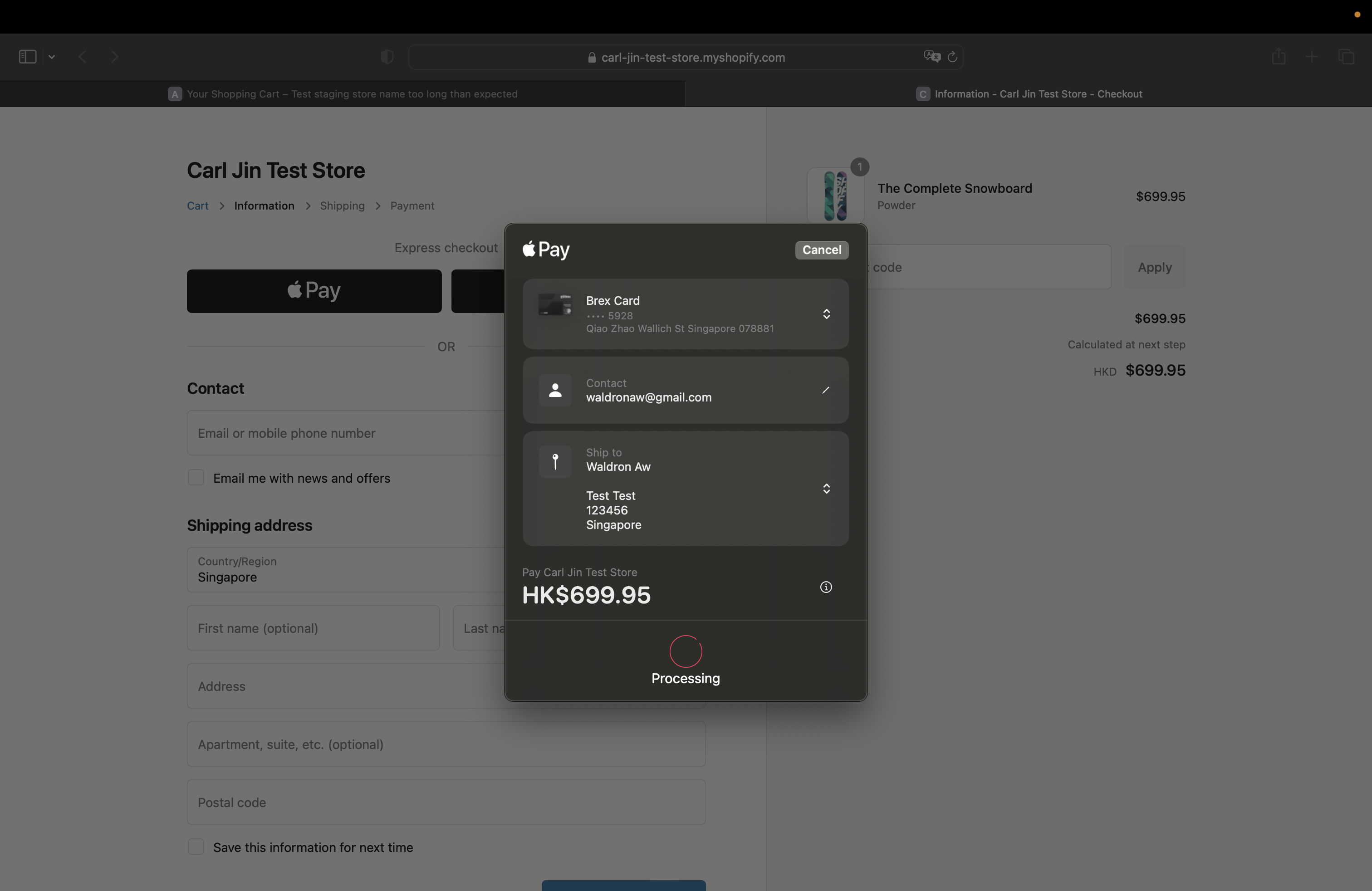
When a shopper taps the Apple Pay button, their saved shipping and billing information appears along with the order cost and shipping rates. The shopper authenticates with Face ID, Touch ID, or their passcode to complete the purchase.
Apple Pay is supported on:
- iPhone and iPad devices with Face ID or Touch ID
- Macs with Touch ID or with an iPhone/Apple Watch for authentication
- Safari is required on Mac devices