

Install Airwallex Card Payments app
Start accepting card payments with major card schemes like Visa, Mastercard and American Express.
Follow these steps to install the Airwallex Card Payments app to accept card payments with major card schemes like Visa, Mastercard and AMEX directly on your SHOPLINE store.
Getting started
-
Submit your KYB (Know Your Business) information to Airwallex using Airwallex > Payments, and apply for the card schemes that you'd like to enable.
-
Install the Airwallex Card Payments app based on the guide below.
Installation and Configuration
-
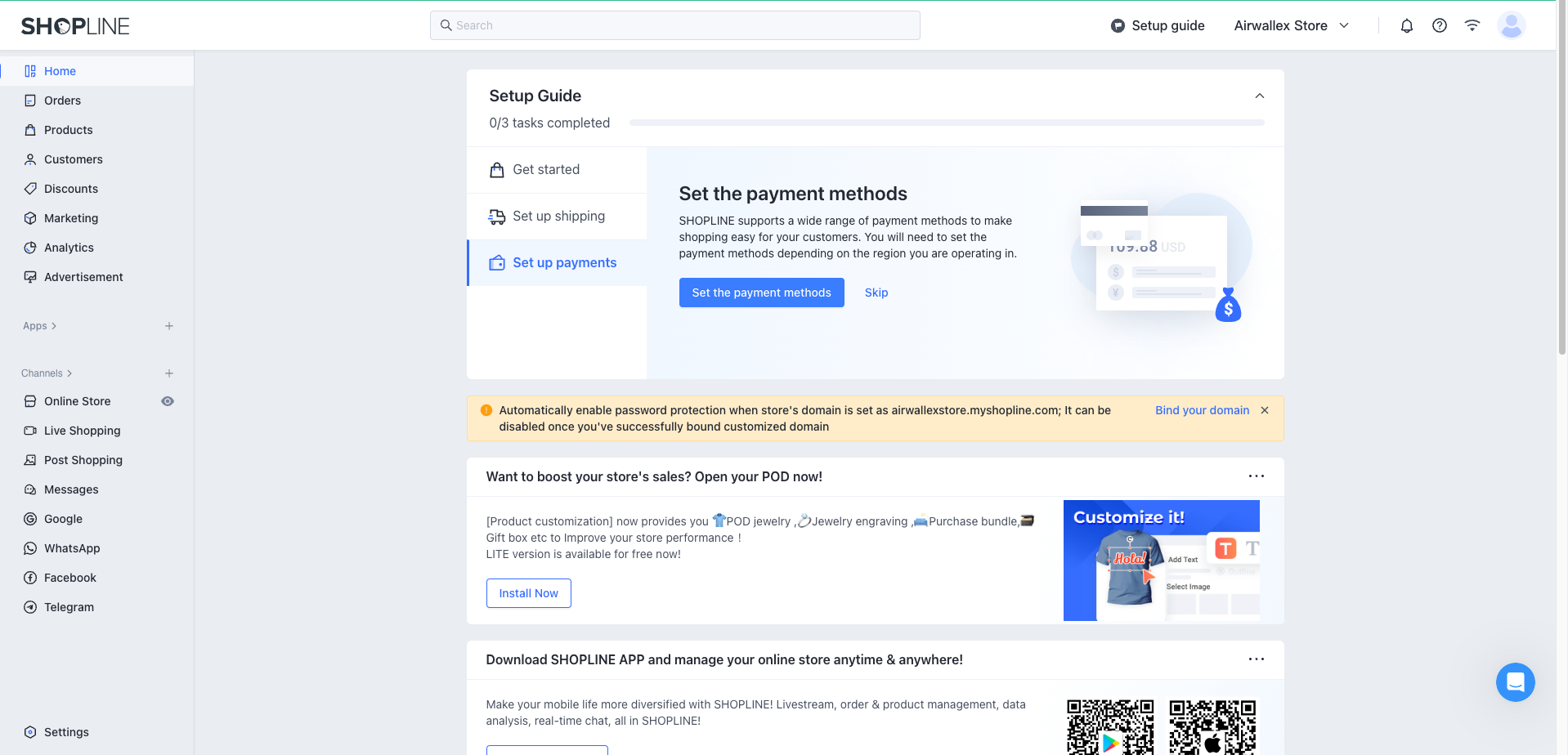
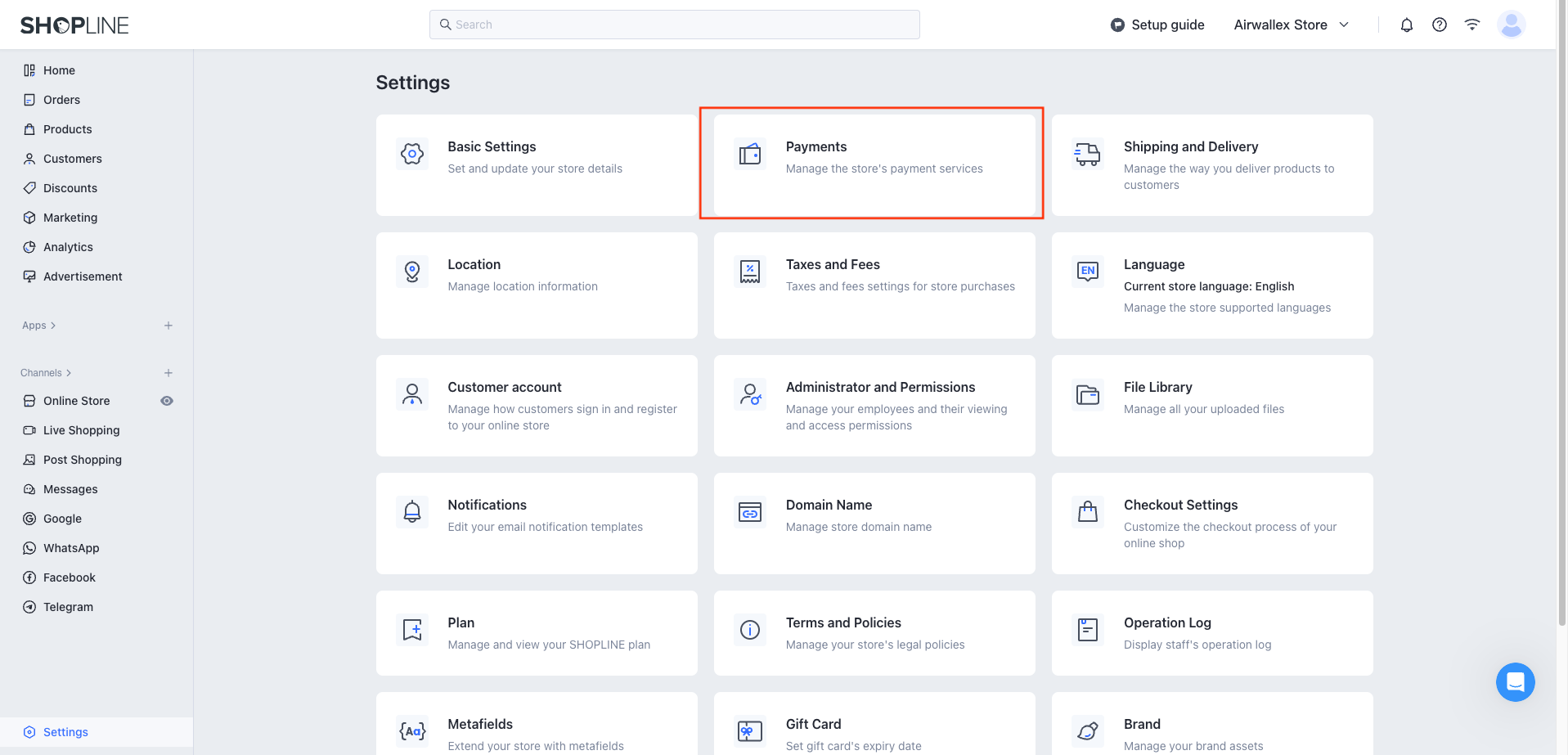
Go to your SHOPLINE admin page and click "Set up payment methods" from the "Set up Payments" in the hero banner or click Settings > Payments.
-
Click Add a payment service provider and select Airwallex.

-
You should now see the following screen. You will be required to login to your Airwallex account to retrieve details to fill up the fields.

-
Log in to your Airwallex account that you wish to be connected to your SHOPLINE store.

-
Select Developer > API Keys > Create restricted API Key.
-
Fill up the name of your choice, tick both edit and view for Payment Acceptance and click save.

-
You should now be able to see both the client ID and API Key highlighted in the red box.
-
Copy both the client ID and API key and fill it up accordingly in the SHOPLINE settings page shown below.


-
The last step is to configure the webhooks which will notify SHOPLINE of payment statuses. Click Developer > Webhooks.

-
Under Notification URL input the following URL.
text1https://ec-pa-api-sg.myshopline.com/v1/api/financial-exchange/channel-callback-route/mix/notify/Airwallex/CreditCard -
Tick the following events under List of Webhook Events and click Submit (Screenshots of the events are also provided).
-
Copy the "Secret Key" and paste it in the field "Webhook Token" in SHOPLINE.
List of Webhook Events
i. Payments
Payment Intent
- Cancelled
- Created
- Succeeded
Payment attempt
- Authentication Failed
- Authorization failed
- Capture failed
Refund
- Failed
- Received
- Succeeded
Dispute (all)
- Accepted
- Dispute received
- Dispute responded
- Reversed
- Lost
- Pre-Chargeback accepted
- Pre-Chargeback received
- RFI received
- RFI responded
- Won
- Arbitration received
- Escalation to scheme received


Configuration of Card Schemes
From Settings > Payments > Airwallex > Edit. You can configure which card schemes you would like to support on your checkout. This will affect the logos which are shown to the shoppers during checkout.

Select the schemes which you wish to support on your Store

Card Scheme Configuration
Only select card schemes that you have already enabled on your Airwallex account.
Shopper Experience
Your customers will now be able to pay with their preferred cards directly on your store!
