

Embedded Payment Element integration
PaymentElement provides a flexible way to embed payment UI directly into your own activity. Unlike the Hosted Payment Page which presents a full-screen payment flow, PaymentElement returns a composable that you can place anywhere in your layout.
While PaymentElement uses Jetpack Compose internally for rendering, you don't need a Compose-based app to use it. You can easily embed it in traditional XML layouts or Java-based projects by using ComposeView.
Make sure you add dependencies for the core payment module and any payment method modules you plan to support.
Keep in mind that:
- The embedded element uses Jetpack Compose for rendering internally.
- Works with traditional XML layouts, Java code, and Compose-based apps.
- The element's height updates automatically based on content.
- You maintain full control over the host activity and navigation.
How it works
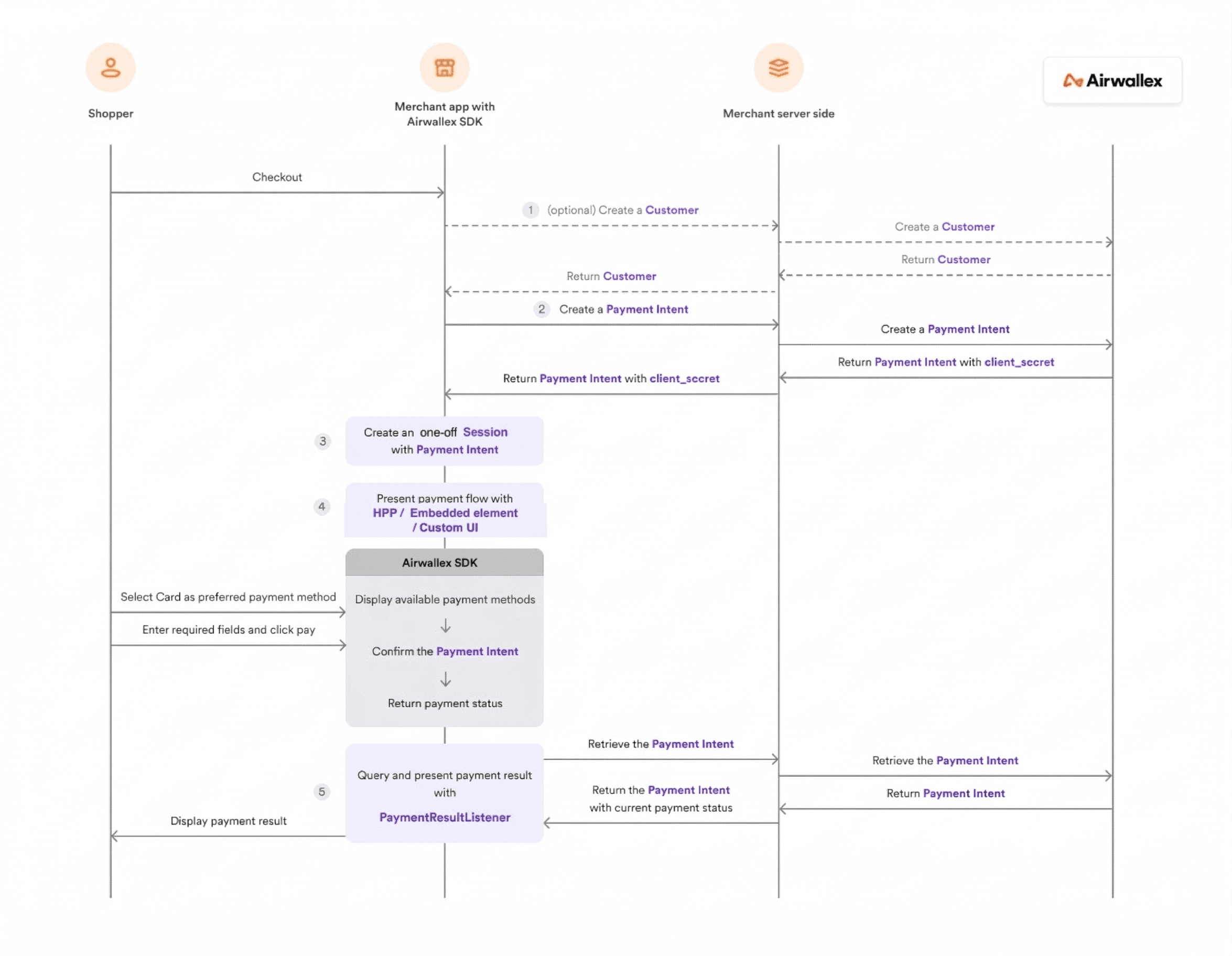
The diagram below depicts the integration flow for a card payment.
Prepare payment session
Before creating the embedded element, you need to create a payment session. See Prepare payment session for details on setting up the environment, creating a customer, payment intent, and payment session.
Add Compose dependencies (for XML/Java projects)
If you're using traditional XML layouts or Java, add these Compose dependencies to use ComposeView:
1dependencies {2 // Required for ComposeView3 implementation 'androidx.compose.ui:ui:1.5.0'4 implementation 'androidx.activity:activity-compose:1.7.2'56 // Airwallex SDK7 implementation 'io.github.airwallex:payment:6.6.1'8 // ... other payment method modules9}
If your project already uses Jetpack Compose, you can skip this step as you already have the necessary dependencies.
Create embedded payment sheet
Display a list of available payment methods inside your own view hierarchy.
The Payment Sheet mode supports multiple payment methods including cards, Google Pay, WeChat Pay, and redirect-based methods.
Kotlin example
1import androidx.activity.ComponentActivity2import androidx.lifecycle.lifecycleScope3import com.airwallex.android.core.Airwallex4import com.airwallex.android.core.AirwallexPaymentSession5import com.airwallex.android.core.AirwallexPaymentStatus6import com.airwallex.android.core.PaymentMethodsLayoutType7import com.airwallex.android.view.composables.PaymentElement8import com.airwallex.android.view.composables.PaymentElementConfiguration9import kotlinx.coroutines.launch1011class CheckoutActivity : ComponentActivity() {12 private val airwallex: Airwallex by lazy { Airwallex(this) }1314 private fun setupPaymentElement() {15 lifecycleScope.launch {16 // Create session with PaymentIntent17 val session = AirwallexPaymentSession.Builder(18 paymentIntent = paymentIntent,19 countryCode = "US"20 ).build()2122 // Configure payment sheet23 val configuration = PaymentElementConfiguration.PaymentSheet(24 layout = PaymentMethodsLayoutType.TAB,25 googlePayButton = GooglePayButton(showsAsPrimaryButton = true)26 // Other optional parameters (checkoutButton, appearance) are explained in Configuration options below27 )2829 // Create PaymentElement30 val result = PaymentElement.create(31 session = session,32 airwallex = airwallex,33 configuration = configuration,34 onLoadingStateChanged = { isLoading ->35 // Show or hide loading indicator36 },37 onPaymentResult = { status ->38 handlePaymentResult(status)39 },40 onError = { throwable ->41 showError(throwable.message)42 }43 )4445 result.onSuccess { paymentElement ->46 // Render in ComposeView47 binding.composeView.setContent {48 paymentElement.Content()49 }50 }.onFailure { throwable ->51 showError(throwable.message)52 }53 }54 }5556 private fun handlePaymentResult(status: AirwallexPaymentStatus) {57 when (status) {58 is AirwallexPaymentStatus.Success -> {59 // Payment successful60 showSuccess(status.paymentIntentId)61 }62 is AirwallexPaymentStatus.Failure -> {63 // Payment failed64 showError(status.exception.message)65 }66 is AirwallexPaymentStatus.Cancel -> {67 // Payment cancelled by user68 showCancelled()69 }70 is AirwallexPaymentStatus.InProgress -> {71 // Payment in progress72 }73 }74 }75}
For additional configuration options like appearance, see Configuration options below.
Java example
Java projects can use PaymentElement with traditional XML layouts by rendering it in a ComposeView:
1import com.airwallex.android.view.composables.PaymentElement;2import com.airwallex.android.view.composables.PaymentElementCallback;3import com.airwallex.android.view.composables.PaymentElementConfiguration;4import com.airwallex.android.view.PaymentFlowListener;5import com.airwallex.android.core.PaymentMethodsLayoutType;6import com.airwallex.android.core.Appearance;7import androidx.compose.ui.platform.ComposeView;89// Configure payment sheet with all optional parameters10PaymentElementConfiguration configuration =11 new PaymentElementConfiguration.PaymentSheet(12 PaymentMethodsLayoutType.TAB,13 new PaymentElementConfiguration.GooglePayButton(14 true, // showsAsPrimaryButton15 null // buttonType (optional)16 ),17 new PaymentElementConfiguration.CheckoutButton("Pay Now"),18 new Appearance(19 0xFF612FFF, // themeColor20 null // isDarkTheme (null = follow system)21 )22 );2324// Create payment flow listener25PaymentFlowListener listener = new PaymentFlowListener() {26 @Override27 public void onPaymentResult(@NonNull AirwallexPaymentStatus status) {28 if (status instanceof AirwallexPaymentStatus.Success) {29 showSuccess(((AirwallexPaymentStatus.Success) status).getPaymentIntentId());30 } else if (status instanceof AirwallexPaymentStatus.Failure) {31 showError(((AirwallexPaymentStatus.Failure) status).getException().getMessage());32 } else if (status instanceof AirwallexPaymentStatus.Cancel) {33 showCancelled();34 }35 }3637 @Override38 public void onLoadingStateChanged(boolean isLoading, @NonNull Context context) {39 // Show or hide loading indicator40 }4142 @Override43 public void onError(@NonNull Throwable exception, @NonNull Context context) {44 showError(exception.getMessage());45 }46};4748// Create and render PaymentElement49PaymentElement.create(50 session,51 airwallex,52 configuration,53 listener,54 new PaymentElementCallback() {55 @Override56 public void onSuccess(@NonNull PaymentElement element) {57 // Render in ComposeView58 element.renderIn(binding.composeView);59 }6061 @Override62 public void onFailure(@NonNull Throwable error) {63 showError(error.getMessage());64 }65 }66);
binding.composeView refers to the ComposeView you added in your XML layout. You can also use findViewById<ComposeView>(R.id.composeView) if not using view binding.
Create embedded card element
Display only the card payment form for adding new cards.
Kotlin example
1// Configure card-only element2val configuration = PaymentElementConfiguration.Card(3 supportedCardBrands = listOf(4 AirwallexSupportedCard.VISA,5 AirwallexSupportedCard.MASTERCARD,6 AirwallexSupportedCard.UNIONPAY7 )8)910// Create PaymentElement11val result = PaymentElement.create(12 session = session,13 airwallex = airwallex,14 configuration = configuration,15 onLoadingStateChanged = { isLoading ->16 // Show or hide loading indicator17 },18 onPaymentResult = { status ->19 handlePaymentResult(status)20 },21 onError = { throwable ->22 showError(throwable.message)23 }24)2526result.onSuccess { paymentElement ->27 binding.composeView.setContent {28 paymentElement.Content()29 }30}
Java example
1import com.airwallex.android.core.AirwallexSupportedCard;2import com.airwallex.android.core.Appearance;3import com.airwallex.android.view.composables.PaymentElementConfiguration;4import java.util.Arrays;56// Configure card-only element with all optional parameters7PaymentElementConfiguration configuration =8 new PaymentElementConfiguration.Card(9 Arrays.asList(10 AirwallexSupportedCard.VISA,11 AirwallexSupportedCard.MASTERCARD,12 AirwallexSupportedCard.UNIONPAY13 ),14 new PaymentElementConfiguration.CheckoutButton("Pay Now"), // Custom checkout button title15 new Appearance(16 0xFF612FFF, // themeColor17 null // isDarkTheme (null = follow system)18 )19 );2021// Create and render (same as payment sheet example above)22PaymentElement.create(session, airwallex, configuration, listener, callback);
Configuration options
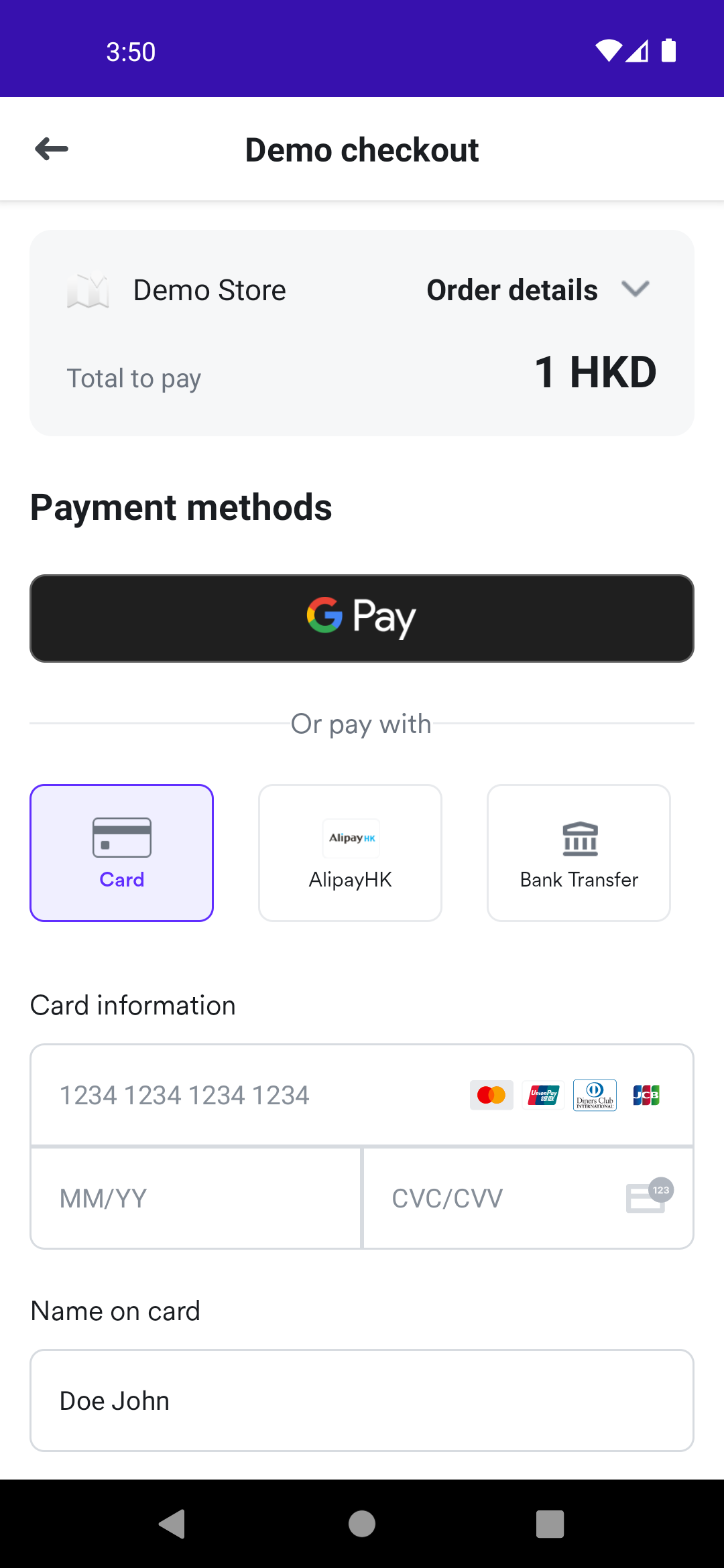
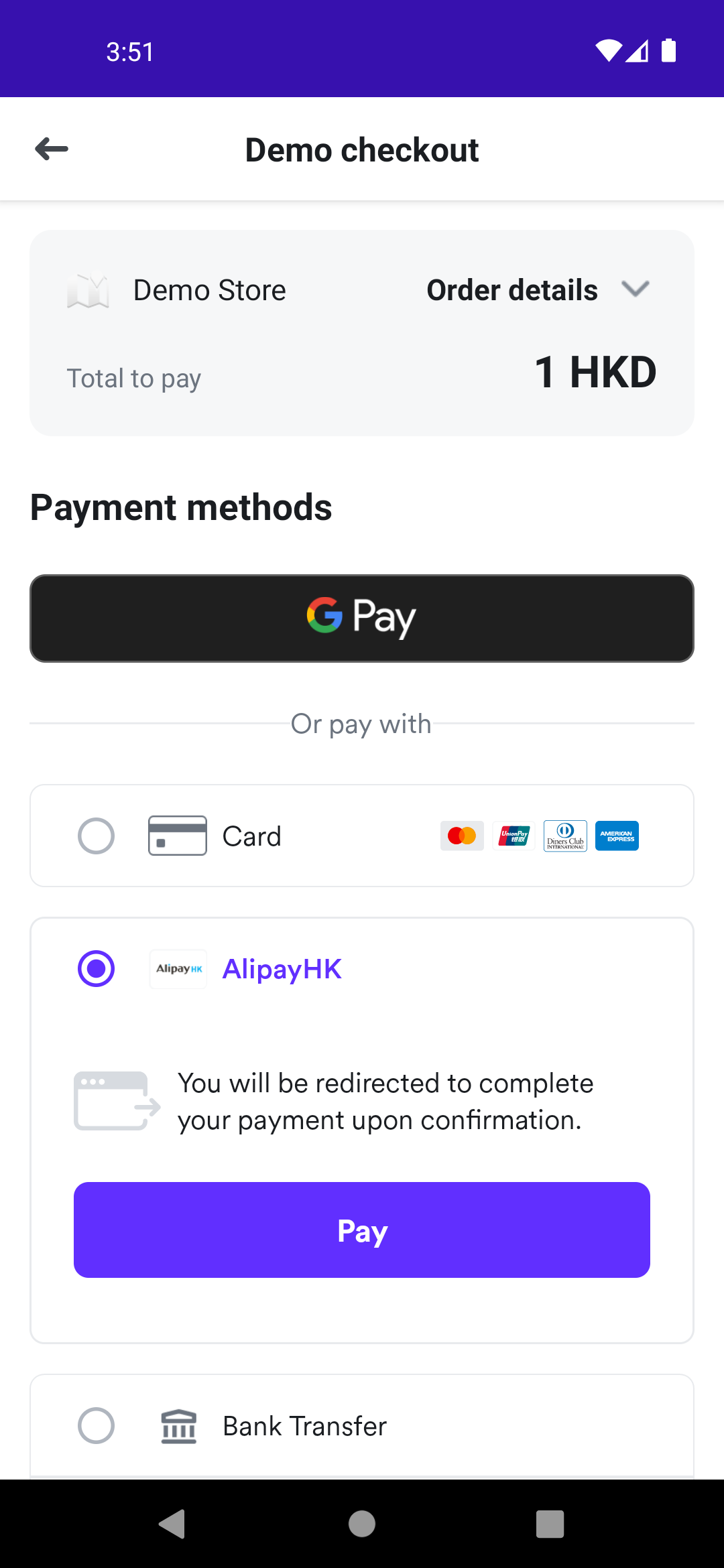
We provide tab and accordion styles for our embedded payment sheet:
| Tab | Accordion |
|---|---|
 |  |
Payment Sheet configuration
Use PaymentElementConfiguration.PaymentSheet to display multiple payment methods:
| Property | Type | Description | Default |
|---|---|---|---|
layout | PaymentMethodsLayoutType | .TAB or .ACCORDION layout style | .TAB |
googlePayButton | GooglePayButton | Configure Google Pay button appearance | GooglePayButton() |
checkoutButton | CheckoutButton | Customize checkout button text | CheckoutButton() |
appearance | Appearance? | Customize theme colors and dark mode | null |
GooglePayButton:
| Property | Type | Description | Default |
|---|---|---|---|
showsAsPrimaryButton | Boolean | Display Google Pay as a prominent button vs. in the payment method list | true |
buttonType | GooglePayButtonType? | Button type (for example, STANDARD, BUY, DONATE) | null |
Card Element configuration
Use PaymentElementConfiguration.Card to display only the card form:
| Property | Type | Description | Default |
|---|---|---|---|
supportedCardBrands | List<AirwallexSupportedCard> | Accepted card brands | All available brands |
checkoutButton | CheckoutButton | Customize checkout button text | CheckoutButton() |
appearance | Appearance? | Customize theme colors and dark mode | null |
Supported card brands include: VISA, MASTERCARD, AMEX, DISCOVER, JCB, DINERSCLUB, UNIONPAY.
Shared configuration objects
CheckoutButton:
| Property | Type | Description | Default |
|---|---|---|---|
title | String? | Custom text for the checkout button (for example, "Pay Now", "Complete Purchase"). If null, defaults to "Pay" or "Confirm" | null |
Appearance:
| Property | Type | Description | Default |
|---|---|---|---|
themeColor | Int? | Primary brand color in ARGB format (for example, 0xFF612FFF) | null |
isDarkTheme | Boolean? | true (force dark), false (force light), null (follow system) | null |
Session configuration
When creating AirwallexPaymentSession, you can filter which payment methods are available:
1import com.airwallex.android.core.AirwallexPaymentSession23val session = AirwallexPaymentSession.Builder(4 paymentIntent = paymentIntent,5 countryCode = "US"6)7 .setPaymentMethods(8 listOf("card") // Show only card payment9 )10 .build()
You can also customize the payment methods and their order:
1val session = AirwallexPaymentSession.Builder(2 paymentIntent = paymentIntent,3 countryCode = "US"4)5 .setPaymentMethods(6 listOf("paypal", "card", "googlepay", "fps", "alipayhk")7 )8 .build()
Available payment method names can be found in the Airwallex API documentation API.
Handle payment callbacks
The PaymentFlowListener interface provides callbacks for payment lifecycle events:
onPaymentResult
Called when a payment completes with one of the following statuses:
AirwallexPaymentStatus.Success- Payment completed successfullyAirwallexPaymentStatus.Failure- Payment failed (includes exception)AirwallexPaymentStatus.Cancel- User cancelled the paymentAirwallexPaymentStatus.InProgress- Payment is being processed
onLoadingStateChanged
Called when the loading state changes. Use this to show or hide your own loading indicator.
onError
Called when an error occurs during element creation or payment processing.
Layout integration
For XML layouts (traditional Android projects)
Add a ComposeView to your XML layout. This allows you to embed the Compose-based payment element in traditional Android views:
1<?xml version="1.0" encoding="utf-8"?>2<LinearLayout xmlns:android="http://schemas.android.com/apk/res/android"3 android:layout_width="match_parent"4 android:layout_height="match_parent"5 android:orientation="vertical"6 android:padding="16dp">78 <TextView9 android:layout_width="wrap_content"10 android:layout_height="wrap_content"11 android:text="Payment Methods"12 android:textSize="20sp"13 android:textStyle="bold" />1415 <androidx.compose.ui.platform.ComposeView16 android:id="@+id/composeView"17 android:layout_width="match_parent"18 android:layout_height="wrap_content"19 android:layout_marginTop="16dp" />2021</LinearLayout>
Then in your Activity or Fragment:
1// In your Activity2val composeView = findViewById<ComposeView>(R.id.composeView)3composeView.setContent {4 paymentElement.Content()5}
For Compose-based projects
If your entire app uses Jetpack Compose, you can directly use the payment element in your composables:
1@Composable2fun CheckoutScreen() {3 Column(4 modifier = Modifier5 .fillMaxSize()6 .padding(16.dp)7 ) {8 Text(9 text = "Payment Methods",10 style = MaterialTheme.typography.h511 )1213 Spacer(modifier = Modifier.height(16.dp))1415 // Use PaymentElement directly16 paymentElement.Content()17 }18}