
Install Airwallex Afterpay Payments App
Increase order value with one-click access to Afterpay, letting customers pay in installments while you get paid upfront.
Installation and Configuration
Ensure you have Afterpay activated
Please ensure that you have Afterpay activated on your Airwallex account that you have linked to your Shopify app before allowing your shoppers to checkout.
Pre-requisites
- You must have a valid and activated Airwallex account. If you do not have one, please follow these instructions.
- Afterpay must be enabled and activated as a payment method in Airwallex (Please ensure you do this before proceeding).
Installation Steps
-
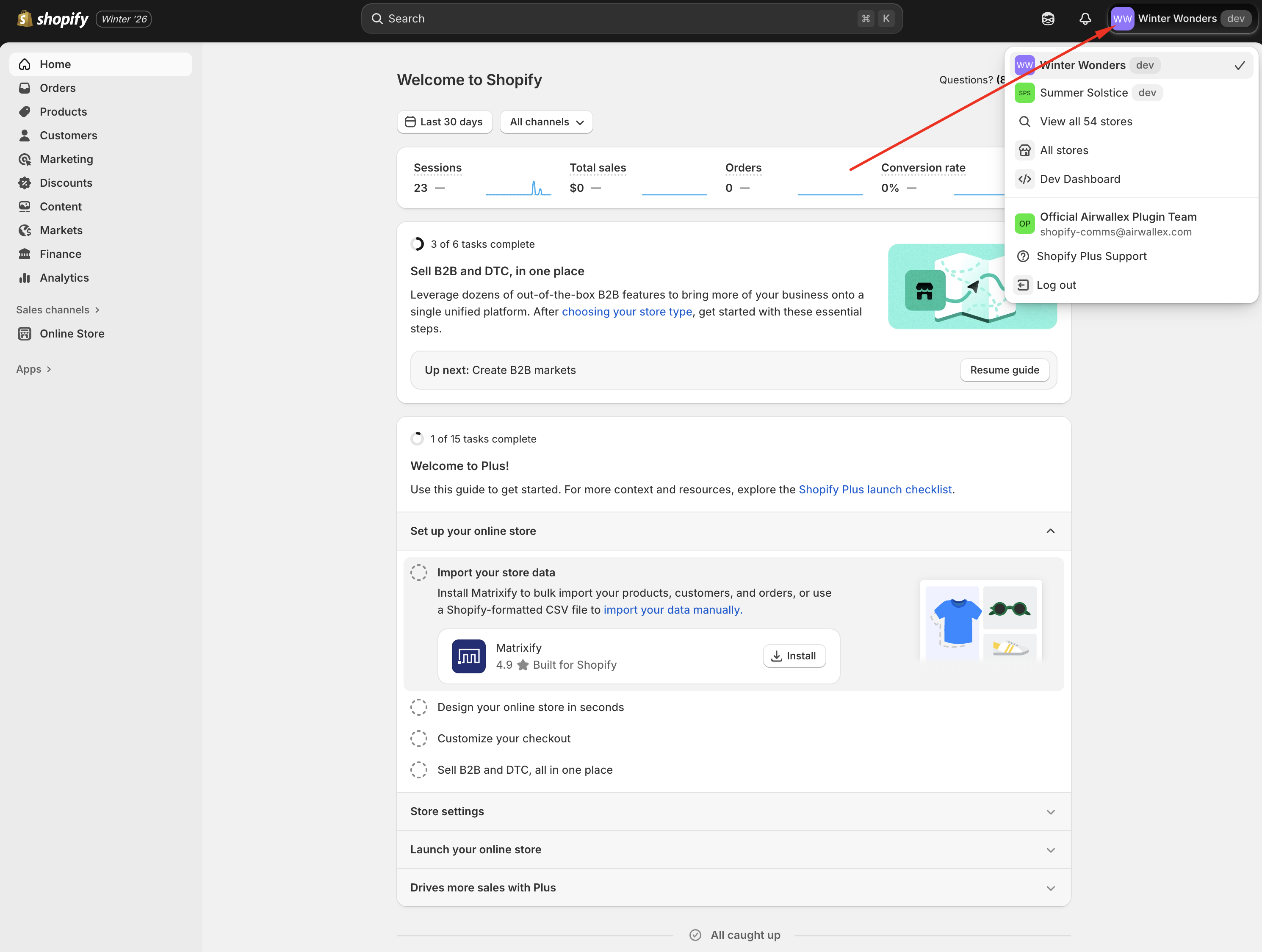
Login to your Shopify Admin and select the store you want to integrate with Airwallex.
-
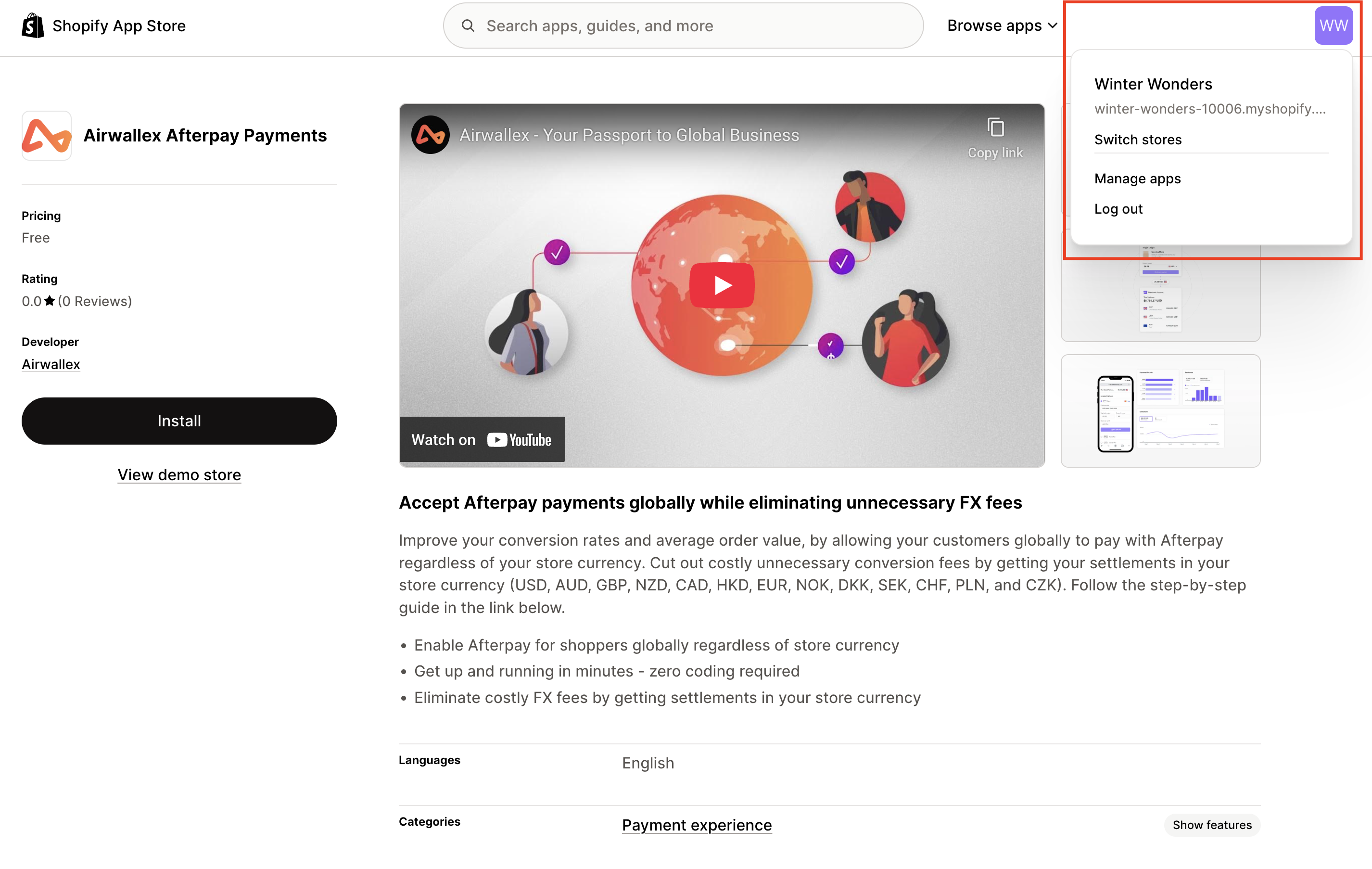
Click on the following link to go to the Shopify App Store listing for Airwallex Afterpay Payments. Ensure the store name and URL match the one selected in the previous step.
-
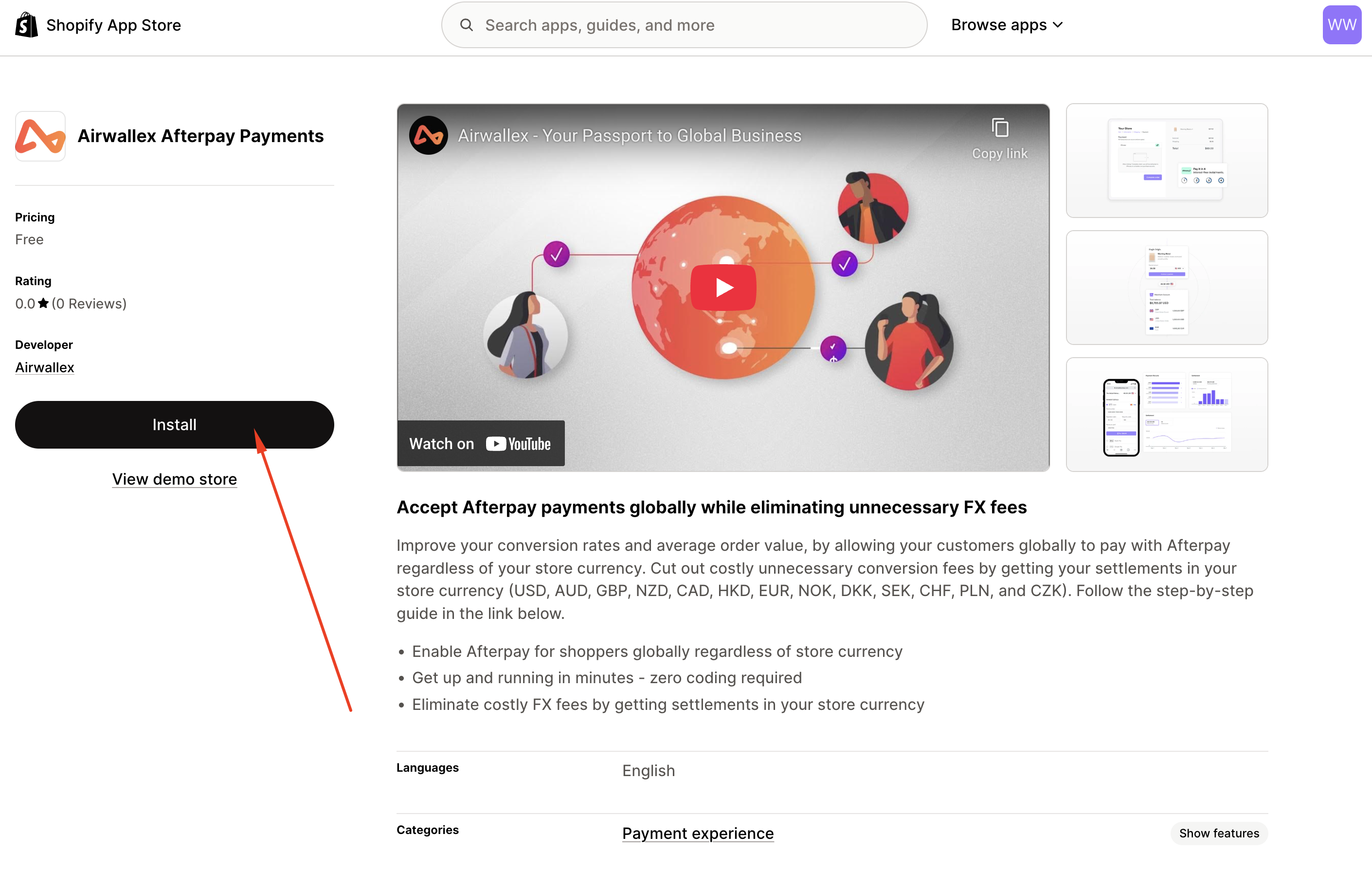
Click Install.
-
You will be redirected to Shopify Admin. Click Install to complete the installation.
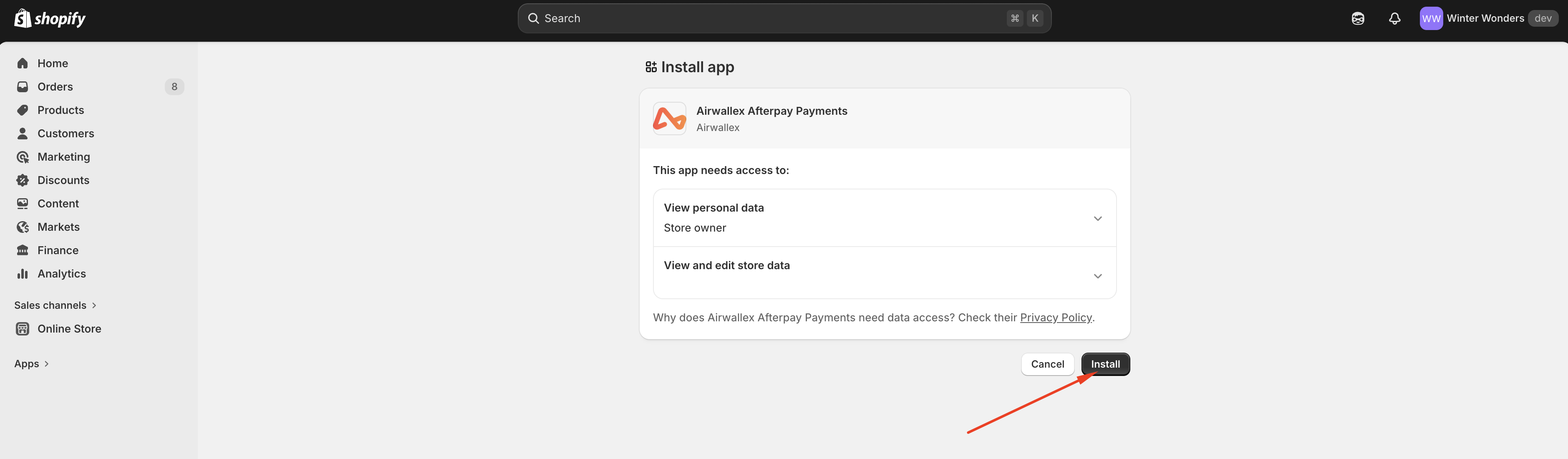
-
Before you can start accepting payments using Airwallex, you will need to connect your Airwallex account to Shopify. Click Manage Account.
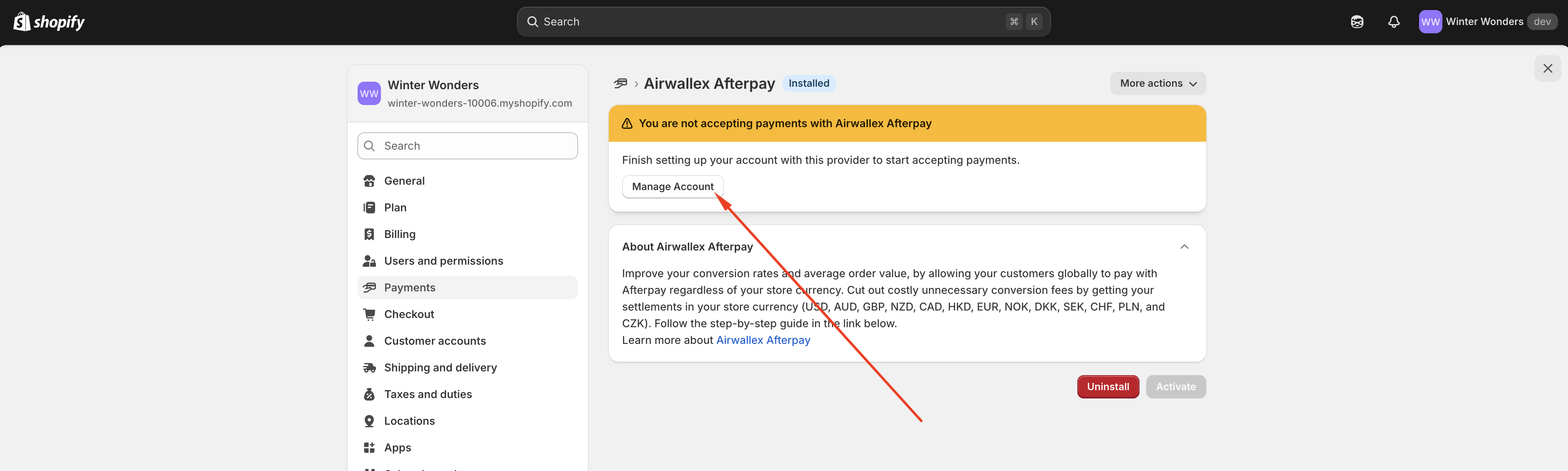
-
You will be redirected to an Airwallex login page. Login to your Airwallex account.
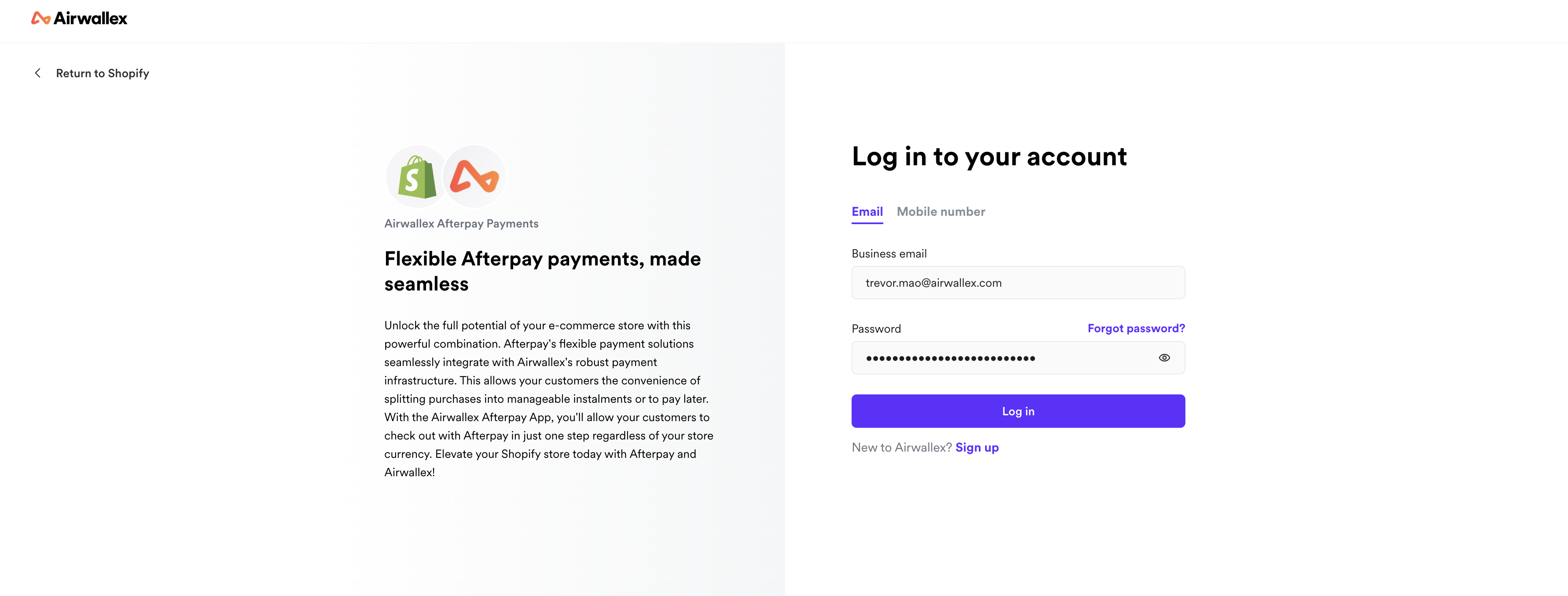
-
Select an account that you want to connect to your Shopify store, and click Connect. You will be redirected back to your Shopify settings after connecting.
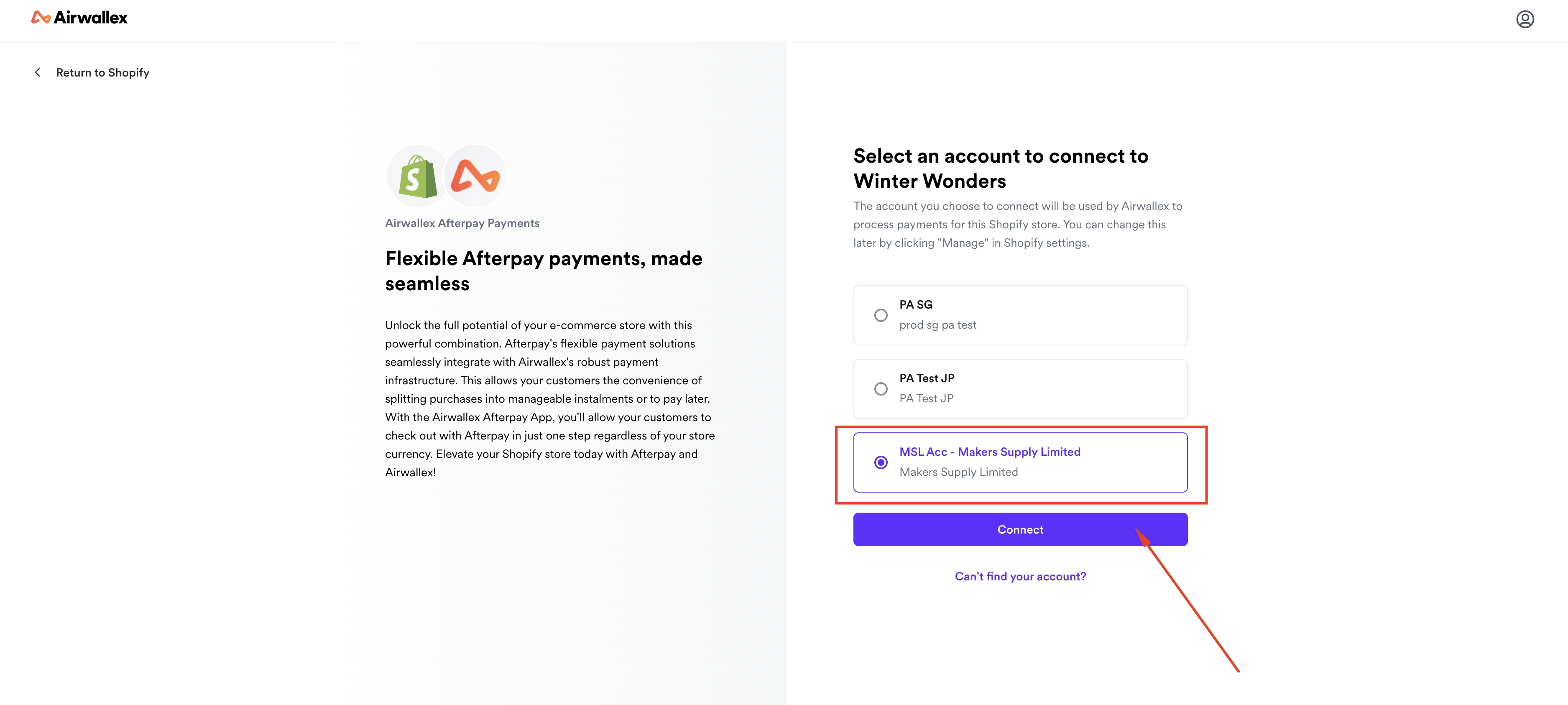
-
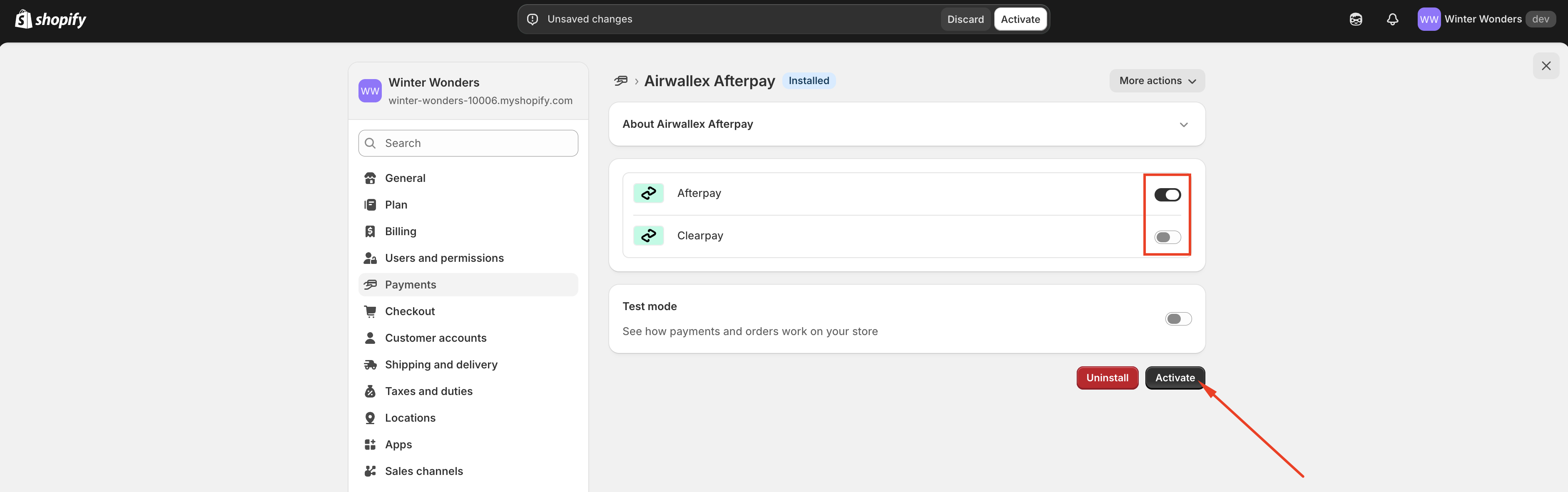
Ensure that either Afterpay or Clearpay is switched on so that the logo will be shown on your check-out page. To prevent duplicate logos, please ensure that only one of Afterpay or Clearpay is switched on. Click Activate and you are all set.
-
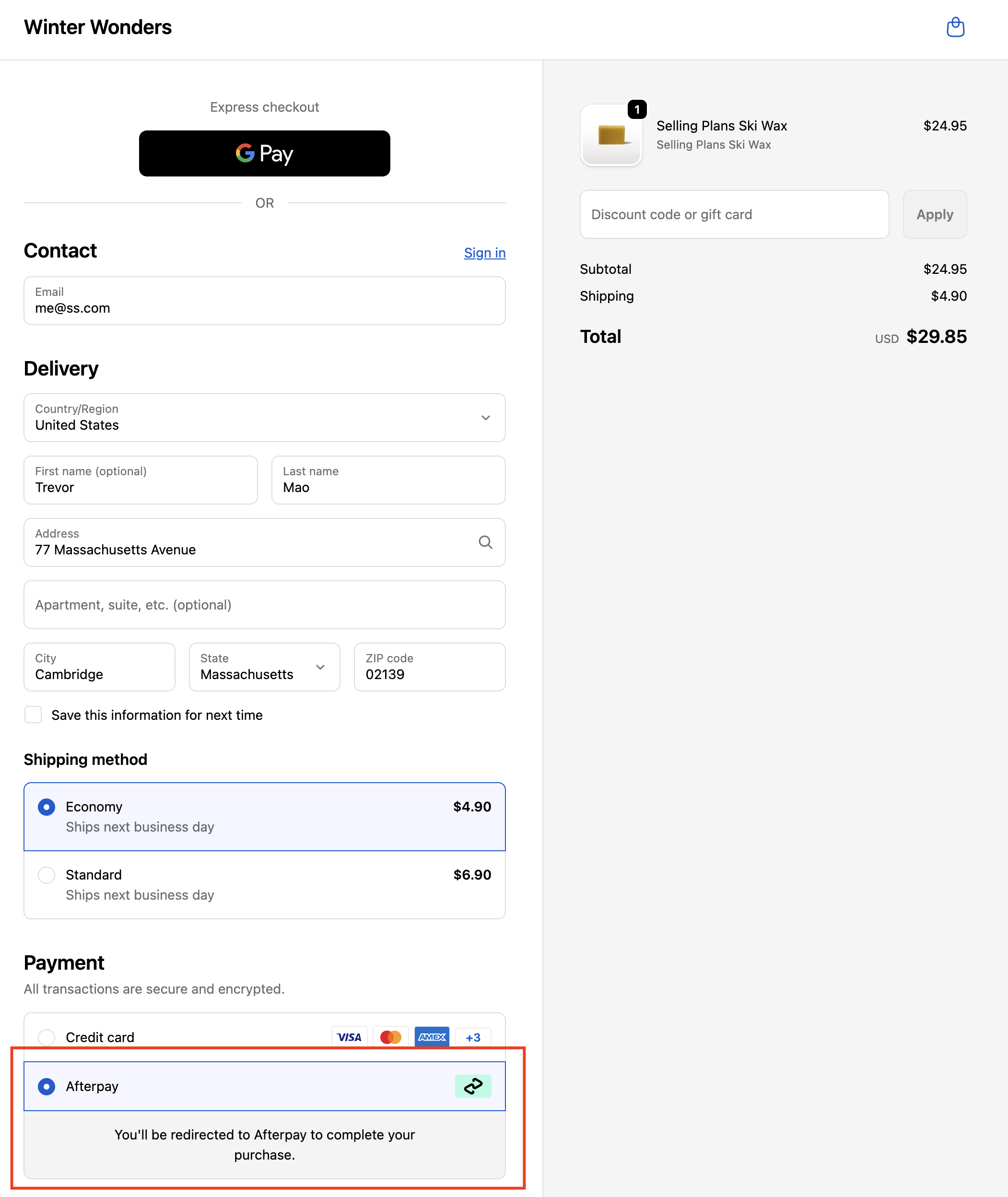
You should now be able to see Afterpay/Clearpay as a payment method on your store.
-
Risk Management To help improve your success rates and reduce fraud you can install our Airwallex Fraud Protection App .
-
Enable Automatic Currency Switching (ACC) (Optional) to allow your shoppers to pay in their preferred currency and payment methods. You can do so via Payments > Settings > Automatic Currency Conversion in your Airwallex WebApp.

Testing
-
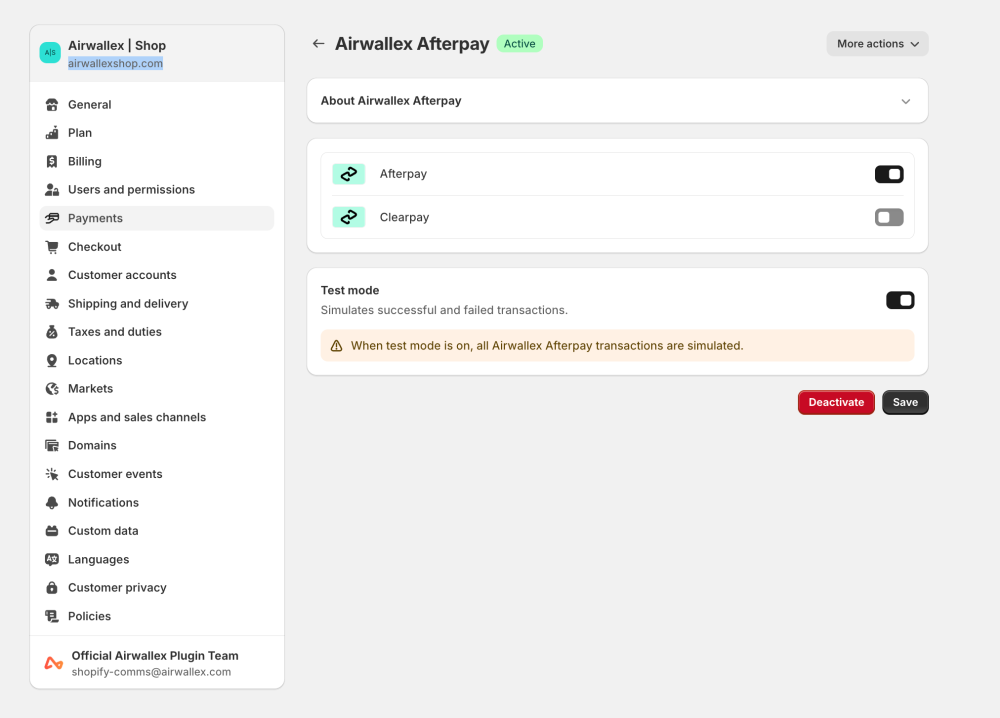
Enable test mode in Settings > Payments > Airwallex Afterpay > Manage if you want to mock successful and failed transactions before going live.
-
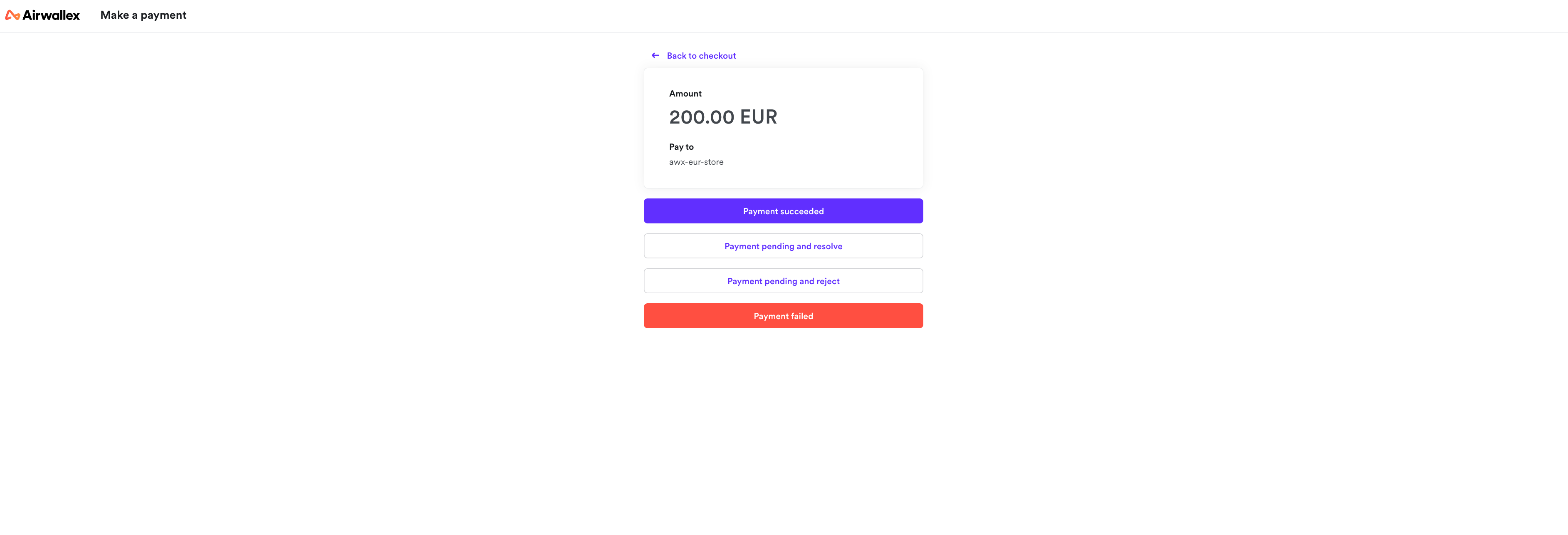
You can then go to your store and attempt to check out with Afterpay. You will be able to see the following page after selecting Afterpay as a payment method.
-
Mock the different statuses by clicking on the status that you wish to test. For the payment pending states, they will be pending before transitioning to "Success" or "Failure" after 10 minutes.
Shopper Experience
Overview
With Afterpay, the shopper can choose to:
- Pay in 4.
- Pay in Monthly Instalments.
For more details you can check out our Afterpay Docs.
Experience Walk-through
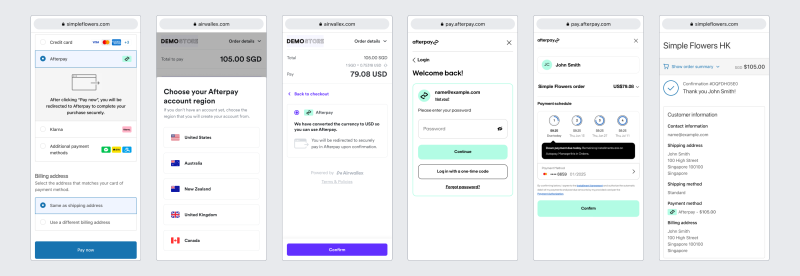
When a customer visits your online store, they will be able to see a row under Payment in the checkout page named Afterpay.
Possible Scenarios
There are three possible scenarios that a shopper can experience when using Afterpay on your store.
Scenario 1
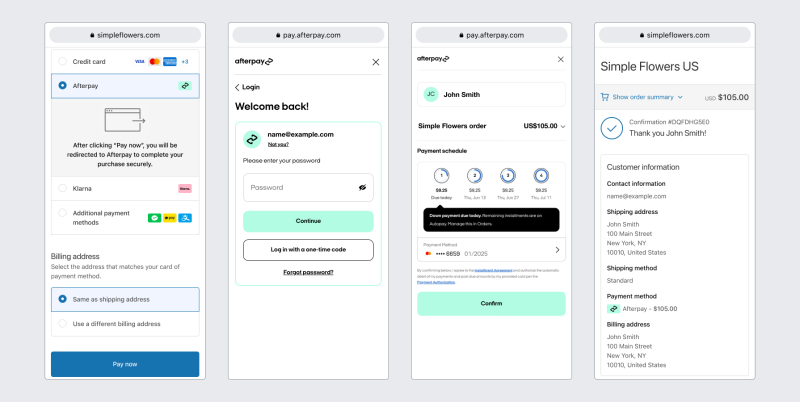
Scenario: Shopper is shopping in a store with eligible store currency. Shopper Experience:
Shoppers will be brought to Afterpay directly where they can select their preferred way to pay before order confirmation. A sample flow is shown below.
Scenario 2
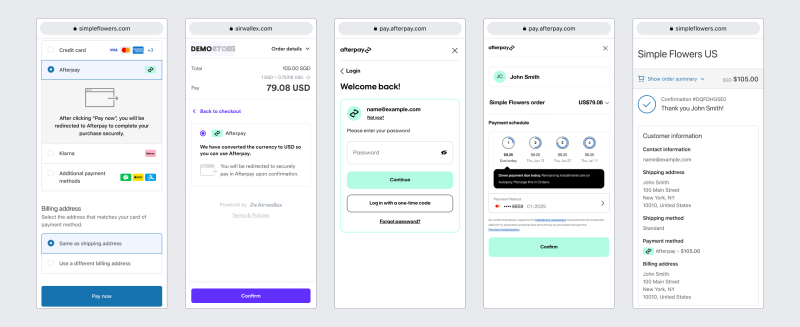
Scenario: Shopper is shopping in a store with ineligible store currency. For the eligible countries and currencies please refer to our Afterpay Docs.
Shopper Experience:
Shoppers will be brought to a page where they will be shown the currency they will pay in and the rate that was used for conversion. This is to provide transparency to the shopper.
Scenario 3
Scenario: Shopper is shopping in a store with ineligible store currency and ineligible billing country. For the eligible countries and currencies please refer to our Afterpay Docs.
Shopper Experience:
Shoppers will be brought to a page where they will be shown the options to select their Afterpay country account. This is to ensure we will switch to the correct currency for the transaction to reduce merchant cross-border fees.