

Manage card issuingBeta
As a platform using the Airwallex issuing solution, you can leverage the Console to handle customer requests and manage your card issuing program at scale.
Before you start, familiarize yourself with the Airwallex card offering.
View all cards
Once new cards are created via your platform interface or API, they will appear immediately under the "Issuing" tab for tracking.
The Cards list provides a centralised view of every card issued via your platform, across all connected accounts. From there, you can:
- Quickly find a card by searching using the last 4 digits of the card number or the cardholder name.
- Narrow your view by filtering by card status or type, and further refine your results by selecting a card creation date range.
To view the details for a specific card, click their row within the Cards list.
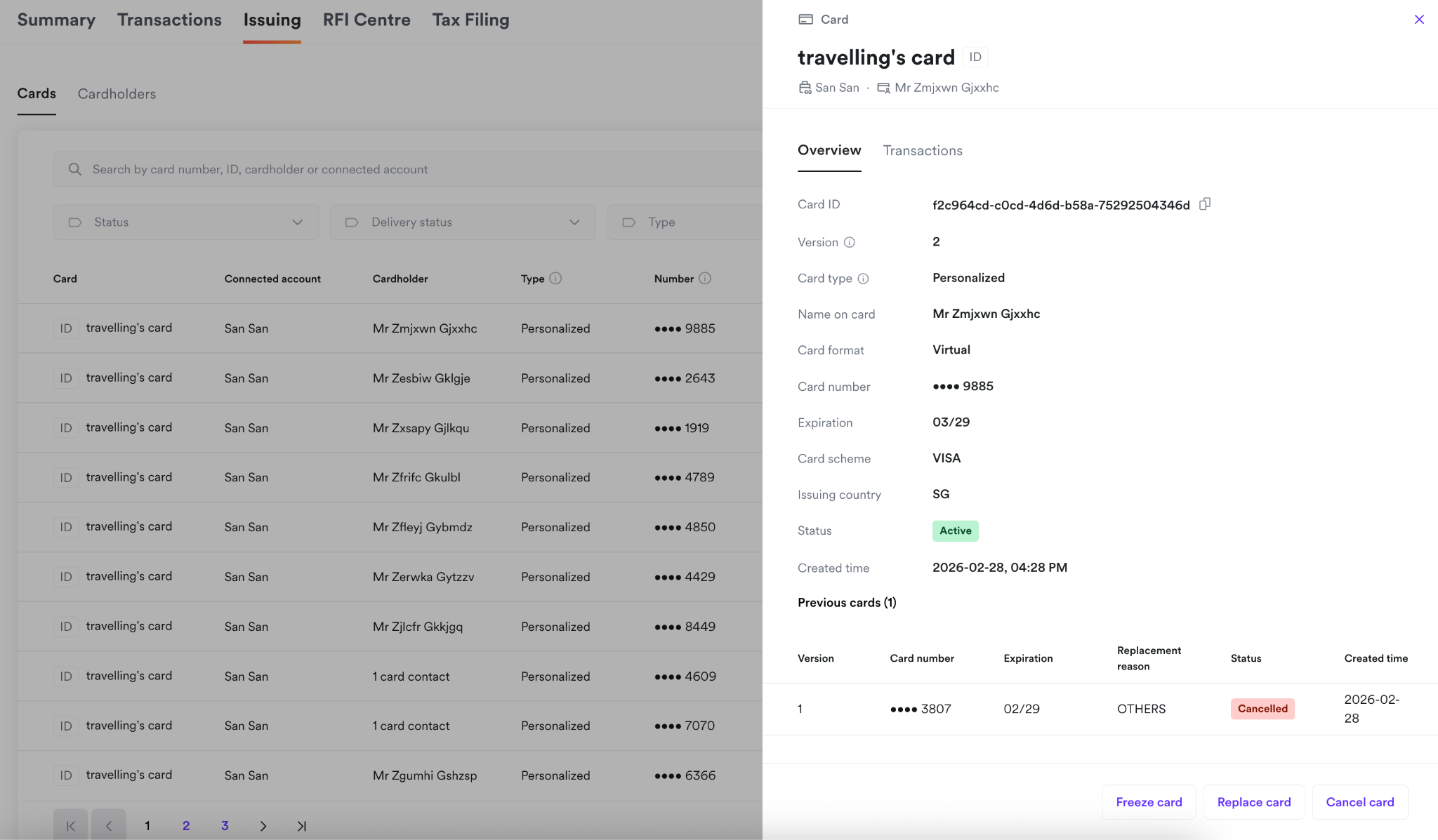
Card status badges
| Status in Console UI | Mapped status in Issuing APIAPI | Meaning |
|---|---|---|
| Pending | Pending | The request to create the card has been received and is under review. |
| Active | Active | The request to create the card was successful and the card is ready to use. |
| Frozen | Inactive | The request to freeze the card has been successful. |
| Blocked | Blocked | The card was blocked by Airwallex due to suspicious activity. |
| Lost | Lost | The card has been reported as lost to Airwallex. |
| Stolen | Stolen | You've reported a stolen card to Airwallex. |
| Cancelled | Closed | You've cancelled a pending, active, or inactive card using API or Airwallex has canceled a lost, stolen, or blocked card. |
Freeze, replace, or cancel cards
Freeze a card
Freezing a customer's card prevents any further transactions from being made on the card, virtually, physically or on customer's devices (Google / Apple Pay). It is reversible, and you can unfreeze a card anytime.
Replace a card
In the event a customer's virtual or physical Airwallex card was lost, stolen, used fraudulently, or never received, Airwallex has made it easy to quickly request a replacement card.
- For virtual cards, your customer's card will immediately be replaced with a new card number, expiry date, and security code (CVV).
- For physical cards, Airwallex will deliver your customer's new physical card to the address provided. In the meantime, we will provide your customer with a virtual card to use for online purchases.
Cancel a card
Cancelling a card permanently closes the card. No card transactions can be made on the card once it is cancelled. However, any transaction that has yet to be cleared will continue to be processed even if the card is canceled. Note that this action cannot be reversed.
Renew a card
To ensure uninterrupted transactions, Airwallex automatically renews cards that are about to expire. You can also choose to manually renew a card in the Console if needed.
View all cardholders
Once new cardholders are created via your platform interface or API, they will immediately appear under the "Issuing" tab for tracking.
The Cardholders list provides a centralised view of every cardholder created via your platform, across all connected accounts. From there, you can:
- Quickly find a cardholder by searching their name or email address.
- Narrow your view by filtering for specific cardholder statuses or types.
To view the details for a specific cardholder, click their row within the Cardholders list.
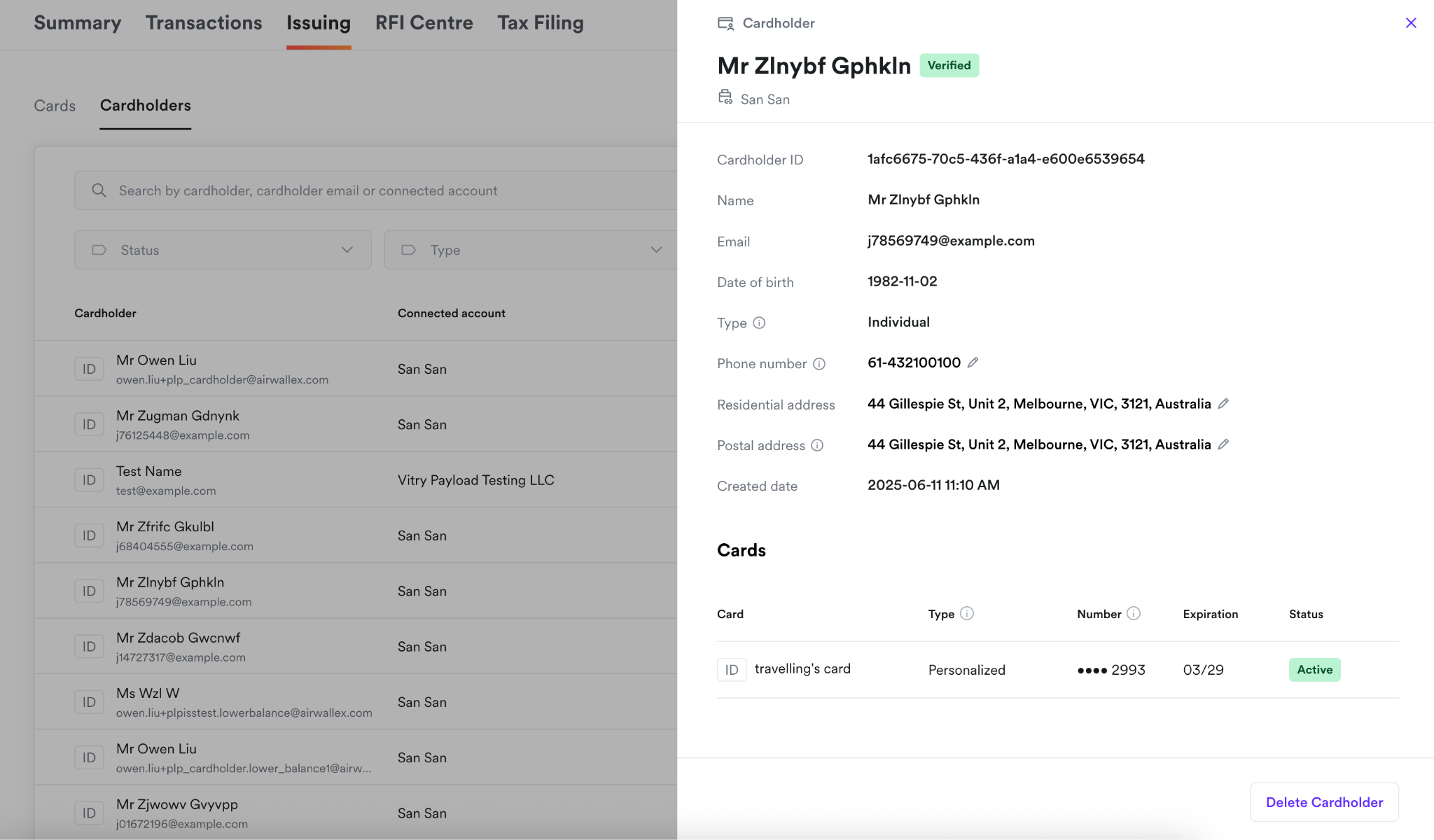
Cardholder status badges
| Status in Console UI | Mapped status in Issuing APIAPI | Meaning |
|---|---|---|
| Info required | Incomplete | Your request to create the cardholder has been received but the information is incomplete. |
| In review | Pending | Your request to create the cardholder has been received successfully and is under review. |
| Verified | Ready | The cardholder has passed the review process and is ready to be issued cards. |
| Suspended | Disabled | The cardholder has been disabled by Airwallex. |
| Removed | - | The cardholder profile has been archived for reference and is no longer available for card issuance or updates. |
Update or remove cardholders
You can update cardholder addresses and phone numbers directly in the Console to keep records accurate. To update any other cardholder details, use the Update a cardholderAPI.
When an employee leaves the company or a cardholder is no longer part of the program, you can remove them to ensure they no longer have access to any associated cards. Note that this action is permanent and cannot be reversed.